User Investigation Dashboard
The User Investigation dashboard only appears when a search is conducted. This can be done by clicking a user-account hyperlink in the Perpetrator or Affected Object columns of a table card. Alternatively, enter the complete user name in the Search box on the right side of the navigation bar.
The User Investigation dashboard contains the following cards:
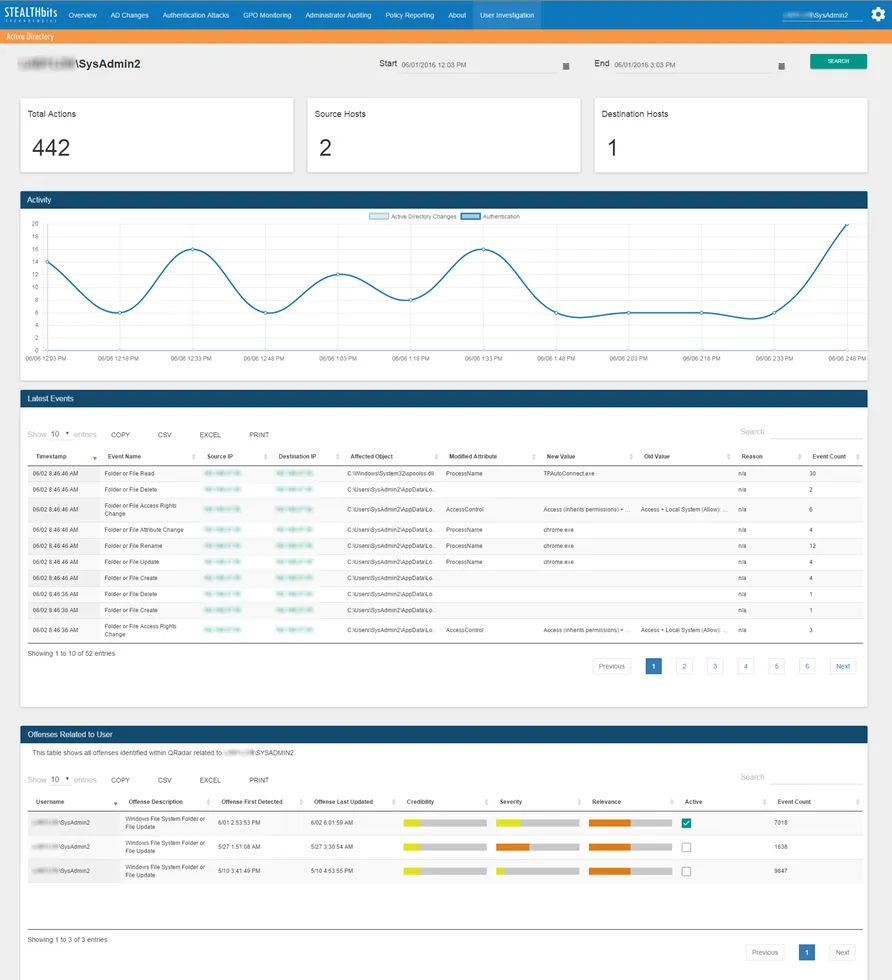
- Total Actions – Number of all events associated with the user over the specified time interval
- Source Hosts – Number of source IP addresses associated with the user over the specified time interval
- Destination Hosts – Number of destination IP addresses associated with the user over the specified time interval
- Activity – Timeline of all events associated with the user over the specified time interval. See the Graph Card Features topic for additional information.
- Latest Events – Tabular format of all events associated with the user over the specified time interval. See the Table Card Features topic for additional information.
- Offenses Related to User – QRadar offenses associated with the user during the specified time interval. See the Table Card Features topic for additional information.
The time interval is identified in the upper-right corner with the Start and End boxes. This is set by default to the past three (3) hours. To search within a different interval, either manually enter the date and time you want or use the calendar buttons to set the interval. Then click Search to refresh the card data.
When a search using a time interval longer than twelve (12) hours is instigated, the database query is broken into multiple mini-queries. This will result in a visible reset of the dashboard display at the end of each mini-query until all data for the selected time interval has been retrieved.
Additionally, use this feature to scope the report data to just Threat Prevention collected events or to all information in QRadar for the selected user, which opens in another tab. Click Search and select Threat Prevention from the dropdown menu to refresh the card data or select QRadar from the dropdown menu to open the user’s List of Events.