Actions Tab
The Actions tab is for configuring various responses, or event consumers, to the event data a policy captures.
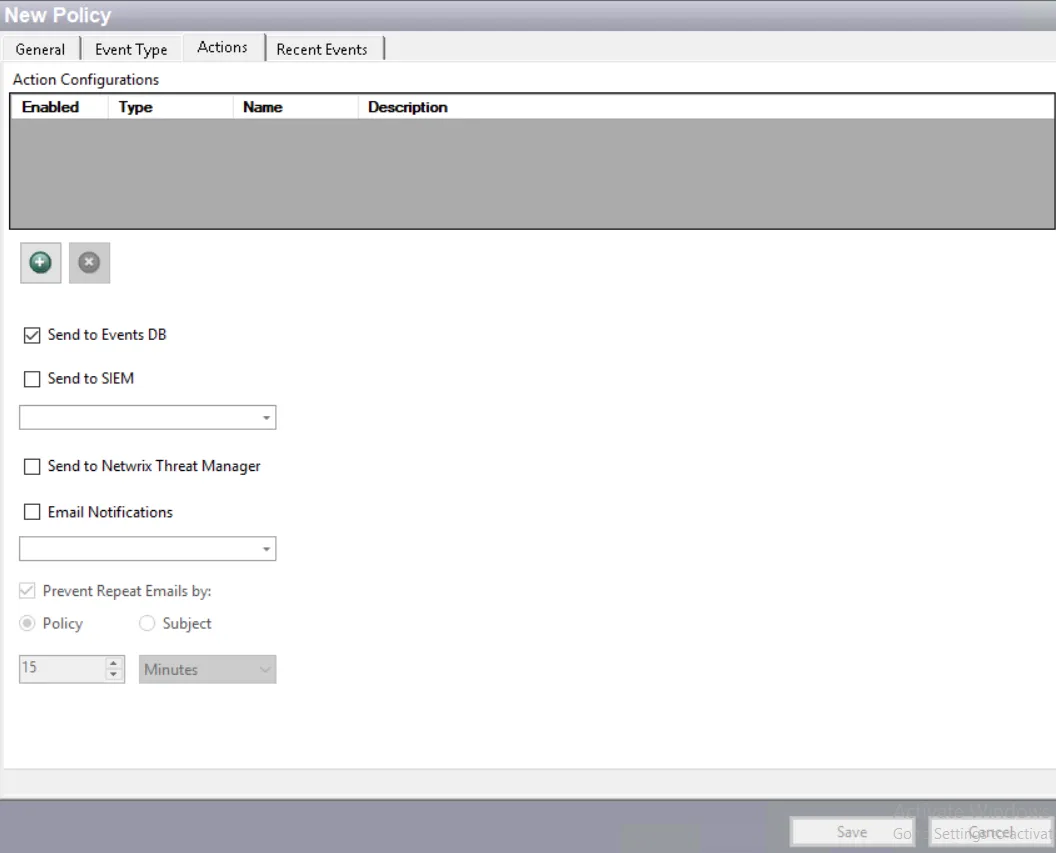
The following types of actions are available:
-
Send to Events DB – Logs events to the event database for reporting, using the built-in database event consumer
-
Send to SIEM – Sends formatted messages to a SIEM server as configured in a profile
-
Send to Netwrix Threat Manager – Sends data for this policy to Netwrix Threat Manager, formerly StealthDEFEND
-
Email Notifications – Sends formatted email notifications to the selected message profile
-
Add Custom Scripts
- File Actions – Records the events to a log (text) file in XML or Comma Delimited (CSV) format
- .NET Script Actions – Runs a user‐supplied script that implements an automated action in response to the event. Scripts can be written in Visual Basic or C#
- PowerShell 4.0 Actions – Runs a user-supplied PowerShell script that implements an automated action in response to the event
You can configure multiple event consumers for a single policy, even multiple event consumers of the same type. However, you can add only one database event consumer per policy.
Threat Prevention configures actions to run on a separate thread from the policy's event processing thread. Incoming events have a dedicated thread/queue for processing. Email notification has a dedicated thread/queue for processing. Custom Script actions have a dedicated thread/queue for processing. This allows the action to process without blocking new events from going into the database while the action completes.
You can enable or disable an action in any of the following ways:
- Check or uncheck the Enabled checkbox for an action in the Action Configurations list
- When you select an action in the Action Configurations list, its details display on the Actions tab. You can check or uncheck the Enabled checkbox for the action here.
Save all changes made to a policy or a template before leaving the configuration interface.
Send to Events DB
This is the primary action and is enabled by default in new policies. It saves the event data a policy monitors and captures to the NVMonitorData database. Typically, only Netwrix Support unchecks this option during a troubleshooting session or when the only output wanted is a file for an alert. Reporting uses the events database.
Send to SIEM
Add this action by selecting the SIEM profile you want as the recipient of the SIEM notifications from the dropdown menu. Only previously created SIEM profiles are available for selection. You can also assign this action on the SIEM Tab of the System Alerting Window.
The SIEM Output Viewer window also displays all notifications sent to SIEM.
To enable this feature, a Threat Prevention administrator must first establish a connection with the SIEM server and configure the mapping file through the System Alerting Window.
Send to Netwrix Threat Manager
You can check this action to send event data for the policy to Netwrix Threat Manager. This is specific to integration with a full version deployment of Netwrix Threat Manager. The Netwrix Threat Manager Reporting Module uses the NVMonitorData database (Send to Events DB option) for reporting purposes.
To enable this feature, a Threat Prevention administrator must create and configure the Web Request Action Module (Netwrix Threat Manager URI) through the Event Sink Tab on the Netwrix Threat Manager Configuration window.
Email Notifications
Don't use email notifications on highly active policies. Reserve this feature for policies where you need immediate notification of an event.
To enable email notifications, select the message profile you want as the recipient of the email notifications from the dropdown menu. Only previously created message profiles are available for selection. You can also assign this action on the System Alerting Window.
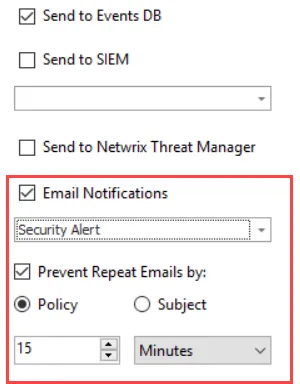
Enable the Email Notifications checkbox, select a message profile and then choose to enable the Prevent Repeat Emails by option. If enabled:
-
Select the radio button for either Policy or Subject:
- Policy – Threat Prevention will send an email notification for the first event only, and skip notifications for any other events captured by the same policy during the duration you specify in the boxes below.
- Subject – Threat Prevention will send an email notification (say, Notification1) for the first event only, and skip notifications for any other events whose email notification will have the same subject line as Notification1. It will skip sending notifications for the duration you specify in the boxes below. The subject line is configured within the message profile.
-
Set the duration (in minutes or hours) for which Threat Prevention skips email notifications after it sends an email for a policy/subject line.
Example:
In the following example, let’s assume you have the following settings for Prevent Repeat Emails by:
- Option selected: Policy
- Duration set: 5 minutes
In a situation where Threat Prevention captures 15 events in 5 minutes against a policy, it sends an email notification in real time for the first event only. It logs the remaining events in the application but doesn't generate email notifications for them.
Two hours later, when Threat Prevention captures another event against that same policy, it sends an email notification for it. If it captures more events within the next five minutes, it doesn't generate email notifications for them.
To enable email notifications, a Threat Prevention administrator must first configure the SMTP gateway and create message profiles, through the System Alerting Window.
Custom Scripts
The Actions Configurations area at the top of the tab lists assigned File, .NET Script, or PowerShell 4.0 actions with their name, type, description, and whether they are enabled or disabled.
- Click Add (+) to open the Add Action window. Choose the type of action and configure the script.
- Use the Remove (x) button to delete a custom script action from a policy.
See the following topics for additional information:
-
- Optionally, Netwrix can provide custom scripts through a Statement of Work.
-
- Optionally, Netwrix can provide custom scripts through a Statement of Work.
Netwrix Engineers create custom scripts that execute the notification emails. See the Custom Scripts topic for additional information.