System Alerting Window
The System Alerting window is only available to administrators, enabling them to configure and manage all alerting avenues. Click Configuration > Alerts on the menu to open it.
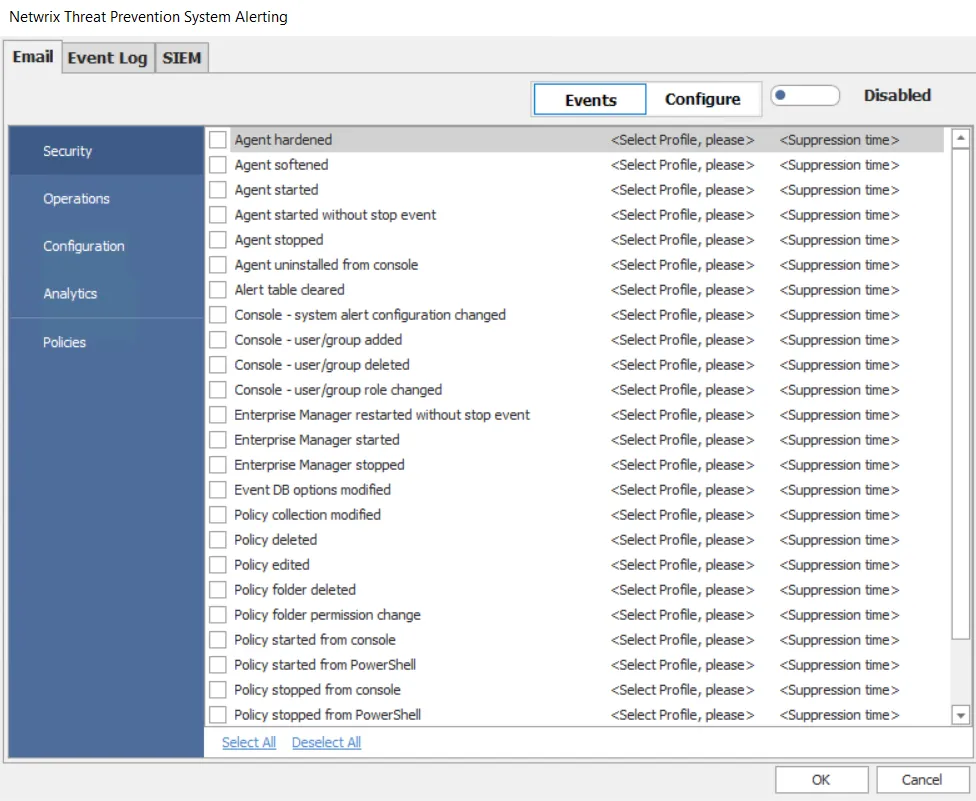
You can send alerts to recipients via email, to Windows Event Log, and to SIEM products. Alerts are grouped into five types:
-
Security – Provides alerts on things that impact:
- What data is collected
- The ability to collect the data
- Changes to who can access it
-
Operations – Provides alerts on internal product operations a user doesn't directly influence
-
Configuration – Provides alerts on changes to general configuration settings
-
Analytics – Provides alerts when an analytic incident is triggered. These alerts aren't available for Event Log alerts.
-
Policies – Provides alerts when a policy monitors or blocks an event. These alerts aren't available for Event Log alerts.
Email and SIEM Alert Notifications for Policy Events
You can enable email and SIEM alert notifications for policy events through:
- The System Alerting window
- The Actions Tab of a policy
- The Actions Tab of a policy template
In any case, you must first set configuration through the System Alerting window. Use the Alerts Interface to quickly view recent alerts in a centralized location.
Email and SIEM Alert Notifications for Analytic Incidents
You can configure email and SIEM alert notifications for Analytic incidents through the System Alerting window to send Ongoing Attack Alerts. In this case, Threat Prevention sends periodic reminders of an ongoing attack if it continues after Threat Prevention sends the initial notification.
View the Alert Notifications
Threat Prevention generates notifications for the alerts you enable on the System Alerting window.
- The Alerts Interface displays all Security, Configuration, and Operation alert notifications.
- The Analytics Interface displays all Analytics incidents.
- The Investigate Interface displays all Policies events.
General Considerations
Consider the following:
-
Occasionally a Microsoft Security Bulletin impacting the Local Security Authority Subsystem Service (LSASS) can interfere with the Agent instrumentation resulting in LSASS shutting down. Threat Prevention configures the Agent to monitor for an LSASS process termination shortly after a server reboot. In this event, Threat Prevention triggers the LSASS Process Terminated alert (Operations alert) and stops the Agent. As a result, all monitoring/blocking by that Agent stops. To resolve the issue, either upgrade to the latest version of the Agent or upgrade SI.ActiveDirectoryMonitor.dll — commonly known as ADMonitor DLL (recommended). See the Upgrade ADMonitor topic for additional information.
infoActivate an email notification for the LSASS process terminated alert. See the Enable the 'LSASS Process Terminated' Email Alert topic for additional information.
-
In addition to the LSASS process termination check, you can configure the Agent for Safe Mode. In Safe Mode, the Agent records the version of the LSASS dynamic-link libraries (DLLs) that it hooks into during installation. When an Agent restarts, it compares the DLL versions with the recorded list. If the versions don't match, the Agent doesn't load the Windows AD Events monitoring module. The Agent's status in the Agents interface changes to Active (Modules Pending), and all Active Directory monitoring/blocking by that Agent stops. Threat Prevention triggers the 'Agent Started in AD Monitor pending mode' alert (Operations alert) in this event. To resolve the issue temporarily, the Threat Prevention administrator should start the pending modules. See the Start Pending Modules topic for additional information. To permanently resolve the issue, also upgrade SI.ActiveDirectoryMonitor.dll (commonly known as ADMonitor DLL). See the Upgrade ADMonitor topic for additional information.
infoActivate an email notification for this alert. See the Enable Agent Started in AD Monitor Pending Mode Email Alert topic and the Agent Safe Mode topic for additional information.