Event Log Tab
Alert notification via Event Log sends event notifications to the Windows Event Log. Follow the steps to enable Event Log alerting.
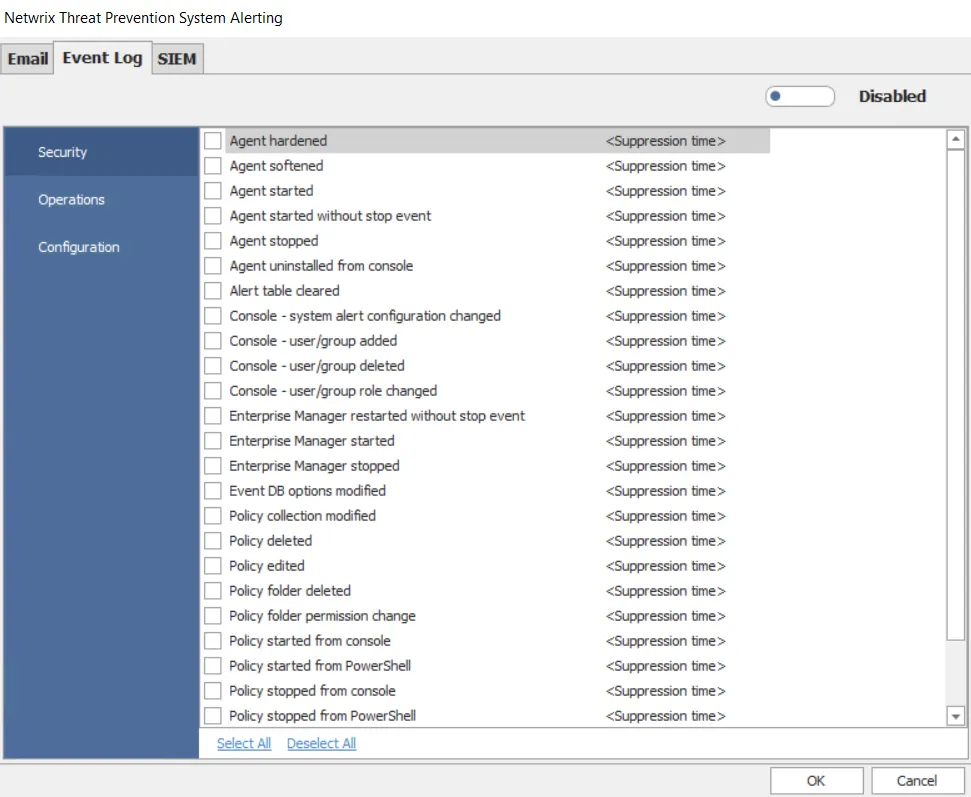
Step 1 – Click Configuration > Alerts on the menu. The Netwrix Threat Prevention System Alerting window opens.
Step 2 – Click the Event Log tab.
Step 3 – Click the button next to Disabled to toggle the setting to Enabled.
Step 4 – Select an event category (Security, Operations, Configuration) in the left pane.
Step 5 – Check the checkboxes for the events for which you want to trigger Windows Event Log notifications.
Step 6 – For the Security, Operations, and Configuration event categories, the Suppression time option is also available for each event. Use it to prevent Threat Prevention from generating alerts for an event for a specified time period. This limits the volume of repeat alerts for the respective event.
Click Suppression time for an event and select an option from the dropdown menu:
- A duration ( 1 min, 2 min, 5 min, 10 min, 30 min, 60 min) – Once Threat Prevention generates an alert for the event, it doesn't generate another alert for it during the next X minutes (X is the duration you selected) even if the event occurs.
- Disabled – Threat Prevention doesn't suppress alerts
Example
You select a suppression time of 30 minutes for an event. Next, Threat Prevention generates an alert for that event. If the event occurs again within the next 30 minutes, Threat Prevention does not generate another alert.
Use the suppression time feature to prevent situations where an event, such as Agent Latency, generates numerous alerts that cause the Enterprise Manager and Administration Console to freeze.
Step 7 – Click OK to save the settings.
The Windows Event Log now receives alert notifications for the checked events.