Authorization Groups Feature
Overview
The Authorization Group(s) feature is available in the UI and was introduced in version 2.20.5.
It is associated with migration 47:
- Name:
service_account_group_strategy - Description: Service Account Authorization Strategy
This feature requires a database toggle to be enabled after the migration is applied during an upgrade.
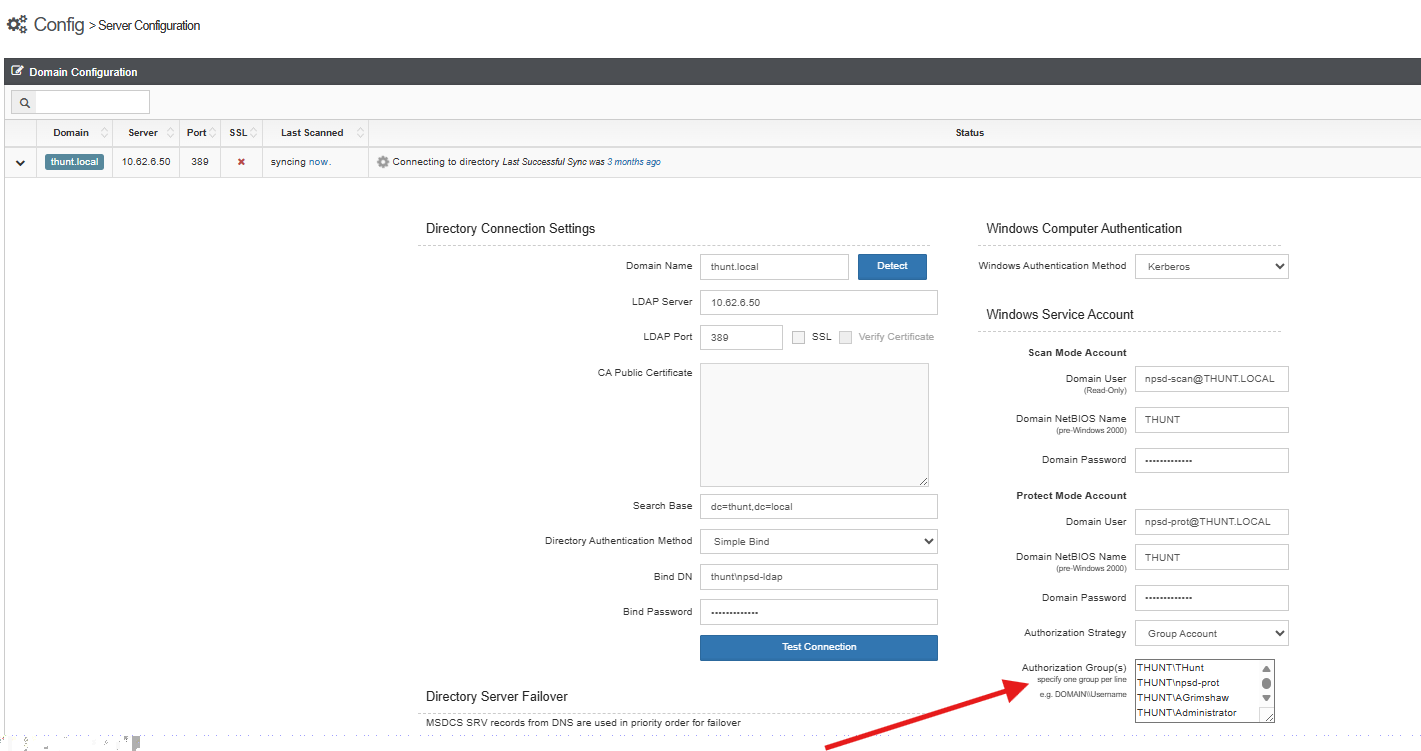
Instructions
Enable the Feature
-
Verify migration status:
s1 migrate status -
If migration 47 is present but the feature is not enabled, connect to the database via CLI and run:
db.release_toggles.updateOne({ "name": "service_account_group_strategy" },{ $set: { "enabled": true } },{ upsert: false })
Configure the Feature
- Set Authorization Strategy to
Group Account. - Add groups to the Authorization Group(s) field.
- Click Save under Domain Configuration.
Resulting Behavior
After systems are refreshed or rescanned:
- Groups are set to:
onSystem = TruePersistent = True
- In the UI:
- The Action button is removed.
- No modifications can be made by users or admins.
- Account type is set to SecureONE (service account).
WARNING: This effectively grants full access to all members of the group. This feature is designed for service account protection scenarios only — misuse can unintentionally grant broad access. Use with caution and proper validation.
Known Limitations
This feature is being used beyond its original design, so the full extent of limitations remains unknown. Current unknowns:
- Maximum number of groups supported
- Behavior may vary depending on system refresh or rescan
- Locks configuration, preventing further UI changes
Verify the Configuration
Group and Account Update Steps
-
Log in to the UI using an AD account.
-
Navigate to:
Configure → Server -
Expand Domain Configuration.
-
Ensure:
Authorization Strategy = Group Account
Bulk Group Testing
Groups can be added in batches using the format:
DOMAIN\GroupName
Tested batch sizes:
- 30 groups
- 60 groups
- 90 groups
- 200 groups
To add a batch:
- Copy the group list from a text editor.
- Paste into the Authorization Group(s) field.
- Scroll down.
- Click Save.