First Time Login
Remote Access Gateway users can access the portal via the URL provided by a Netwrix Privilege Secure Administrator, for example:
https://[ExampleRagPortalIpAddress]
To log in to the Privilege Secure.
Step 1 – Open the Remote Access Gateway in a browser window. The Login screen shows the Authentication method that is set as the default.
Privilege Secure requires a multi-factor authentication (MFA) solution (Authenticator, DUO, Symantec VIP, etc) for all user accounts unless otherwise configured by an Administrator. If required, first time users must register with an MFA to use with their login credentials.
Step 2 – Either click the default Authentication Connector button, or click Log In with a Different Account to display all of the authentication connectors that are registered with Privilege Secure.

Step 3 – log in to the Remote Access Gateway using federated login, or entering the AD or NPS local user credentials. (The method depends on how the Remote Access Gateway has been configured by your administrator).
- When using an authentication connector, there's no 'username' or 'password' field for the user to enter. Instead there's just a single button to login.

- Clicking the authentication connector redirects the user to the IdP login screen, which logs the user in (with whatever MFA is set up in the IdP) and then reverts the user back to the Privilege Secure dashboard once authenticated. Steps 4-7 are skipped when using an IdP login.
Step 4 – Click Log in to proceed.
Step 5 – A QR code displays to register with an authenticator application.
Step 6 – Enter the code provided by the registered multi-factor authenticator (MFA).

Step 7 – Click MFA Login. Privilege Secure opens on the Access Interface.
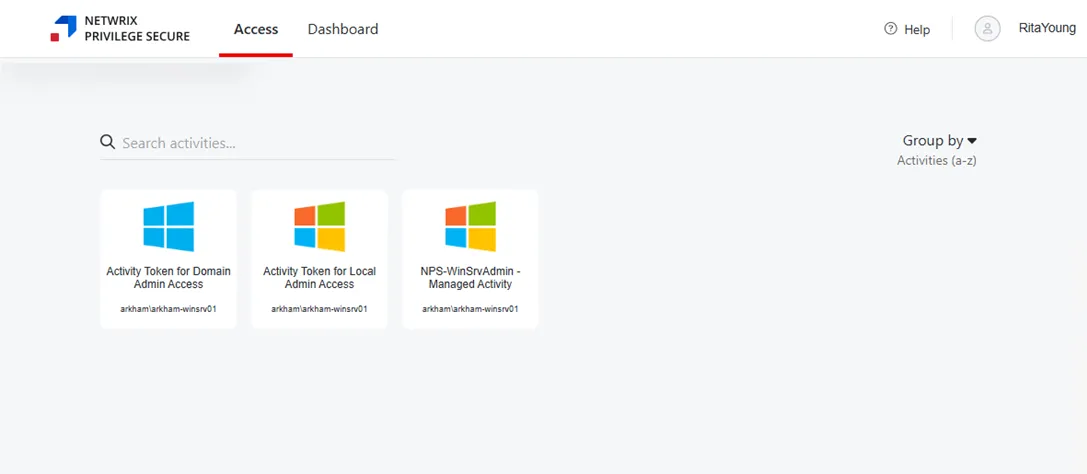
Step 8 – after the authentication is complete, the Access dashboard appears.
The Remote Access Gateway is ready to use.