Import the License File
Netwrix Privilege Secure comes with a temporary 30-day trial license. a banner at the top indicates the expiration date of a license about to expire.
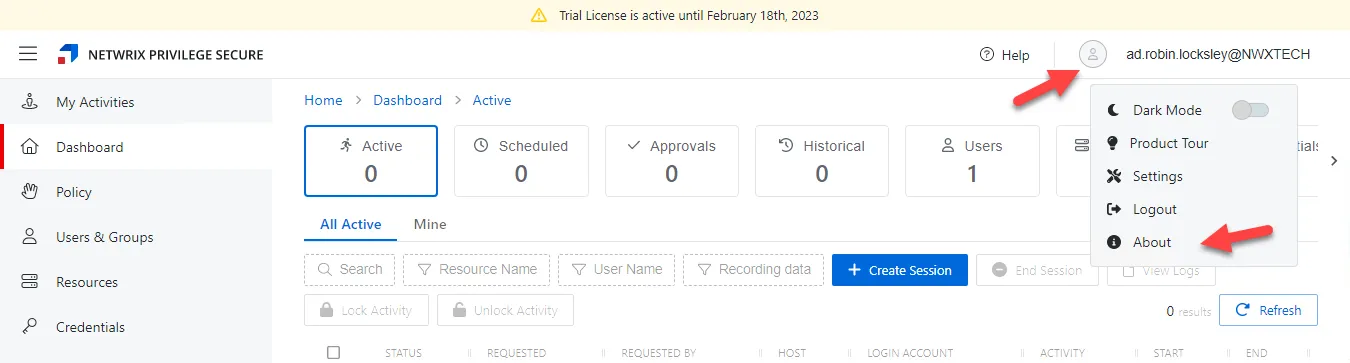
However, you can import your license file on the About page (User Options > About). An expired license doesn't necessarily prevent users from logging in. If a license is expired, and the login attempt doesn't exceed the license count, users is still able to log in. If a license is expired, and the login attempt does exceed the license count, Privilege Secure prevents the login.
Licensing is done according to user count. Any user who has provisioned access consumes a license after their first login. This is true for all users, regardless of role.
If your license is expired, and you can still log in, you can't create activity sessions or add new users.
To import the license key file.
Step 1 – log in to the Privilege Secure console as an administrator.
Step 2 – Click the User icon in the upper-right corner beside your login name to open the User Options menu.
Step 3 – Select About. The About page opens.
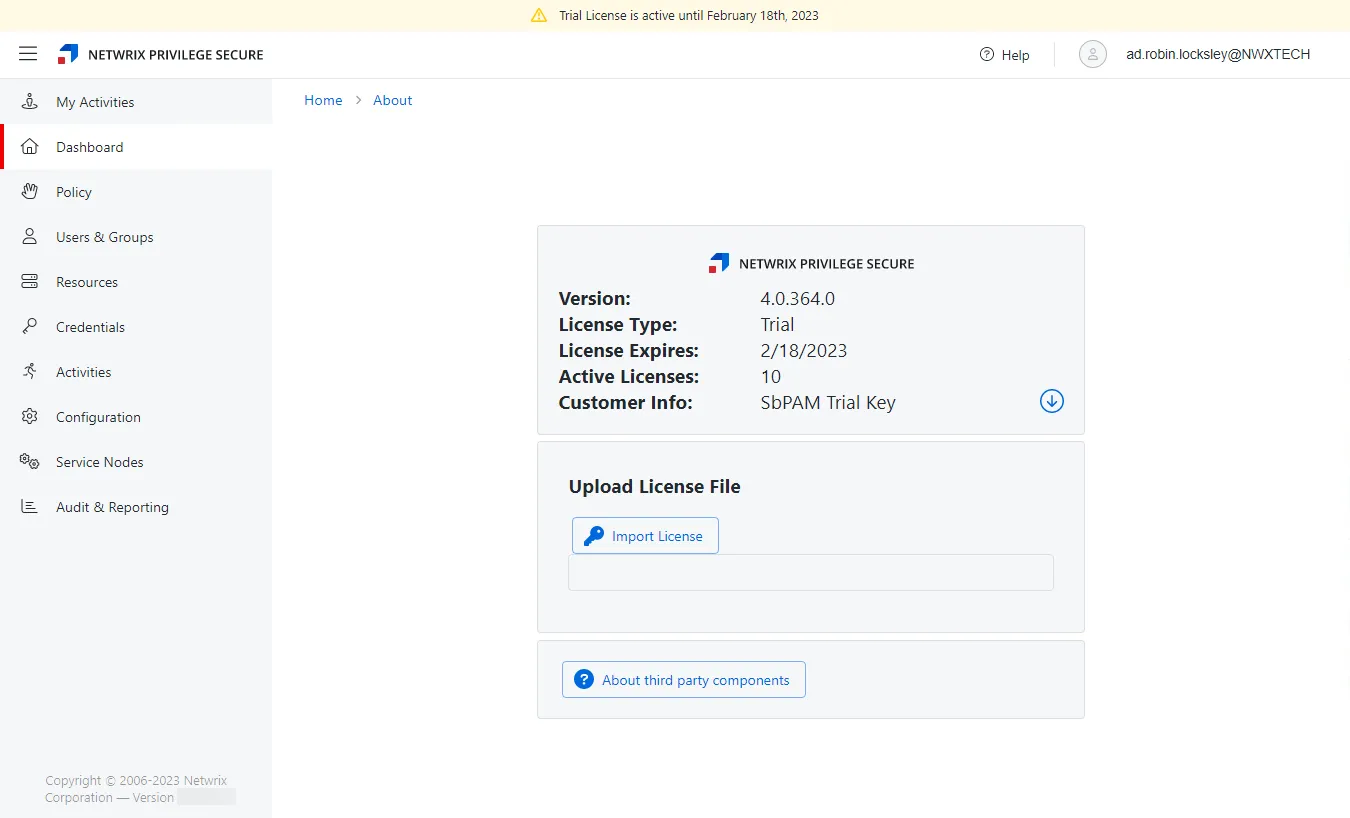
Step 4 – In the Upload License File section, click Import License.
Step 5 – Navigate to the license file and click Open to import the license.
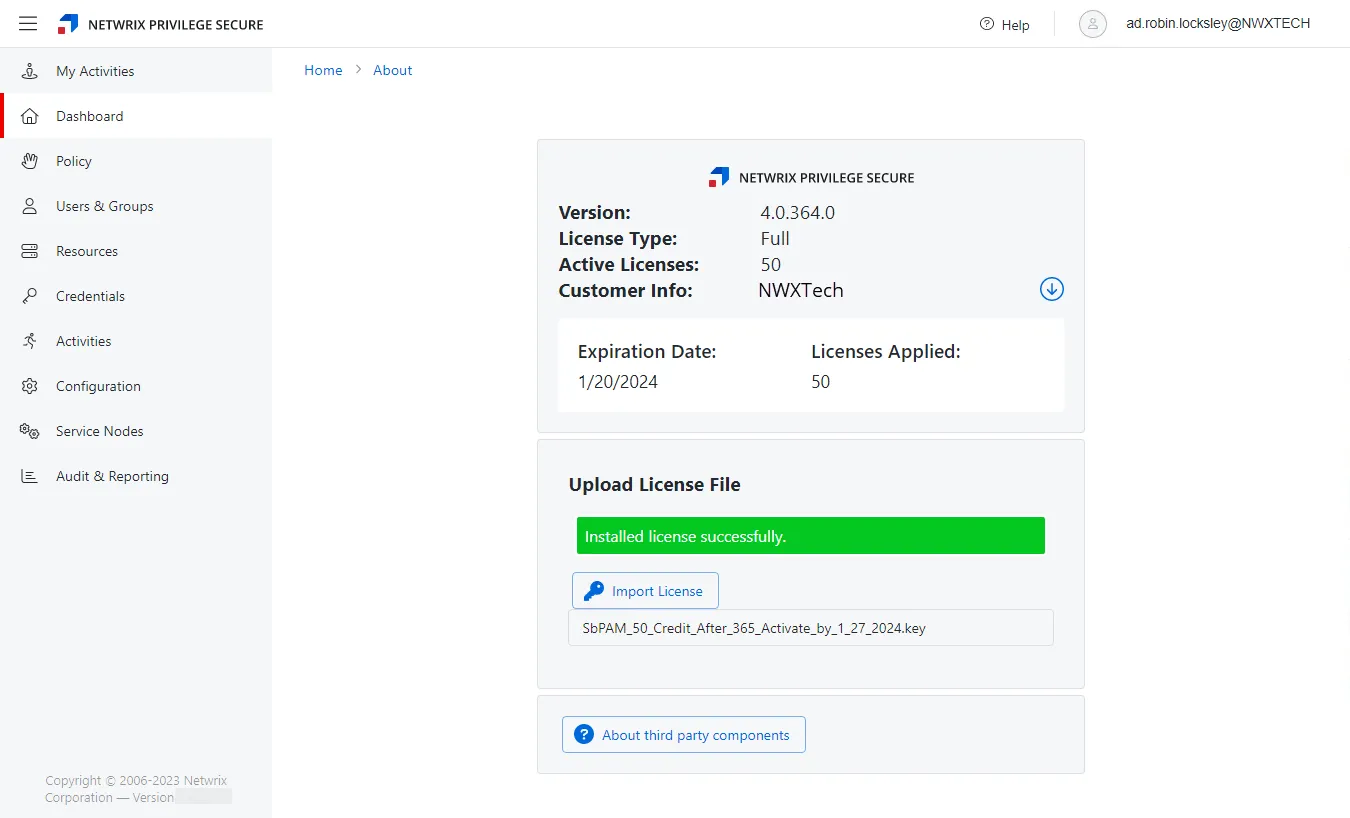
A message indicates the license file uploaded successfully. The license information displays at the top of the page, and the expiration banner disappears from the top. See the About Page topic for additional details available on this page.