Activity Token Complexity Page
The Activity Token Complexity Policy page is accessible from the Navigation pane underPolicyPolicies>Activity Token ComplexityAccess Policies. It shows the configuration options for managing the complexity of activity tokens for connection profiles.
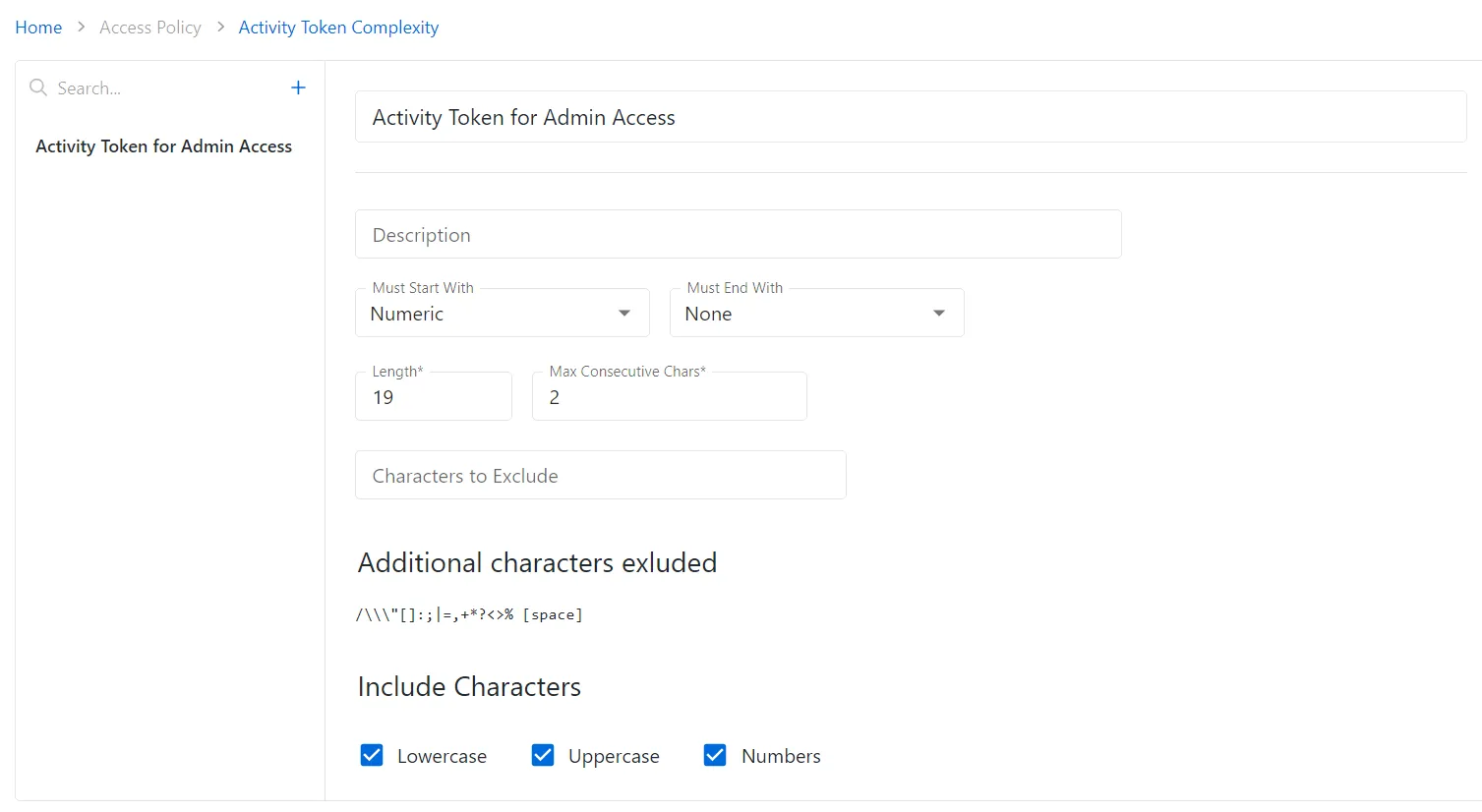
The pane on the left side of the page displays a list of the configured activity token complexity policies. This pane has the following features:
- Search — Searches the table or list for matches to the search string. When matches are found, the table or list is filtered to the matching results.
- Green + button — Create a new activity token complexity policy. See the Add Activity Token Complexity Policy topic for additional information.
- Trashcan icon — Deletes the activity token complexity policy. Icon appears when profile is hovered over. A confirmation window displays.
The selected activity token complexity policy details display in the main pane:
-
Name — Name of the activity token complexity policy
-
Description — Description of the policy
-
Must Start With / Must End With — Lists cases the activity token complexity policy enforces. This list contains the following options:
-
None
-
Lowercase
-
Uppercase
-
Numeric
-
Length — The maximum number of characters the activity token complexity policy enforces
-
Max Consecutive Chars — The maximum number of consecutively occurring characters that the activity token complexity policy allows
-
Characters to Exclude — Custom characters the activity token complexity policy excludes. Characters entered in this field are excluded in addition to the characters listed beneath the Additional characters excluded section.
-
Additional characters excluded — Default characters the activity token complexity policy excludes
-
Included Characters — Check boxes containing additional inclusive parameters for the activity token complexity policy:
-
Lowercase — At least one lowercase character in the password
-
Uppercase — At least one uppercase character in the password
-
Numbers — At least one number in the password
If any of these settings are modified, Save, and Cancel buttons appear. Click Save to commit the modifications. Click Cancel to discard the modifications.