Lock Session
You can lock out the user if suspicious or unauthorized activity is observed, either from the Active Dashboard, or the Live Session Viewer Window.
To lock a session.
Step 1 – Navigate to either the Active dashboard or the Live Session Viewer.
-
From the Active Dashboard, select the session and click Lock Activity.
-
OR -
-
From the Live Session Viewer, click the lock icon.
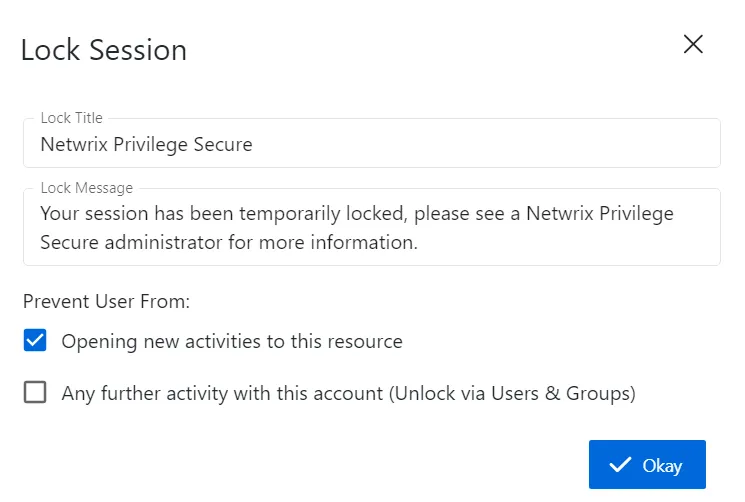
Step 2 – In the Lock Session window, enter the following information:
- Lock Title – The title of the message displayed to the session user
- Lock Message – The message displayed to the session user
- Prevent User From:
- Opening New Activities on this Resource – Prevent user from opening new activity to this resource while locked.
- Any Further Activity on this Resource – Lock all sessions and prevent the user from any further activity while locked. The Users & Groups Details page for the user indicates that the account is locked.
Step 3 – Click Okay to confirm.
The session is locked and the Lock Session message appears to the session user within their RDP or SSH clients. To unlock an active session, either:
-
From the Active Dashboard, select the session and click Unlock Activity.
-
OR -
-
From the Live Session Viewer, click the Unlock icon.
To unlock an account, see the User, Group, & Application Details Page topic for additional information.