System Settings
In all cases, you have to hit save for the changes to take effect.
- Save button (only visible when editing) — Saves changes
- Cancel button (only visible when editing) — Discards changes
RDP Options
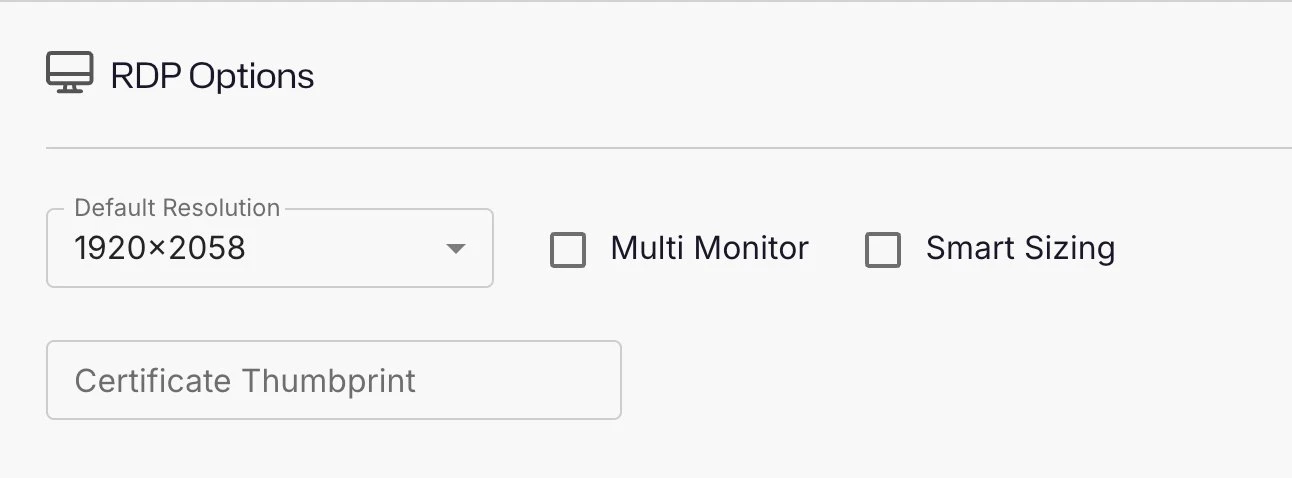
- Default Resolution — The resolution the RDP session will use when first connected. If "Full Screen" is selected, then RDP attempts to auto-detect the screen resoluiton and match it.
- Certificate Thumbprint — The hexadecimal certificate (or thumbprint) value. See the Sign RDP Files to Prevent Publisher Warning topic for additional information.
WimRM Options
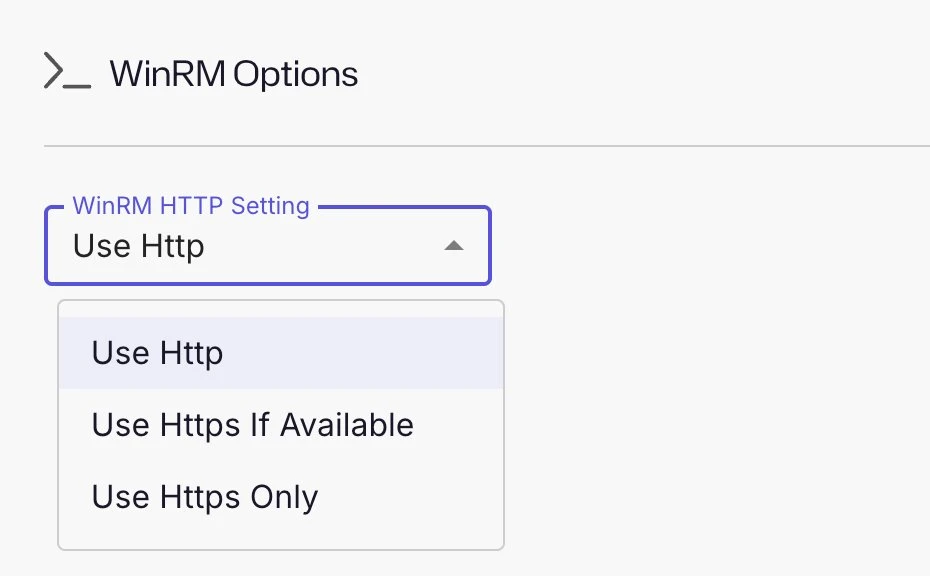
- WinRM HTTP Setting– This setting governs the HTTP encryption settings that is used for WinRM connections. The following options are available:
- Use HTTP
- Use HTTPS if available
- Use HTTPS only
UI Idle Timeout

- UI Idle Timeout Options — Users with the Administrator role can configure the idle timeout for the Privilege Secure Console. The default idle timeout is 10 minutes.
User Expiration
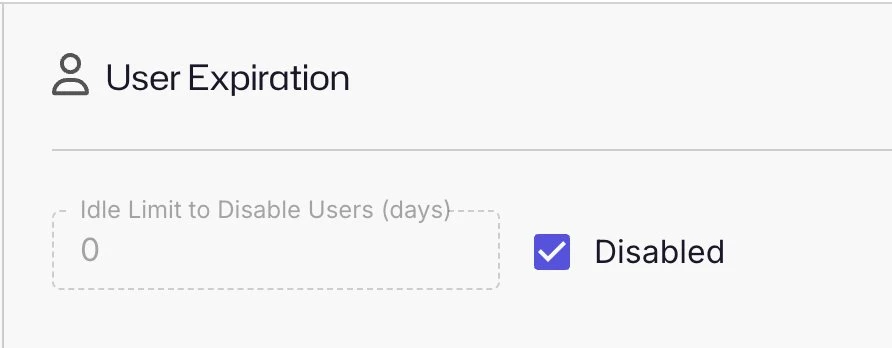
- NPS User Expiration - Users who have not logged in to NPS for a configurable number of days are automatically disabled. Disabled users don't consume a license credit. Admins and Application users are exempt from this policy. The idle timeout can be set to a specific number of days or turned off entirely. This setting is disabled by default.
Encrypted Files
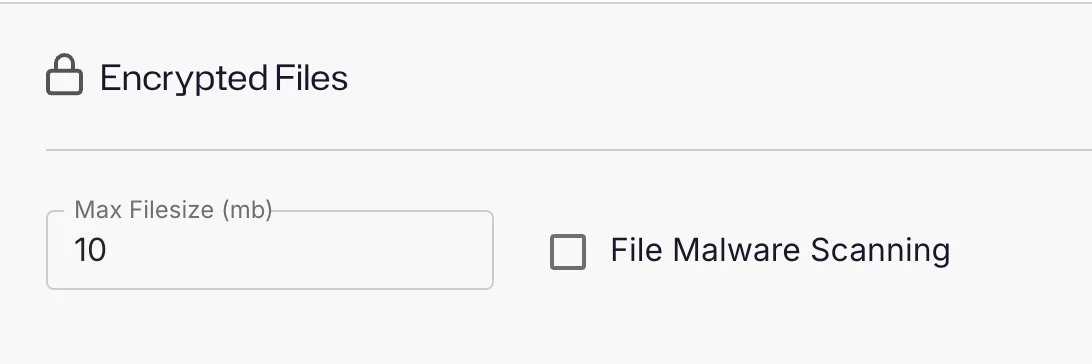
- NPS Encrypted Files - Set a maximum file size (MB). 10 MB is the default. There is also an option to scan the file for malware which is enabled by default.
Email Configuration

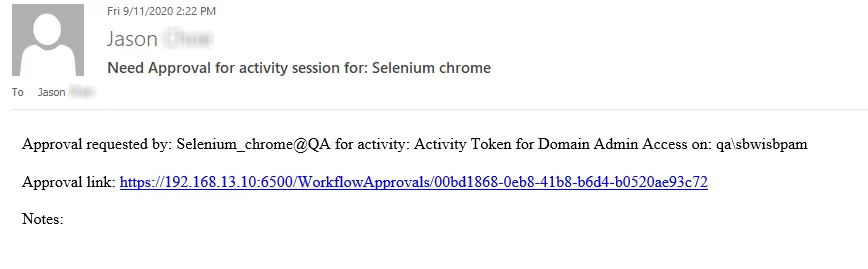
- Website URL — Specify the website URL for emailed links in the following format:
https://fqdn:port e.g. https://sbpam1.company.com:6500
This field determines the link format in all emails and notifications sent by Privilege Secure.
Example Email
Password History Options
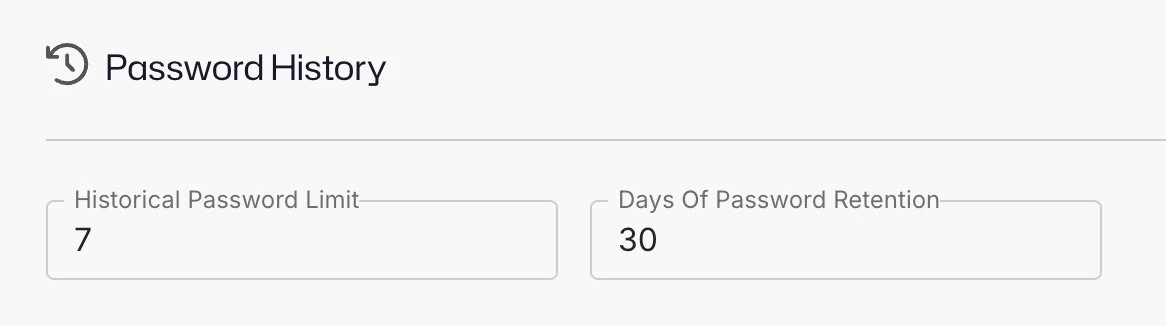
- Historical Password Limit — Number of previous passwords that can't be reused (Range: 1 - 50, Default: 7)
- Days of Password Retention — The number of days the password record is kept in the history (Range 1 - 365, Default 30)
Local Account Password Options
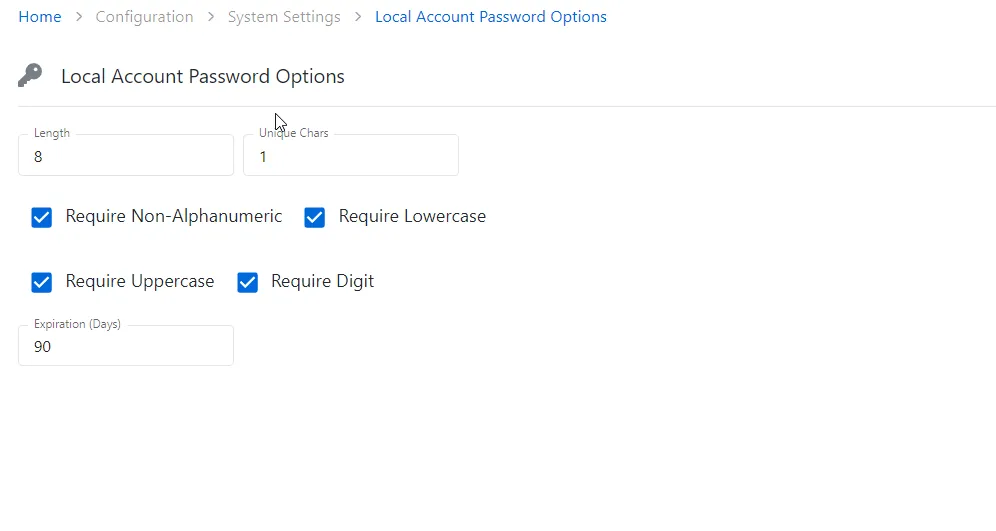
Provide the following information for the local account passwords:
- Length
- Unique Chars
- Require Non-Alfanumeric
- Require Lowercase
- Require Uppercase
- Require Digit
- Expiration days – The number of days the password can be used before the password expires
Data Retention
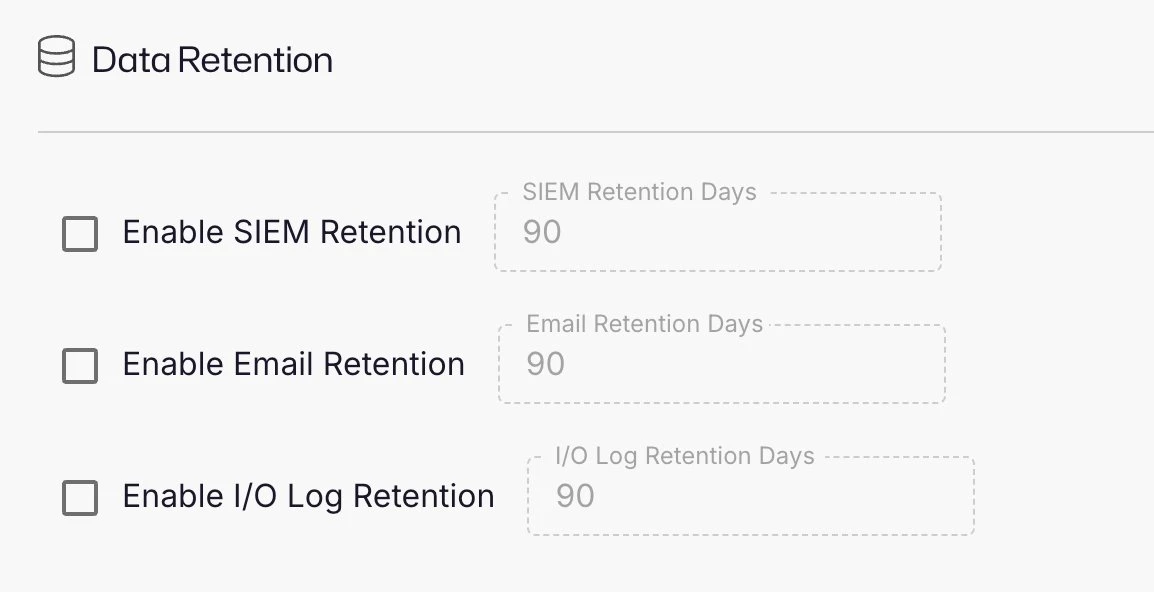
Set any data rentention policies your organization requires and number of days:
- SIEM Retention (logs)
- Email Rentention
- Input/Output Logs (Session recordings)
Services
After a website certificate is installed in IIS, update the Netwrix Privilege Secure web services to ensure they are calling the correct URL. If the Web Services are set to the wrong address, the services shows offline in the Services Node area.
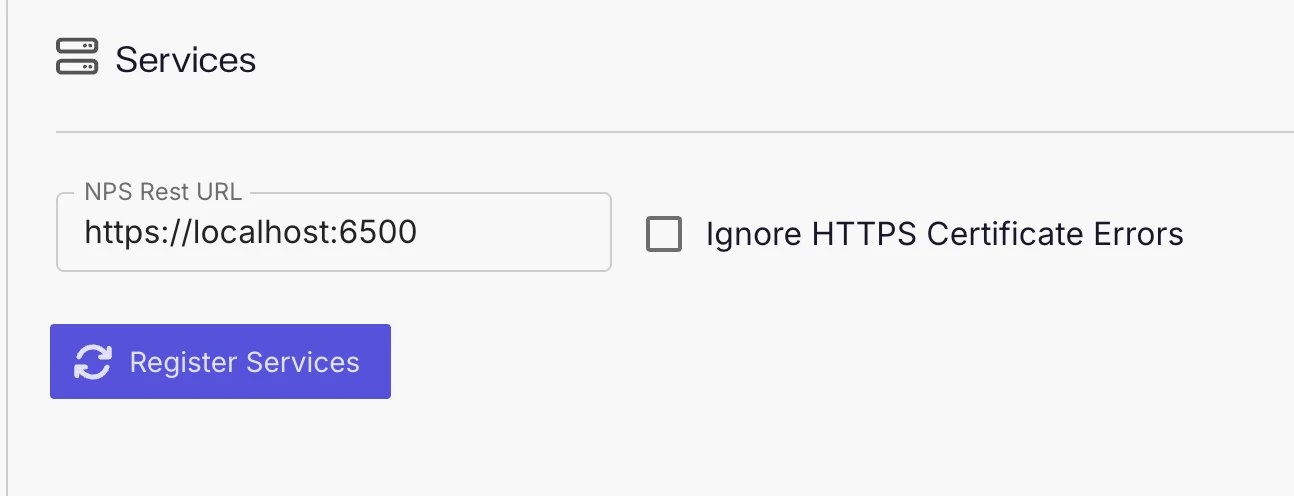
ensure that the web certificate is updated in IIS before setting a new value in Netwrix Privilege Secure. ensure the Binding Hostname in IIS, the certificate Subject, and the NPS Rest URL value in the Services page exactly match.
The Services Settings page has the following features:
- NPS Rest URL — The full qualified domain name (FQDN) of the new IIS web certificate
- Ignore HTTPS Certificate Errors — When checked, the console will ignore any HTTPS certificate errors (not recommended for production environments)
- Register Services — Applies the new URL value to the Netwrix Privilege Secure web services and re-registers them
- Save button (only visible when editing) — Saves changes
- Cancel button (only visible when editing) — Discards changes