Resource Group Tabs
Resources Tab
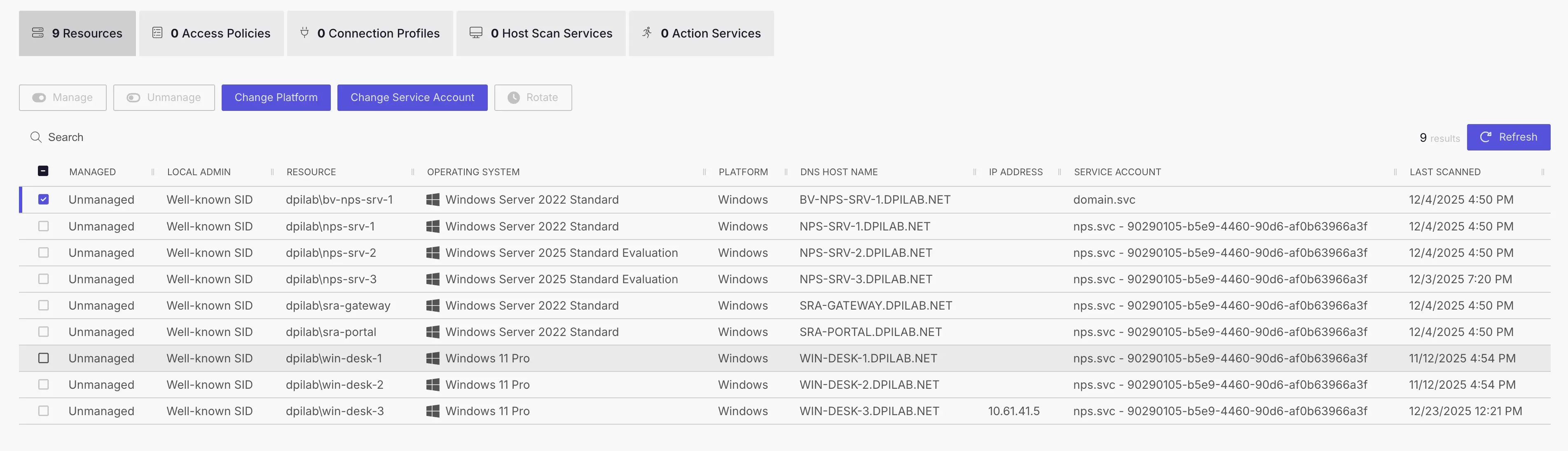
The table has the following features:
- Search — Searches the table or list for matches to the search string.
- Add — Opens the Add Resources window.
- Remove — Removes the selected item from the group
- Manage — Set the selected account to be managed by Privilege Secure. This button is only available when the account Managed Type is Standard or Internal. For an Internal account, a pop up window displays.. Password rotation can be set to automatic or manual for managed accounts.
- Unmanage — Remove the account from being managed by Privilege Secure
- Change Platform — Opens the Change Platform window to modify the type of platform for the selected host resource.
- Change Service Account — Opens the Change Service Account window to modify the service account associated with the selected host resource.
- Schedule Rotation — Add the credential rotation task to the queue. This button is only available when the Method is Automatic managed.
- Refresh — Reload the information displayed
The table has the following columns:
- Checkbox — Check to select one or more items
- Local Admin — Indicates if the account is managed by Privilege Secure
- Resource — Name of the resource
- Operating System— Displays the operating system of the resource
- DNS Host Name — Displays the DNS host name for a host resource or the FQDN for a domain resource
- IP Address — Displays the IP address for the resource
- Service Account — Displays the service account associated with the resource
- Last Scanned — Date timestamp for the last time the resource was scanned
Access Policy Tab
This tab shows any Access Policies connected to this resource group

Connection Profile Tab
This tab shows any Connection Profiles connected to this resource group

Host Scan Tab
Host Scan services added to a resource group will cause the Host Scan service to be preferred for this group. If more than one Host Scan Service is added, then all of them are preferred on a next available basis. If all of them are busy, then NPS will use the next available Host Scan service outside of this group.
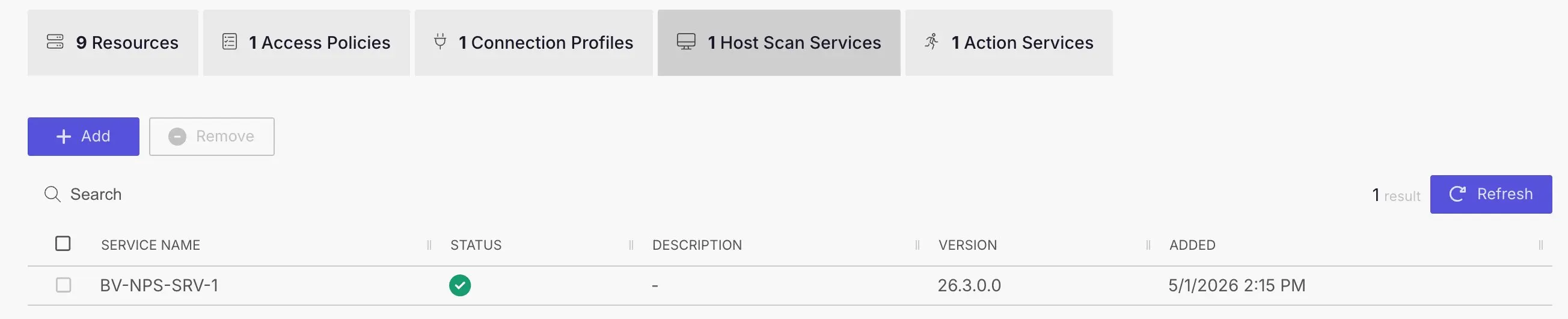
The table has the following features:
- Search — Searches the table or list for matches to the search string.
- Add — Opens the Host Scan Services window.
- Remove — Removes the selected item from the group
The table has the following columns:
- Checkbox — Check to select one or more items
- Service Name — Name of the server with the Host Scan service
- Status — Server status
- Description - Optional description of the Host Scan server
- Version — Software version of the Host Scan service
- Added - date the Host scan service was added to this group
Action Service Tab
Action services added to a resource group will cause the Action service to be preferred for this group. If more than one Action Service is added, then all of them are preferred on a next available basis. If all of them are busy, then NPS will use the next available Action service outside of this group.
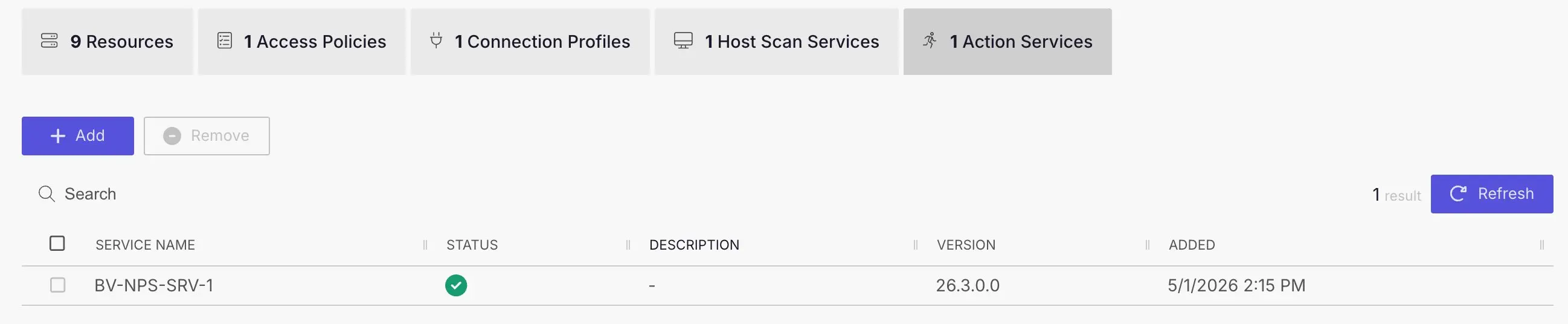
The table has the following features:
- Search — Searches the table or list for matches to the search string.
- Add — Opens the Add Action service window.
- Remove — Removes the selected item from the group
The table has the following columns:
- Checkbox — Check to select one or more items
- Service Name — Name of the server with the Action service
- Status — Server status
- Description - Optional description of the Action service server
- Version — Software version of the Action service
- Added - date the Action service was added to this group