Netwrix Setup Launcher
The PostgreSQL database must be installed before installing the application. It can be installed separately or through the Netwrix Setup Launcher. Also the application will require a server reboot at the end of the installation.
The Netwrix Setup Launcher checks for and installs missing prerequisites in addition to installing the database and application.
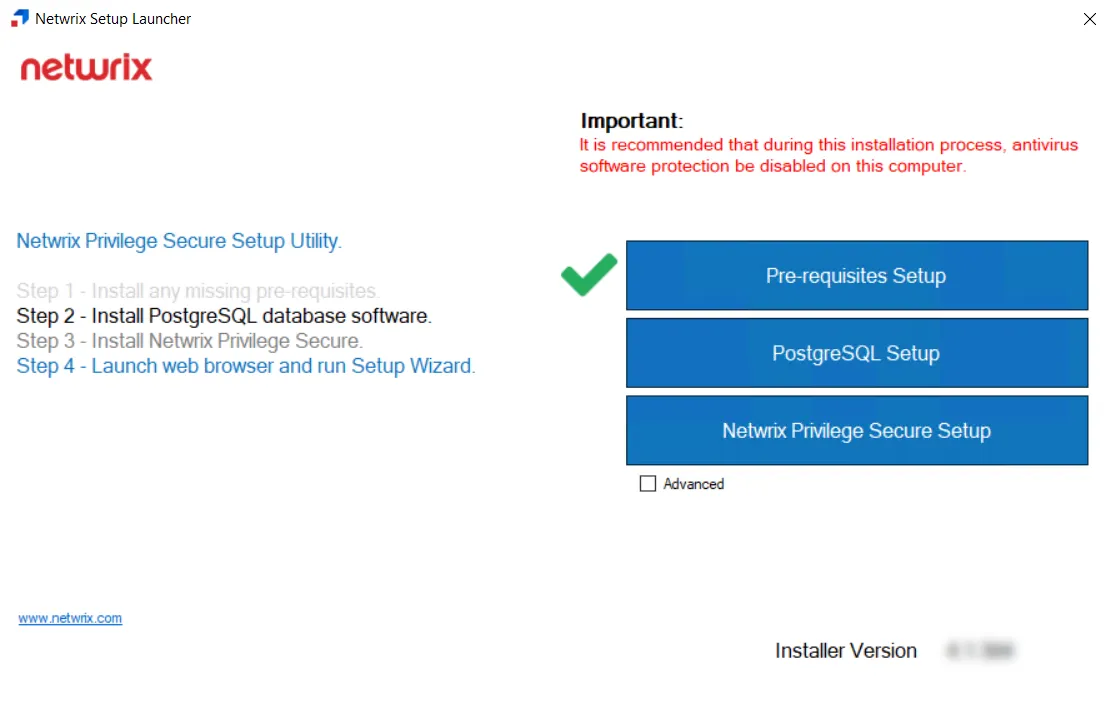
Antivirus software should be disabled on this computer during the installation.
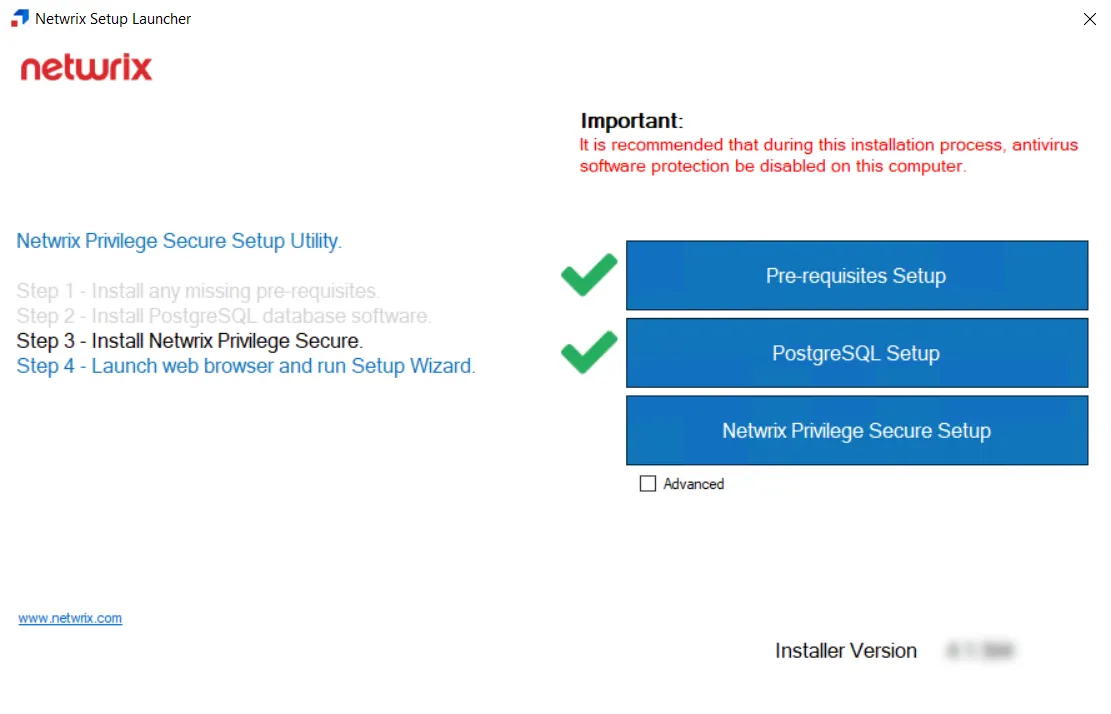
Right-click the NPS_Setup.exe file and select Run as administrator. The Netwrix Setup Launcher
opens. The launcher runs a prerequisites setup check. The green checkmark indicates the
prerequisites are met and you are ready to install the database.
The Advanced checkbox provides the option to switch databases to Microsoft SQLServer. This isn't a recommended configuration and requires additional support from Netwrix.
Install the PostgreSQL database
Antivirus software should be disabled on this computer during the installation.
To install the PostgreSQL database.
-
In the Netwrix Setup Launcher, click Install PostgreSQL 16. The PostgreSQL v16 Setup wizard opens.
noteIf PostgreSQL v16 is already installed, a green checkmark displays to the left of the Install PostgreSQL 16 button and you can install the Privilege Secure application.

-
On the Install page, click Install.
-
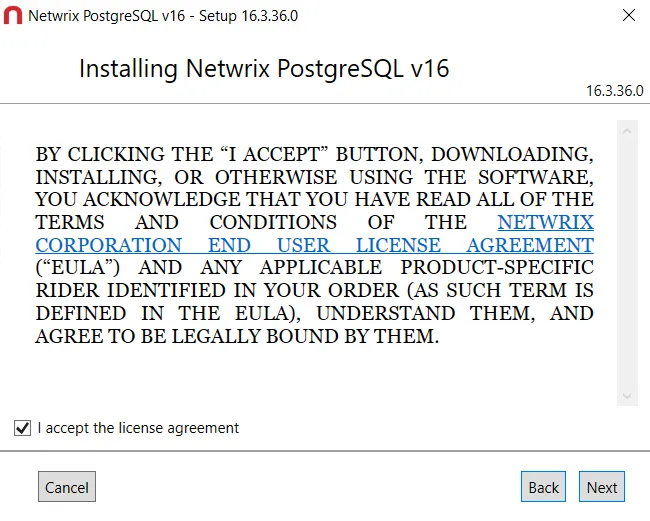
On the End User License Agreement page, accept the license agreement and click Next.
tipRemember, it is a best practice to read the agreement before accepting it.
-
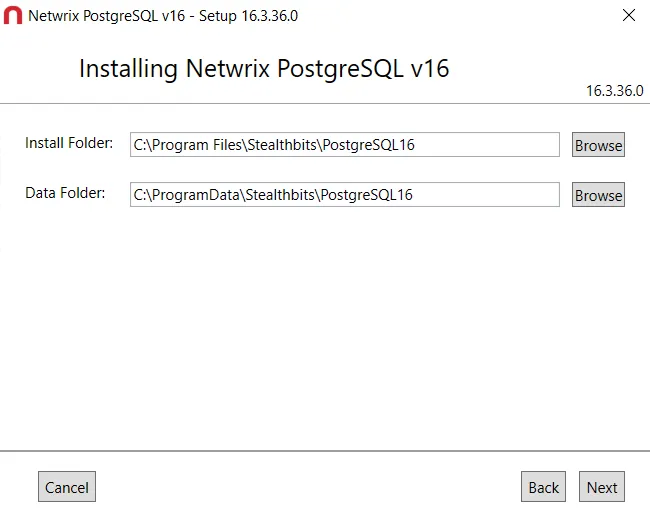
The default installation location for both the Install Folder and the Data Folder is:
C:\Program Files\Stealthbits\Postgres16- To change the default location, click Browse and set a new location.
- When the location is set, click Next.
noteThe installation process begins and the Setup wizard displays its progress. This may take a few moments.
-
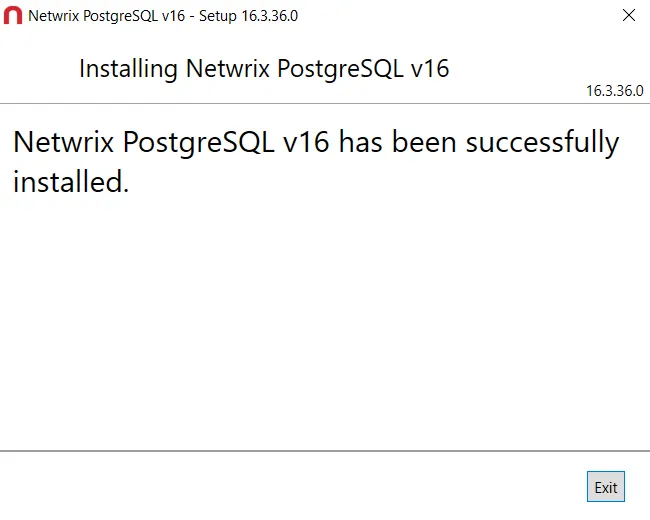
When installation is complete, click Exit. The Stealthbits PostgreSQL v16 Setup wizard closes.
noteA reboot is required.
The PostgreSQL database is successfully installed. It is time to install the application.
Install the application
Antivirus software should be disabled on this computer during the installation.
To install Privilege Secure application.
-
If you are using the Netwrix Setup Launcher, it displays a green checkmark for the PostgreSQL Setup. Click Netwrix Privilege Secure Setup.
noteThis window remains open in the background while the database is installed.
-
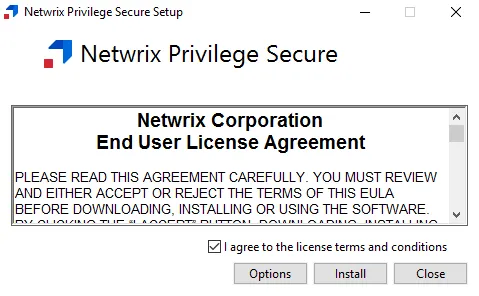
On the End User License Agreement page, accept the license terms and conditions and click Options.
tipRemember, it is a best practice to read the agreement before accepting it.

-
The default installation location for Install Folder is:
C:\Program Files\Stealthbits\PAM- To change the default location, click Browse and set a new location.
- When the location is set, click OK.
-
You return to the End User License Agreement page. Click Install.
noteThe installation process begins and the wizard displays its progress. This may take a few moments.

-
When installation is complete, click Close.
The installer displays a message that it is applying permissions. The application requires a server reboot at the end of the installation.
Once installation is complete, open, and walk through the Netwrix Privilege Secure Setup Wizard. The Wizard can be accessed through the Netwrix Privilege Secure desktop icon or locally on the default port. See the First Launch topic for additional information.