Proxy Service Install
Logging directly onto managed systems from desktops leaves artifacts that can be compromised and requires ports to be opened into secure networks. A critical element of the Privilege Secure solution is the proxy, which can broker the connection between security zones. The application includes an advanced session proxy service for automatic connection to privileged sessions.
The NPS Proxy Service is installed on the proxy server as part of Privilege Secure install. It must also be installed on any server running services for the application, specifically the NPS Action Service, NPS Host Scan Service, the NPS Scheduler Service, and NPS SIEM Service. This provides the option to run sessions defined in the application from different locations within your organization.
The NPS Proxy Service installer is in the Extras folder of the ZIP file downloaded from the Netwrix Customer portal. See the Install Components & Methods topic for additional information.
To install the NPS Proxy Service on another server that will run services for the application.
-
ensure that you have configured the Antivirus exclusions according to the following Netwrix knowledge base article: Exclusions for Antivirus (AV) & Endpoint Software
-
Copy the
NPS.ProxyService.exefile to the desktop of the remote server. -
Right-click the installer and select Run as administrator. The Netwrix Privilege Secure Proxy Service Setup wizard opens.

-
On the End User License Agreement page, accept the license terms and conditions and click Options.
tipRemember, it is a best practice to read the agreement before accepting it.

-
The default installation location for Install Folder is:
C:\Program Files\Netwrix\Netwrix Privilege Secure Proxy Service- To change the default location, click Browse and set a new location.
- When the location is set, click OK.
-
You return to the End User License Agreement page. Click Install.
noteThe installation process begins and the wizard displays its progress. This may take a few moments.

-
When installation is complete, click Close.
The NPS Proxy Service is now installed on a remote server. You can verify that it is started and set
to run automatically in the Services app (services.msc).
Register the Remote NPS Proxy Service
When the NPS Proxy Service is installed on a remote machine, it must be registered with the proxy server.
Example Values
The examples in this article use the following values for the NPS Application server. Replace these values with values specific to your environment.
NPS Application Server
- DNS FQDN:
nps-app.nwxtech.net - IP Address:
192.168.99.1
NPS Remote Proxy Server
- DNS FQDN:
nps-remote.nwxtech.net - IP Address:
192.168.99.2
NPS Application Server
To prepare the NPS application server
All commands are executed on the NPS Application Server as administrator.
-
Create a text file and name it
sbpam_node.jsonin the installation directory. The default location is:C:\ProgramData\Stealthbits\PAM\ProxyService -
Insert and save the
"advertise"JSON file as shown:{"advertise": ["[ Server FQDN]","[ Server IP Address]"],"tag": []}For example:
{"advertise": ["nps-app.nwxtech.net","192.168.99.1"],"tag": []} -
If edits were made, remove the
sbpam-node.crtfile from the following location using the following command as an administrator:del C:\ProgramData\Stealthbits\PAM\tls\certs\sbpam-node.crt -
While still on the NPS Application Server, run the following command:
"C:\Program Files\Stealthbits\PAM\ProxyService\sbpam-proxy.exe" register ca-hash -
Copy the returned hash value and save it for later, you need this value when you register your remote service.
Remote NPS Proxy Server
To register the Remote NPS Proxy Service.
All commands are executed on the Remote NPS Proxy Server as an administrator.
-
Create a text file and name it
sbpam_node.jsonin the installation directory. The default location isC:\ProgramData\Stealthbits\PAM\ProxyService. -
Insert and save the
"advertise"value of the JSON file with the remote proxy server information:{"advertise": ["nps-remote.nwxtech.net","192.168.99.2"],"tag": []} -
If there was an edit and
sbpam-node.crtwas created, delete the file on the remote proxy server using the following command.del C:\ProgramData\Stealthbits\PAM\tls\certs\sbpam-node.crt -
On the remote proxy server, run the following command from an elevated command prompt:
"C:\Program Files\Stealthbits\PAM\ProxyService\sbpam-proxy.exe" register -s [NPS Application Server IP Address] -u [Privilege Secure Admin Account in NT-Style format] -H [Hash from the NPS Application server]For example:
"C:\Program Files\Stealthbits\PAM\ProxyService\sbpam-proxy.exe" register -s 192.168.99.1 -u nwxtech\nps-admin -H eb367841c099c0338cee72ed572c7b5539f68fa215f7598c0ef5dcc067ee729c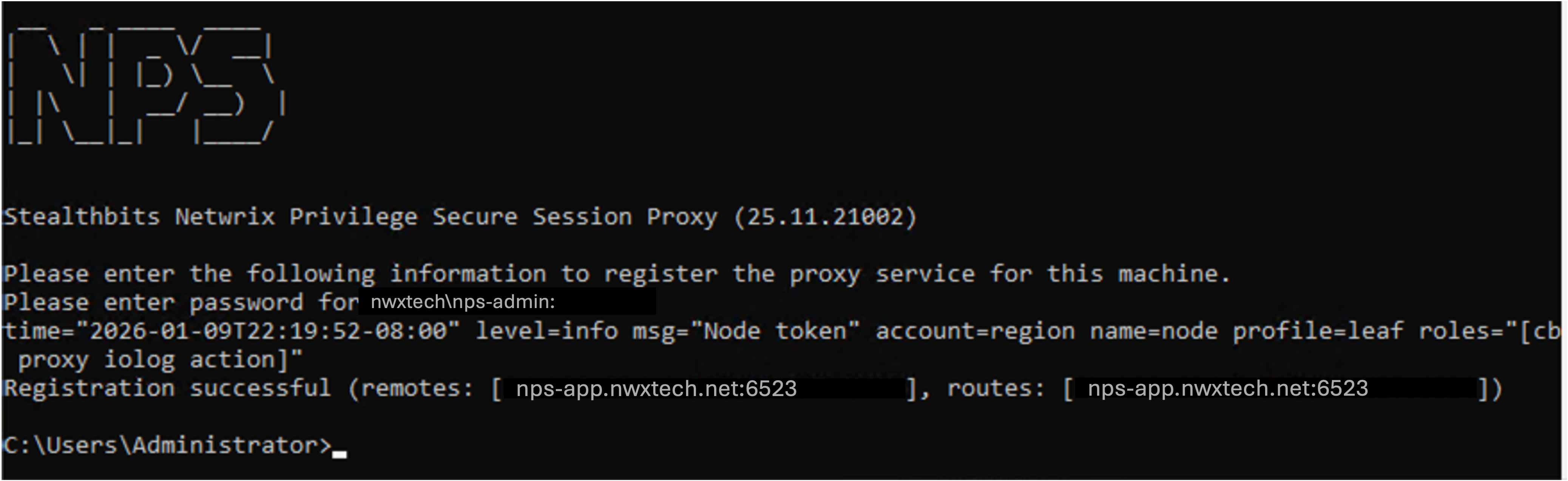
The Privilege Secure Proxy Service is now registered with the Privilege Secure application.
SSH for Legacy Cisco Device
If the Cisco device is running with insecure ciphers when the user attempts to connect to an SSH session, the following error message displays:
ssh: handshake failed: ssh: no common algorithm for key exchange; client offered: [curve25519-sha256@libssh.org ecdh-sha2-nistp256 ecdh-sha2-nistp384 ecdh-sha2-nistp521 diffie-hellman-group14-sha1], server offered: [diffie-hellman-group1-sha1]
Ideally the Cisco device should be upgraded to support secure ciphers. If this isn't possible, it is necessary to add additional ciphers to machines with older (insecure) ciphers that need to be managed with SSH. You can “opt-in” by configuring the cipher suites used by the NPS Proxy Service.
To add Cipher information to the NPS Proxy Service.
-
Open a command prompt as an Administrator.
-
Change the directory path to the ProxyService folder in the NPS Proxy Service installation directory. The default path is:
C:\Program Files\Netwrix\Netwrix Privilege Secure Proxy Service\ProxyService -
Run the following command to automatically generate the "sbpam_ssh" file:
.\sbpam-proxy.exe cfg -c sbpam_ssh -
Browse to the location of the newly created file in "ProgramData". The default path is:
C:\ProgramData\Stealthbits\PAM\ProxyService -
Copy and paste the following into the
sbpam_ssh.jsonfile.{"listenaddress": "0.0.0.0:4422","ClientSettings": {"Algorithms": {"KeyExchanges": ["curve25519-sha256@libssh.org","ecdh-sha2-nistp256","ecdh-sha2-nistp384","ecdh-sha2-nistp521","diffie-hellman-group14-sha1","diffie-hellman-group1-sha1"],"Ciphers": ["aes128-gcm@openssh.com","chacha20-poly1305@openssh.com","aes128-ctr","aes192-ctr","aes256-ctr","aes128-cbc","3des-cbc","aes192-cbc","aes256-cbc"]}}}
This will add the additional Key Exchange diffie-hellman-group1-sha1 and the additional Ciphers
aes128-cbc, 3des-cbc, aes192-cbc, aes256-cbc, required to make old Cisco Machines work with
remote login.