Navigation
The menu bar at the top of the Privilege Secure Console lists the available interfaces and provides access to the Help link and the User Menu:
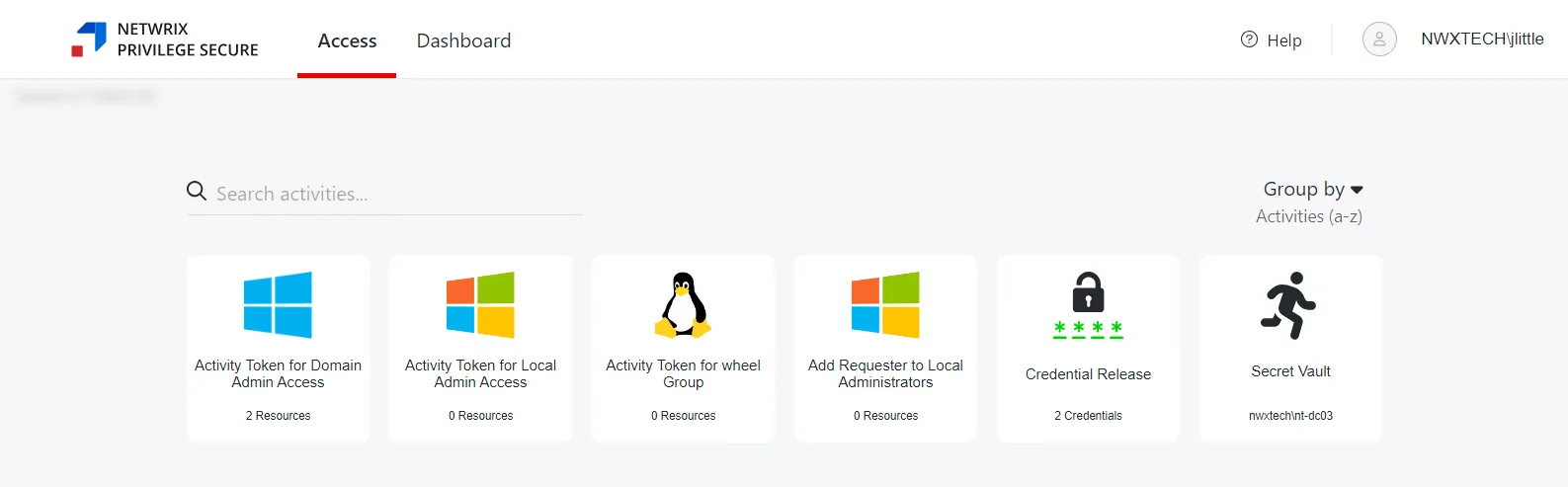
The buttons have these functions:
- Interfaces:
- Access — Grants access to the My Activities page. Activities are displayed as individual cards, organized alphabetically or by Access Policy. See the My Activities Page topic for additional information.
- Dashboard — View summaries of recent activity logs and user sessions. See the Dashboard Interface topic for additional information.
- Help — Opens the Netwrix Privilege Secure Documentation in another browser tab
- User Name — Click to open the dropdown menu:
- Dark Mode — Toggle “Dark Mode” for the console. Hover over the toggle switch to see a preview of Dark Mode.
- Product Tour — Re-starts walk-through of Privilege Secure features. See the Product Tour topic for additional information.
- Logout — Signs the user out of the current session and opens the Login screen
- About — Shows version and license information for the console
For reviewers there is a Navigation pane where the pages for the selected interface display. Use the Menu button to the left of the logo to collapse / expand the Navigation pane.
Console icons
The Privilege Secure Console makes it easy to gather detailed information at a glance. The following tables show the main icons:
Interface Icons
| Icon | Interface |
|---|---|
 | My Activities |
 | Dashboard |
 | Policy |
 | Users & Groups |
 | Resources |
 | Credentials |
 | Activities |
 | Configuration |
 | Service Nodes |
 | Audit and Reporting |
Dashboard Icons
| Icon | Session Data |
|---|---|
 | Active Sessions |
 | Scheduled Sessions |
 | Approvals |
 | Historical Sessions |
 | User Activity |
 | Resources |
 | Credentials |
Active Directory Icons
| Icon | Object |
|---|---|
 | User |
 | Group |
 | Application |
 | Collection |
 | Custom Role |
 | Computer / Resource |
 | Domain |
 | Website |
 | Azure AD |
 | Secret Vault |
 | Cisco |
 | Windows |
Information Icons
| Icon | Information |
|---|---|
 | Complete / Information |
 | Warning |
 | Failed / Error |
 | Active Sessions |
 | Scheduled Sessions |
Hover over an icon anywhere within the console for its description.