Create My Activity Session
To create an activity session.
-
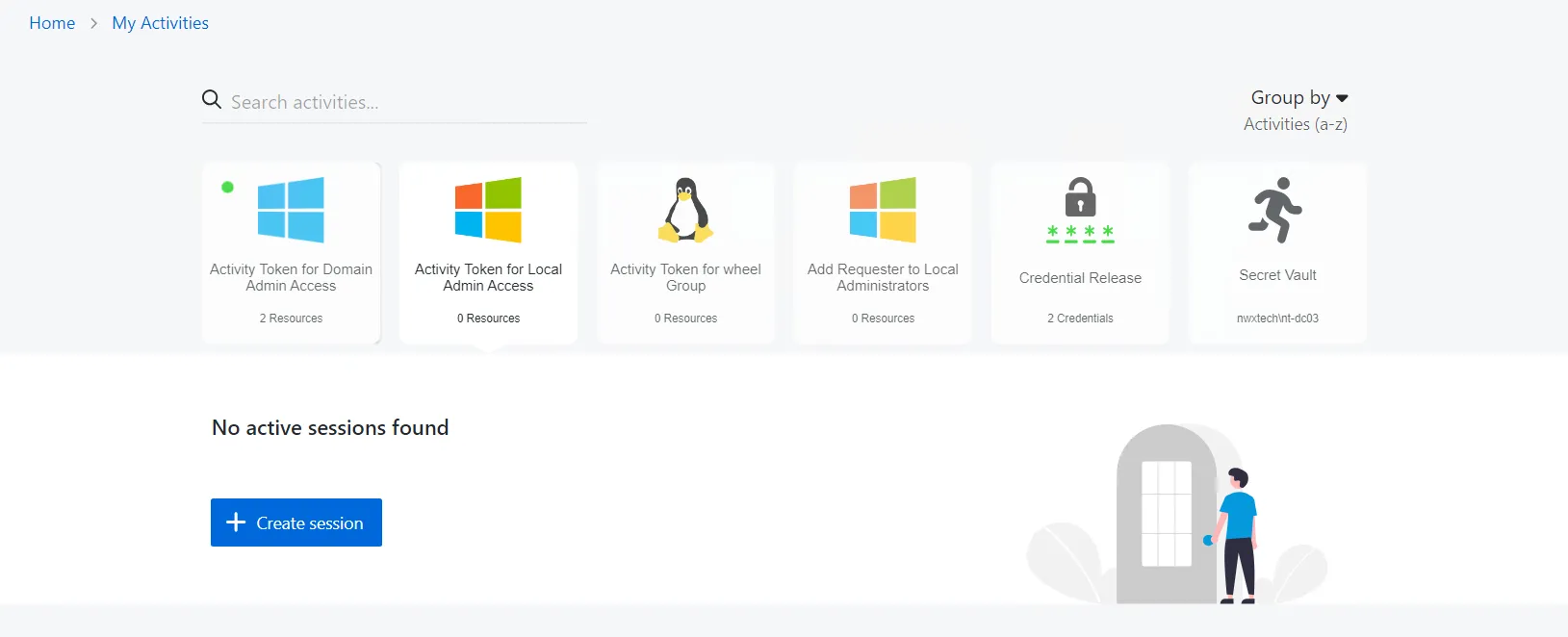
Select an Activity to expand the session ribbon.
-
Click Create Session to start a new activity session.
- If an Activity is assigned to a single resource, the Activity card displays the name of the resource; selecting Create Session from the session ribbon will immediately start the Activity.
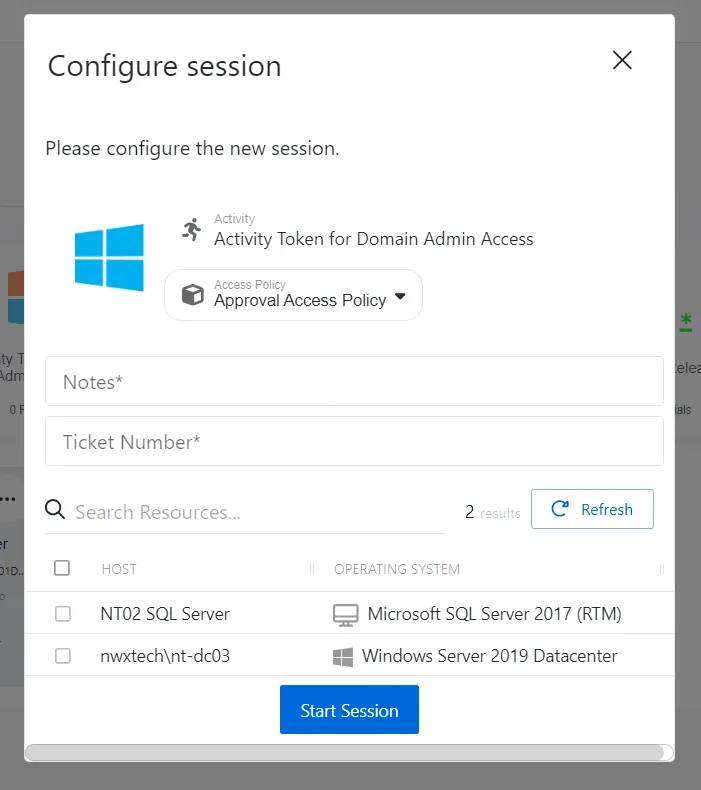
- If the Activity is assigned to more than one resource, the Activity card displays the number of resources; selecting Create Session from the session ribbon opens the Configure Session window.
warningIf your license is expired and you can still log in, you will not be able to create activity sessions.
-
Enter the following information:
- If the Activity is a member of more than one Access Policy, the Access Policy field will change to a dropdown selection. The list of resources in the table will change based on the resources assigned to the selected access policy.
- Enter notes or a ticket number in the applicable field (Set whether notes or ticket numbers should be optional or mandatory for the session in the related Connection Profile)
- Select the resources required for the Activity session. Use the Search field to filter the resource list.
- Click Start Session to start the provisioning process.
 note
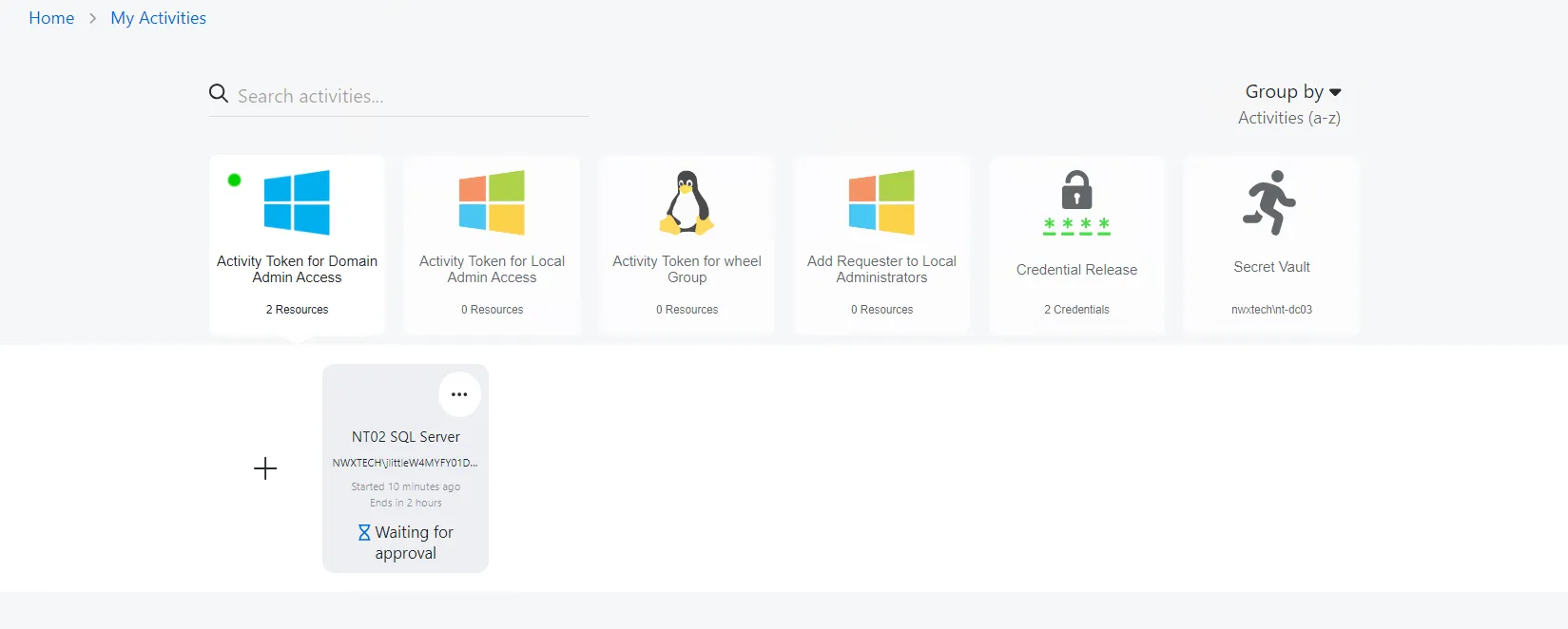
noteIf an approval is required, the Waiting for approval message displays until it has been granted.

-
When provisioned, an activity session displays an Available status with a green icon. Click Available to launch the session.
- The contextual menu (…) to the top right of the active session card contains options to stop an active session and to copy/view the login account password, if enabled in the related Connection Profile.
- All sessions may be managed via the Dashboard interface, and the My Activities interface interchangeably.
Provisioning and active sessions display in the session ribbon, newest sessions to the left.