Historical Dashboard
The Historical sessions dashboard shows all created sessions and their status.
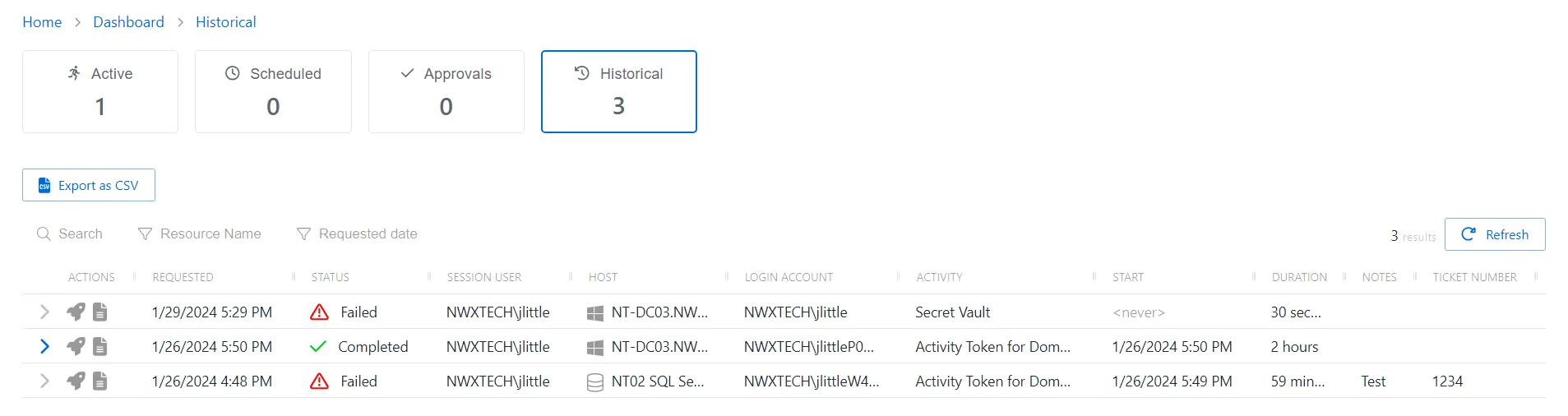
The Historical Sessions table has the following features:
- Search — Searches the table or list for matches to the search string. When matches are found, the table or list is filtered to the matching results.
- Filter — Provides options to filter results based on a chosen criterion:
- Resource Name — Filter by Host value
- Requested date — Filter by session start and/or end dates
- Export as CSV — Generates a CSV file of the table and automatically downloads it to your browser's default download folder. The file name indicates what table was exported.
- Refresh — Reload the information displayed
The table has the following columns:
- Actions — Contains icons for available actions:
- Expand icon — Click the expand icon to show additional information
- Rocket icon — Launches the same session (same activity on the same resource with the same connection profile) for any historical session that isn't a Credential-based session
- View logs icon — Opens the Session Logs window to view the action log for the selected session. See the Session Logs Window topic for additional information.
- Requested — Date and time of when the session was created
- Status — Shows status information for the session:
- Canceled — An Privilege Secure administrator manually canceled the Activity before its scheduled end time
- Failed — Pre-Session stage of the Activity has encountered an error
- Completed — Activity either reached the end of its scheduled end time or was canceled early by the requestor
- Session User — User who requested the session
- Host — Resource that the user runs the activity on
- Login Account — Displays the account used to log onto the resource
- Activity — Displays the name of the activity
- Start — Indicates when the activity started. This refers to when the activity’s actions were executed and not when the user was logged on to the resource.
- Duration — Indicates how long the Activity ran for until it either reached its scheduled end time or was manually canceled by the user or a Privilege Secure administrator
- Notes — Any notes that were entered when the session was created
- Ticket Number — Any ticket numbers that were entered when the session was created
The table columns can be resized and sorted in ascending or descending order.