Active Dashboard
The Active sessions dashboard shows all active sessions. Create an Activity Session to grant temporary privileges and gain access to the resources defined by a previously created Access Policy.
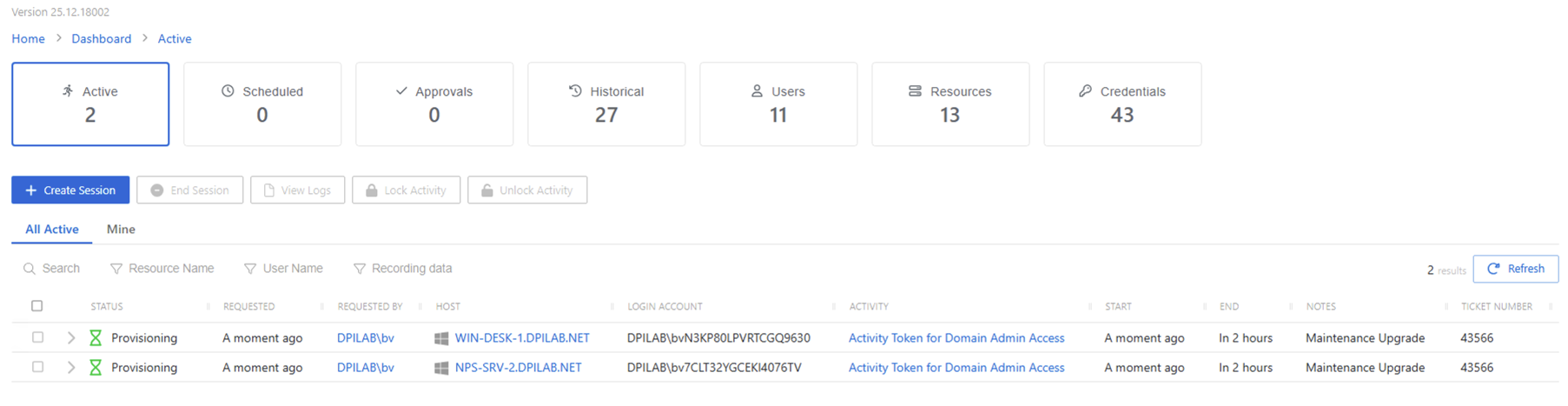
The Active Sessions table has the following features:
- Search — Searches the table or list for matches to the search string. When the search finds matches, it filters the table or list to the matching results.
- Create Session — Open the Activity Request window. See the Create My Activity Session topic for additional information.
- End Session — Cancel the selected sessions
- View Logs — Opens the Session Logs window to view the action log for the selected session. See the Session Logs Window topic for additional information.
- Refresh — Reload the information displayed
The table has the following columns:
- Checkbox — Check to select one or more items
- Expand icon — Click the expand icon to show additional information for the session
- Status — Shows status information for the session:
- Provisioning — Pre-Session stage of the Activity is processing and assigning permissions to the login account
- Waiting for Approval — The session requires approval to begin. See the Approvals Dashboard topic for additional information.
- Available — The activity session is ready. Click the icon to begin the session, or log in through a client. See the Start Activity Session topic for additional information.
- Failed — Pre-Session stage of the Activity has encountered an error
- Logged In — User is successfully logged in to the Resource either directly or via the Proxy. Privilege Secure detects direct log-in by polling the Resource at regular intervals, so this status may not update immediately.
- Canceling — The session expired, or the user or a Privilege Secure administrator canceled it manually.
- Locked — The session has been locked by a Privilege Secure administrator
- Requested — Date and time of when the session was created
- Host — Resource that the user runs the activity on
- Login Account — Displays the account used to log onto the resource
- Activity — Displays the name of the activity.
- Start — Indicates when the activity started. This refers to when the activity’s actions were executed and not when the user was logged on to the resource.
- End — Indicates when the session is scheduled to end the activity, which is determined by the start time plus the maximum session duration set by the access policy Connection Profile
- Notes — Any notes added by the session requestor
- Ticket Number — Ticket number added by the session requestor