Custom Roles
The Add Role window lets users add a role to Privilege Secure's Users & Groups Role Management module.
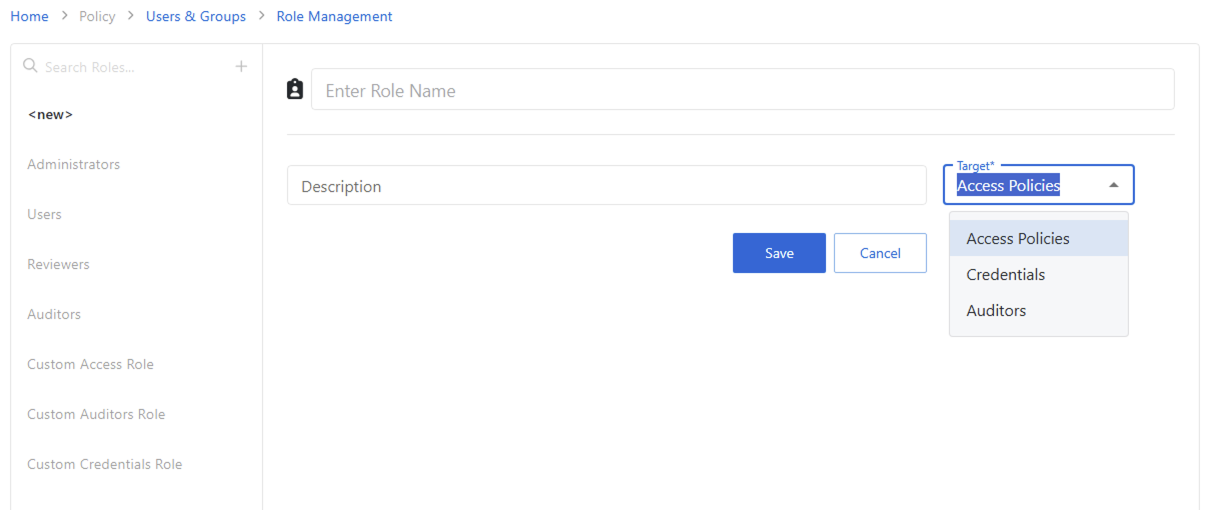
The Add Role window has the following features:
- Enter Role Name — Name that displays to represent the role.
- Description — A brief summary of the purpose of the role.
- Target — Select from the dropdown the type of custom role.
- Access policies enable a user to see and modify Access policies usually reserved for an Administrator
- Credentials enables a user to control which accounts are managed or unmanaged, verify their credentials, and rotate them. Again, this usually belongs to Admins.
- Auditors enables additional Auditor roles beyond the built-in Auditor to allow them to see historical sessions of a different set of users and/or resources.
- Save button — Saves the new role to the Users & Groups module.
- Cancel button — Cancels the Add Role process and closes the window.
- Navigate to the Users & Groups > Role Management page.
- Click the Add Role button.
- Enter a Role Name.
- (Optional) Add a description.
- Select the custom role type from the dropdown list.
- Click the Save button.
Once saved, the next step is to assign permissions and users to this role.