Custom Audit Role
The Role Management page is accessible from the Navigation pane under Users & Group. It provides details on all available roles for Privilege Secure users. This page describes the custom audit role. You can create multiple custom auditor roles to give auditor access to any set of users or resources.
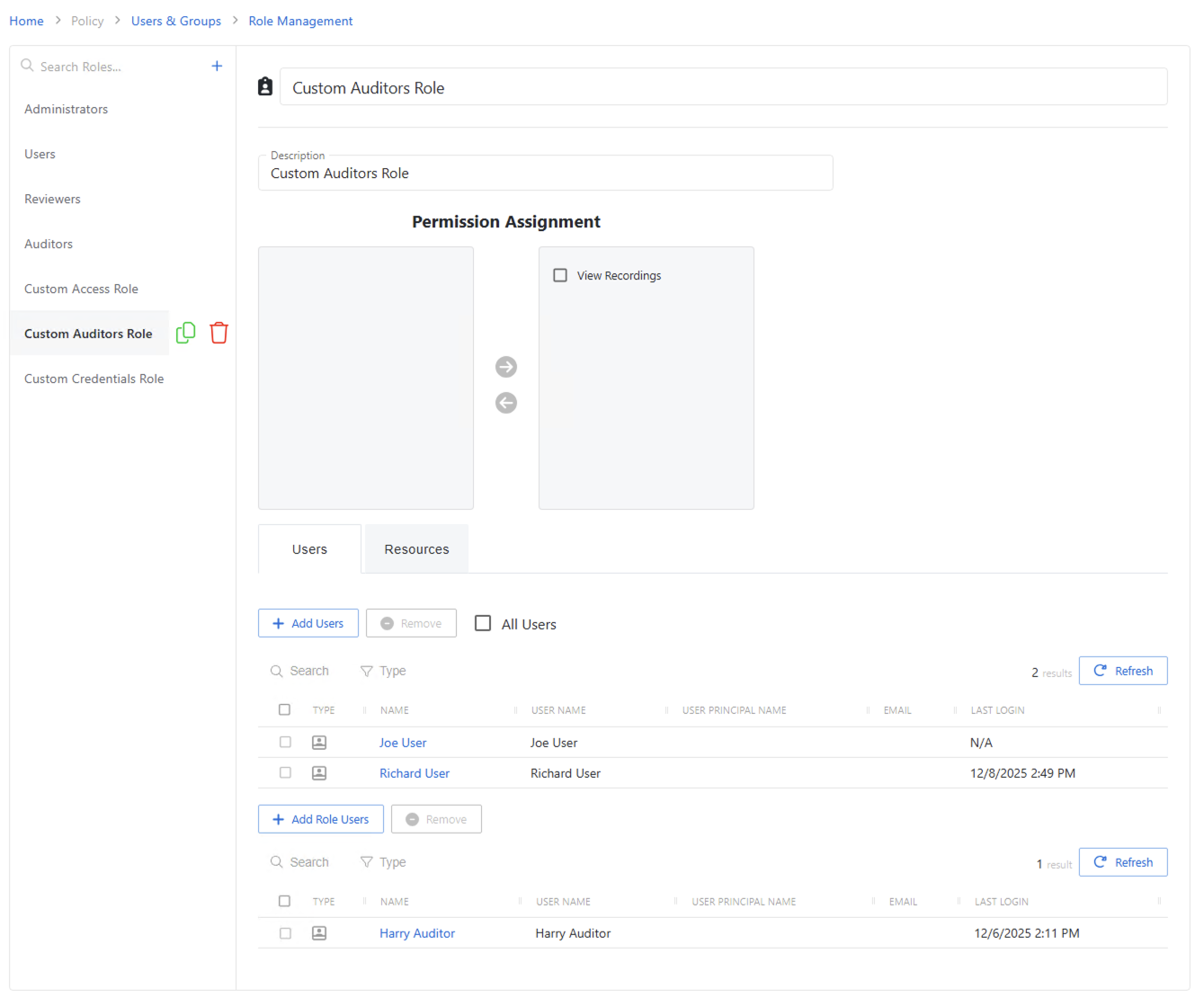
When a custom role is selected, the selected role details display at the top of the main pane with the following features:
- Name — Name of the access policy
- Description — Description of the policy
- Permission Assignment section — Use this section to assign permissions for the custom role. See the Permission Assignment topic for additional information.
- Search — Searches the table or list for matches to the search string. When matches are found, the table or list is filtered to the matching results. This search is specific to the table in the Users section at the bottom.
- Filter — Provides options to filter results based on a chosen criterion: User, Group, Application, Collection, and Local User
- Add Role User — Opens Add Role Users window.
- Remove — Removes console access from the selected account. This button is specific to the table in the Users role assignment section at the bottom.
- Refresh — Reload the information displayed. This button is specific to the table in the Users section at the bottom.
The Users role assignment section table has the following columns:
- Checkbox — Check to select one or more items
- Type — Icon indicates the type of object
- Name — Displays the name of the account.
- User Name — Displays the sAMAccountName for the account
- User Principal Name — Displays the UPN value for the account
- Email — Displays the associated email address, if available
- Last Login — Date timestamp for the last time the user logged into the application
The table columns can be resized and sorted in ascending or descending order.
Resources tab
- Search — Searches the table or list for matches to the search string. When matches are found, the table or list is filtered to the matching results. This search is specific to the table in the Resources tab.
- Type — Provides options to filter results based on a chosen criterion: Resource or Resource Group
- Add Resources — Opens the Add Resources and Groups window. See the Add Resources and Groups Window topic for additional information.
- Remove — Removes console access from the selected account. This button is specific to the table in the Policies tab.
- Refresh — Reload the information displayed. This button is specific to the table in the Policies tab.
The Resources tab table has the following columns:
- Checkbox — Check to select one or more items
- Type — Icon indicates the type of object
- Name — Displays the name of the resource. See the Resources Page topic for additional information.
- Operating System — Displays the operating system of the resource
Permission assignment
Each permission gives specific rights to users with the selected role. Permissions on the left are not associated with the role. Permissions on the right are assigned to the selected role.
Available permissions include:
- View Recordings — As of this release, the auditor can view only historical recordings. Live sessions is on the roadmap.
Policy tab
The Policy tab for a custom role has the following features:
- Search — Searches the table or list for matches to the search string. When matches are found, the table or list is filtered to the matching results. This search is specific to the table in the Policies tab.
- Add Policies — Opens the Add Policies window. Add policies here.
- Remove — Removes console access from the selected account. This button is specific to the table in the Policies tab.
- Refresh — Reload the information displayed. This button is specific to the table in the Policies tab.
The Policies tab table has the following columns:
- Checkbox — Check to select one or more items
- Name — Displays the name of the policy. Click the link to view additional details.
- Description — Description of the policy
Role users
Role Users is located at the bottom of the Custom Role details page. This is the user that has access to the Custom Role.
The Role Users has the following features:
- Search — Searches the table or list for matches to the search string. When matches are found, the table or list is filtered to the matching results. This search is specific to the table in the Users tab.
- Type — Provides options to filter results based on a chosen criterion: User, Group, Application, Collection, and Local User
- Add Role Users — Opens the Add Users and Groups window. Add this role to users here.
- Remove — Removes console access from the selected account. This button is specific to the table in the Policies tab.
- Refresh — Reload the information displayed. This button is specific to the table in the Policies tab.
The Role Users table has the following columns:
- Checkbox — Check to select one or more items
- Type — Icon indicates the type of object
- Name — Displays the name of the account.
- User Name — Displays the sAMAccountName for the account
- User Principal Name — Displays the UPN value for the account
- Email — Displays the associated email address, if available
- Last Login — Date timestamp for the last time the user logged into the application