Custom Access Role
The Role Management page is accessible from the Navigation pane under Users & Groups. This page describes the custom access role. Users assigned this role are allowed to modify aspects of Access Policies that normally only Administrators are allowed to do.
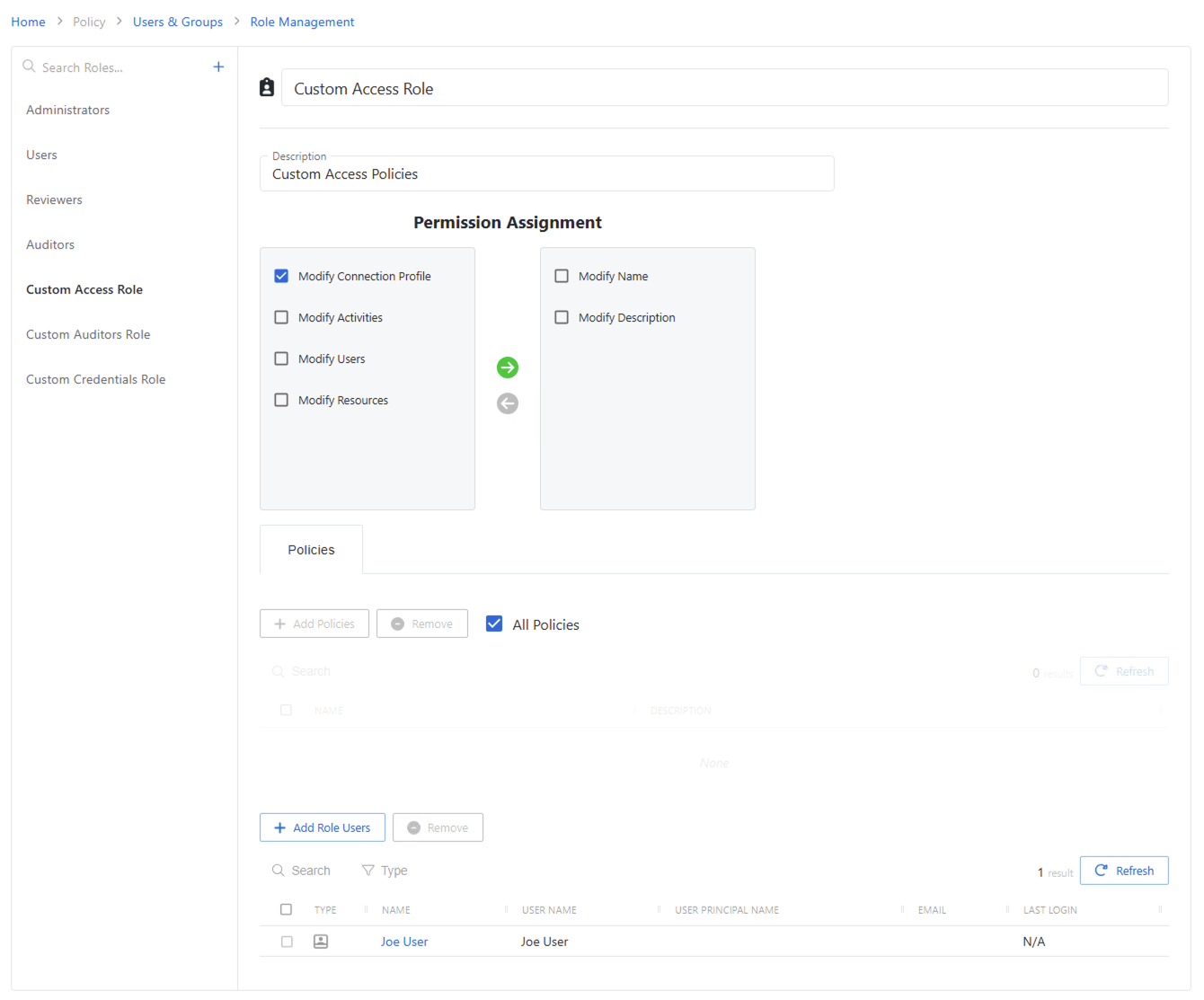
When a custom role is selected, the selected role details display at the top of the main pane with the following features:
- Name — Name of the access policy
- Description — Description of the policy
- Permission Assignment section — Use this section to assign permissions for the custom role. See the Permission Assignment topic for additional information.
- Search — Searches the table or list for matches to the search string. When matches are found, the table or list is filtered to the matching results. This search is specific to the table in the Users section at the bottom.
- Filter — Provides options to filter results based on a chosen criterion: User, Group, Application, Collection, and Local User
- Add Role User — Opens Add Role Users window.
- Remove — Removes console access from the selected account. This button is specific to the table in the Users role assignment section at the bottom.
- Refresh — Reload the information displayed. This button is specific to the table in the Users section at the bottom.
Permission assignment
Each permission gives specific rights to users with the selected role. Permissions on the left are not associated with the role. Permissions on the right are assigned to the selected role.
Available permissions include:
- Modify Name — Grants permission to modify the names of Policies
- Modify Description — Grants permission to modify the descriptions of Policies
- Modify Connection Profile — Grants permission to modify connection profiles of Policies
- Modify Activities — Grants permission to modify activities. Selecting this option enables the Activities tab to scope the permission to specific Activities.
- Modify Users — Grants permission to modify associated users. Selecting this option enables the Users tab to scope the permission to specific Users.
- Modify Resources — Grants permission to modify associated resources. Selecting this option enables the Resources tab to scope the permission to specific Resources.
All custom roles, no matter what permissions are granted, can be scoped to specific policies.
Policy tab
The Policy tab for a custom role has the following features:
- Search — Searches the table or list for matches to the search string. When matches are found, the table or list is filtered to the matching results. This search is specific to the table in the Policies tab.
- Add Policies — Opens the Add Policies window. Add policies here.
- Remove — Removes console access from the selected account. This button is specific to the table in the Policies tab.
- Refresh — Reload the information displayed. This button is specific to the table in the Policies tab.
The Policies tab table has the following columns:
- Checkbox — Check to select one or more items
- Name — Displays the name of the policy. Click the link to view additional details.
- Description — Description of the policy
Role users
Role Users is located at the bottom of the Custom Role details page. This is the user that has access to the Custom Role.
The Role Users has the following features:
- Search — Searches the table or list for matches to the search string. When matches are found, the table or list is filtered to the matching results. This search is specific to the table in the Users tab.
- Type — Provides options to filter results based on a chosen criterion: User, Group, Application, Collection, and Local User
- Add Role Users — Opens the Add Users and Groups window. Add this role to users here.
- Remove — Removes console access from the selected account. This button is specific to the table in the Policies tab.
- Refresh — Reload the information displayed. This button is specific to the table in the Policies tab.
The Role Users table has the following columns:
- Checkbox — Check to select one or more items
- Type — Icon indicates the type of object
- Name — Displays the name of the account.
- User Name — Displays the sAMAccountName for the account
- User Principal Name — Displays the UPN value for the account
- Email — Displays the associated email address, if available
- Last Login — Date timestamp for the last time the user logged into the application