Add Reviewers Window
The Add Reviewers window provides a list of users that have been onboarded. Users are onboarded in the Users & Groups Page.
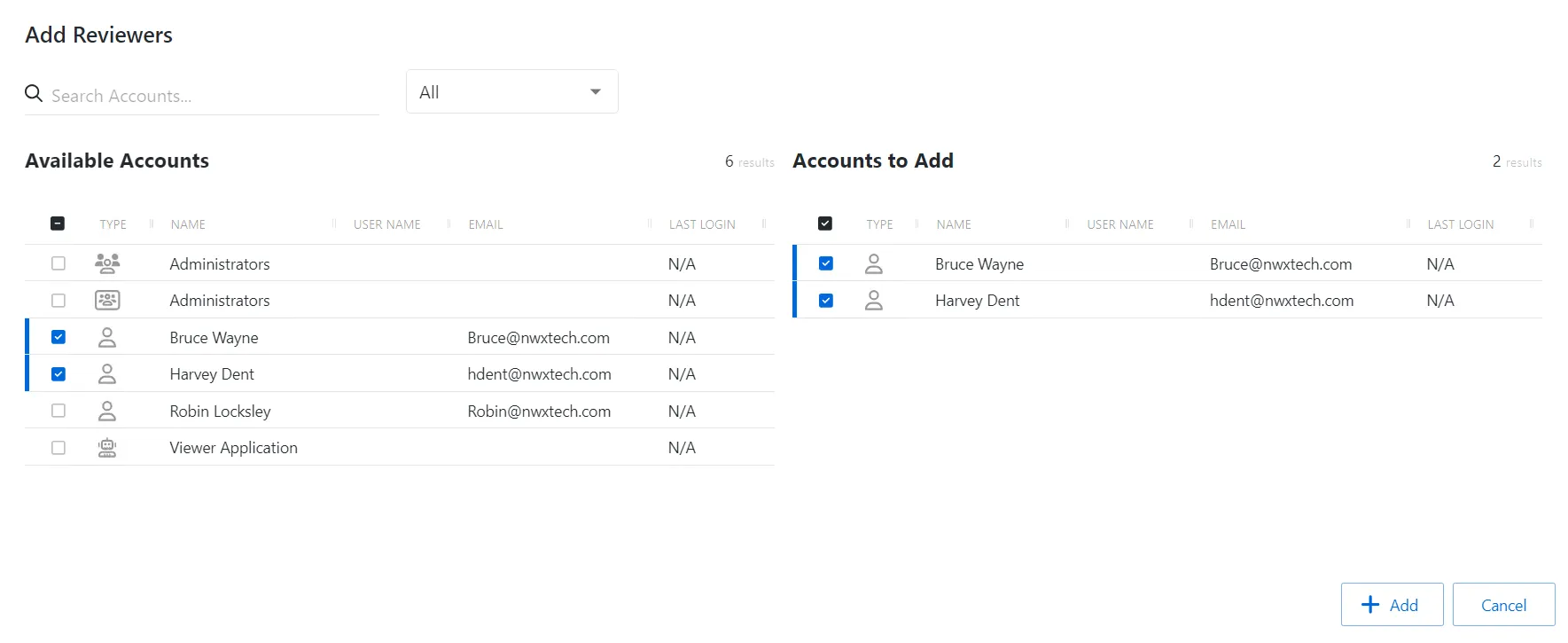
The window has the following features:
- Search — Searches the table or list for matches to the search string. When matches are found, the table or list is filtered to the matching results.
- Filter — Provides options to filter results based on a chosen criterion: User, Group, Application, Collection, and Local User
- Available Accounts — Shows all available users, groups, applications, collections, and local users that have been onboarded
- Accounts to Add — Shows selected users, groups, applications, collections, and local users
- Add button — Adds modifications and closes window
- Cancel — Closes the window
The tables in both sections have the following columns:
- Checkbox — Check to select one or more items
- Type — Icon indicates the type of object
- Name — Displays the name of the account
- User Name — Displays the sAMAccountName for the account
- Email — Displays the associated email address, if available
- Last Login — Date timestamp for the last time the user logged into the application
Select users
To grant users the Reviewer role. See the Role Management Page section for a list of roles and their functions.
- Navigate to the Users & Groups > Role Management page.
- In the Role list, select the Reviewers role.
- Click Add User to open the Add Reviewers window.
- Select the checkbox for the account you want from the Available Accounts table.
- Click Add to add the account to the role.
The selected users are now Privilege Secure Reviewers.