Add Users & Groups Window
The Add Users & Groups window lets you select users. From the Users & Groups Page, this window onboards users. From other interfaces, this window selects onboarded users.
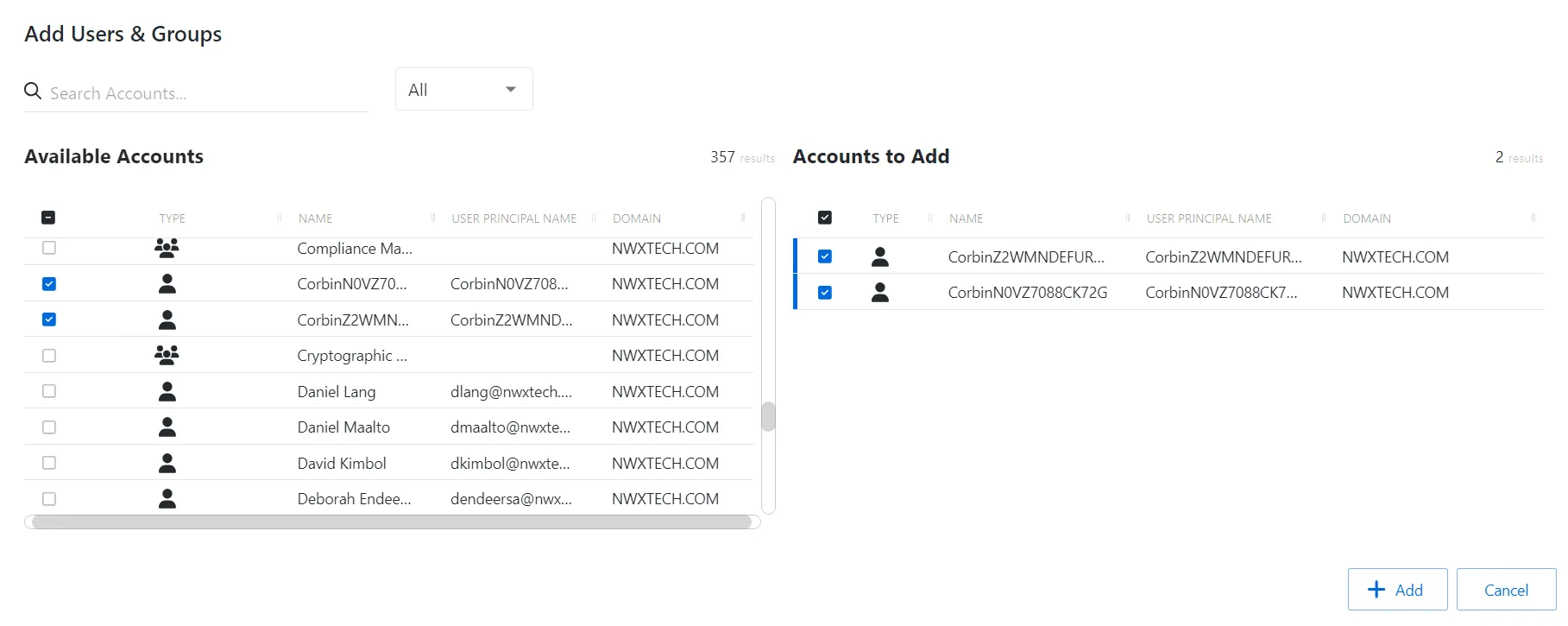
The window has the following features:
- Search — Searches the table or list for matches to the search string. When matches are found, the table or list is filtered to the matching results.
- Filter — Provides options to filter results based on a chosen criterion:
- For Onboarding — User and Group,
- For All Other Reasons — User, Group, Application, Collection, and Local User
- Available Accounts:
- For Onboarding — Shows all available users and groups from the Active Directory sync
- For All Other Reasons — Shows all available users, groups, applications, collections, and local users that have been onboarded
- Accounts to Add:
- For Onboarding — Shows selected users and groups
- For All Other Reasons — Shows selected users, groups, applications, collections, and local users
- Add button — Adds modifications and closes window
- Cancel — Closes the window
The tables in both sections have the following columns:
- Checkbox — Check to select one or more items
- Type — Icon indicates the type of object
- Name — Displays the name of the account
- User Name — Not included for onboarding Displays the sAMAccountName for the account
- User Principal Name — Only included for onboarding Displays the UPN value for the account
- Email — Not included for onboarding Displays the associated email address, if available
- Domain — Displays the domain name for the account
Add users and groups
To add users and groups to the console from AD.
- Navigate to the Policy > Users and Groups page.
- Click Add to open the Add Users and Groups window.
- Filter by Users or Groups, or use the Search feature.
- Select the checkbox for the users you want in the Available Accounts table.
- Click Add to add one or more accounts.
The selected accounts are now added to the Privilege Secure console.