Resource Group Tabs
Resources Tab
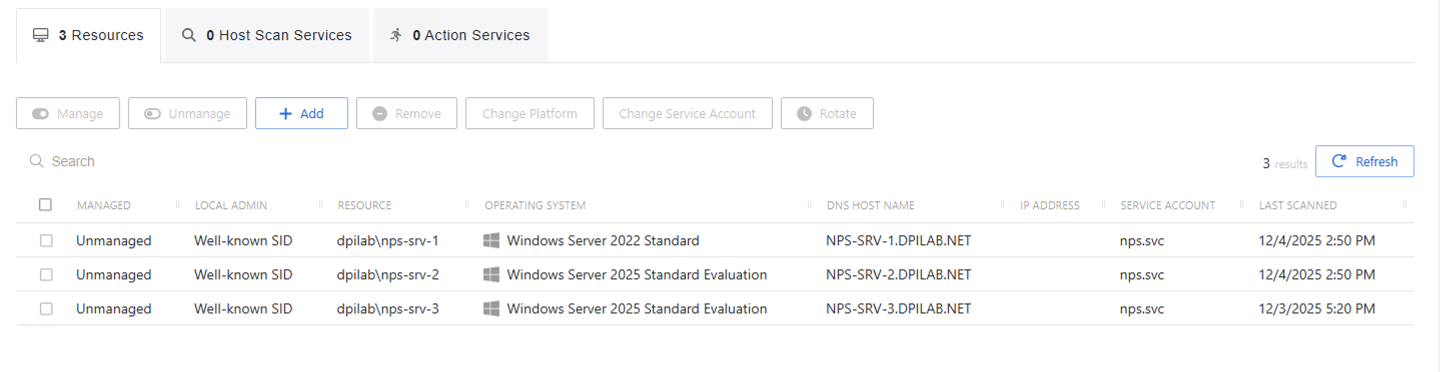
The table has the following features:
- Search — Searches the table or list for matches to the search string.
- Add — Opens the Add Resources window.
- Remove — Removes the selected item from the group
- Manage — Set the selected account to be managed by Privilege Secure. This button is only available when the account Managed Type is Standard or Internal. For an Internal account, a pop up window appears. You can set password rotation to automatic or manual for managed accounts.
- Unmanage — Remove the account from being managed by Privilege Secure
- Change Platform — Opens the Change Platform window to modify the type of platform for the selected host resource.
- Change Service Account — Opens the Change Service Account window to modify the service account associated with the selected host resource.
- Schedule Rotation — Add the credential rotation task to the queue. This button is only available when the Method is Automatic managed.
- Refresh — Reload the information displayed
The table has the following columns:
- Checkbox — Check to select one or more items
- Local Admin — Indicates if the account is managed by Privilege Secure
- Resource — Name of the resource
- Operating System — Displays the operating system of the resource
- DNS Host Name — Displays the DNS host name for a host resource or the FQDN for a domain resource
- IP Address — Displays the IP address for the resource
- Service Account — Displays the service account associated with the resource
- Last Scanned — Date timestamp for the last time the resource was scanned
Host Scan Tab
Host Scan services added to a resource group will cause the Host Scan service to be preferred for this group. If more than one Host Scan Service is added, then all of them are preferred on a next available basis. If all of them are busy, then NPS will use the next available Host Scan service outside of this group.
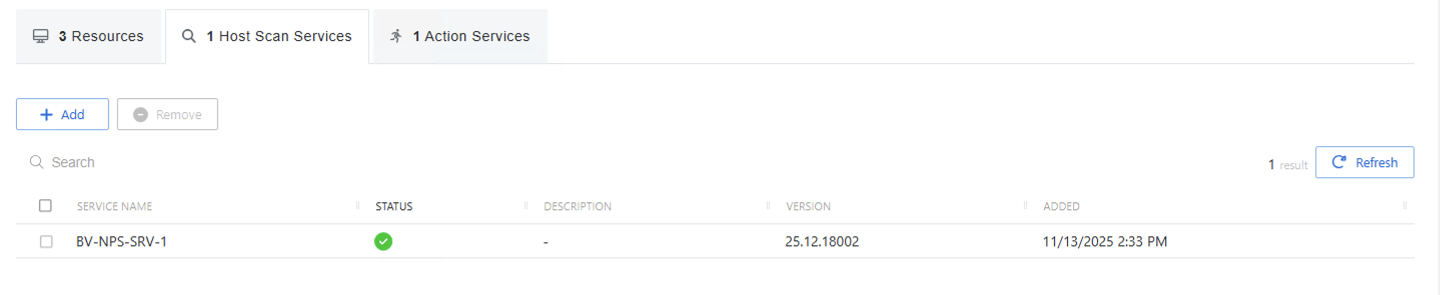
The table has the following features:
- Search — Searches the table or list for matches to the search string.
- Add — Opens the Host Scan Services window.
- Remove — Removes the selected item from the group
The table has the following columns:
- Checkbox — Check to select one or more items
- Service Name — Name of the server with the Host Scan service
- Status — Server status
- Description — Optional description of the Host Scan server
- Version — Software version of the Host Scan service
- Added — date the Host scan service was added to this group
Action Service Tab
Action services added to a resource group will cause the Action service to be preferred for this group. If more than one Action Service is added, then all of them are preferred on a next available basis. If all of them are busy, then NPS will use the next available Action service outside of this group.

The table has the following features:
- Search — Searches the table or list for matches to the search string.
- Add — Opens the Add Action service window.
- Remove — Removes the selected item from the group
The table has the following columns:
- Checkbox — Check to select one or more items
- Service Name — Name of the server with the Action service
- Status — Server status
- Description — Optional description of the Action service server
- Version — Software version of the Action service
- Added — date the Action service was added to this group