Secrets Vault Details Page
Secret Vaults store any manually-managed resource, username, or password combination. This page describes how to add credentials and files to a vault.
For information on allowing users access to the credentials and files in the vault, see Access Policy and create an Access Policy that is Credential based. Then see Credential-based Access Policy
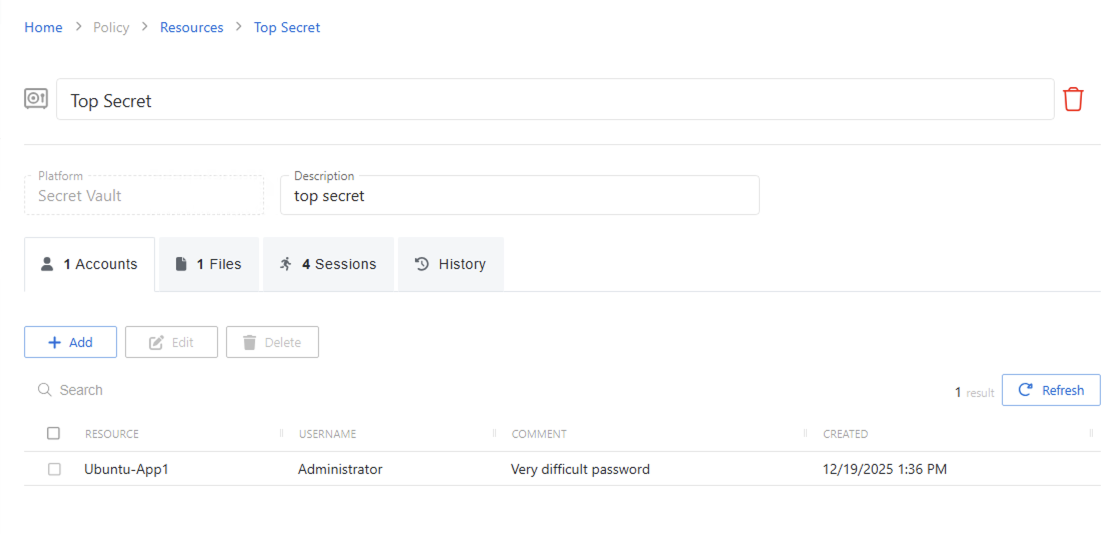
The details page shows the following information:
- Name — Displays the name of the resource
- Trashcan icon — Deletes this credential. A confirmation window displays.
- Platform — Displays the type of platform, which defines the resource
- Description — Description of the policy
Accounts Tab
Use the Accounts tab to add managed account credentials to the vault. It has the following features:
-
Search — Searches the table or list for matches to the search string. When the search finds matches, the table or list shows only the matching results.
-
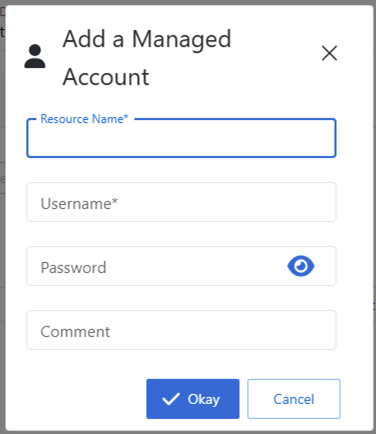
Add — Opens the Add a Managed Account window. Add the resource name, username, secret, and comments (optional).
-
Edit — Opens the Edit a Managed Account window.
-
Delete — Removes the selected item. A confirmation window appears.
-
Refresh — Reload the information displayed
The table has the following columns:
- Checkbox — Check to select one or more items
- Resource — Name of the resource that the account is on
- Username — Displays the name of the account
- Created — Date timestamp when the account was added to the secret vault
You can resize the table columns and sort them in ascending or descending order.
Files Tab
Use the Files tab to add files to the vault. It has the following features:
-
Search — Searches the table or list for matches to the search string.
-
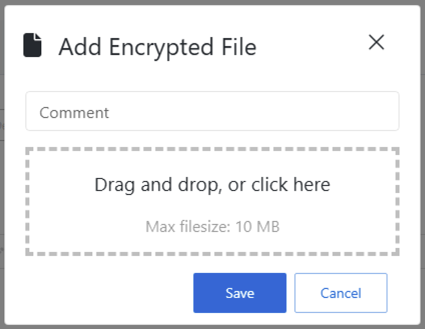
Add — Opens the Add Encrypted File window. Drag and drop the file or click the designated area to browse. Add a comment (optional)
-
Edit — Opens the Update Encrypted File window.
-
Delete — Removes the selected item. A confirmation window appears.
-
Refresh — Reload the information displayed
The table has the following columns:
- Action — Click the respective icon to download the file or checksum.
- File type — Format of the file
- Size — File size
- Comment — Notes that were added to the file metadata
- Created — Date timestamp when the account was added to the secret vault
You can resize the table columns and sort them in ascending or descending order.
Sessions Tab
The Sessions tab has the following features:
- Search — Searches the table or list for matches to the search string.
- View Logs — Opens the Session Logs window to view the action log for the selected session. See the Session Logs Window topic for additional information.
- Refresh — Reload the information displayed
The table has the following columns:
- Requested — Date and time of when the session was created
- Requested By — User who requested the session. Click the link to view additional details. See the User, Group, & Application Details Page topic for additional information.
- Login Account — Displays the account used to log onto the resource
- Activity — Displays the name of the activity. Click the link to view additional details. See the Activities Page topic for additional information.
- Start — Indicates when the activity started. This refers to when Privilege Secure executed the activity’s actions, not when the user logged on to the resource.
- End — Indicates when the session is scheduled to end the activity, which is determined by the start time plus the maximum session duration set by the access policy Connection Profile
- Status — Shows status information for the session:
- Waiting for Approval — The session requires approval to begin. See the Approvals Dashboard topic for additional information.
- Approval Denied — Requested session was denied
- Approval Failed — Approval request has encountered an error
- Pending — Session scheduled start time is still in the future, session is waiting to start. See the Scheduled Dashboard topic for additional information.
- Available — The activity session is ready. Click the icon to begin the session, or log in through a client. See the Start Activity Session topic for additional information.
- Completed — Activity either reached the end of its scheduled end time or was canceled early by the requestor
- Canceled — The session is either expired or was canceled manually by the user or a Privilege Secure administrator.
- Failed — Pre-Session stage of the Activity has encountered an error
- Locked — An Privilege Secure administrator has locked the session. See the Lock Session topic for additional information.
You can resize the table columns and sort them in ascending or descending order.
History Tab
The History tab has the following features:
- Search — Searches the table or list for matches to the search string. When the search finds matches, the table or list shows only the matching results.
- View Logs — Opens the Session Logs window to view the action log for the selected session. See the Session Logs Window topic for additional information.
- Refresh — Reload the information displayed
The table has the following columns:
- Status — Shows status information for the session:
- Information — Session was successful and row contains details
- Error — Session had an error and row contains details
- Time — Date timestamp for when the event occurred
- User — User who requested the session. Click the link to view additional details. See the User, Group, & Application Details Page topic for additional information.
- Access Policy — Displays the name of the policy
- Event Message — Description of the event
- Session ID — Unique identifier for the session
You can resize the table columns and sort them in ascending or descending order.