Add Database
To add a database to the Privilege Secure Console. Supported database platforms include:
- Microsoft SQL
- Oracle
-
Navigate to the Resources page.
-
Click Add > New Database.
-
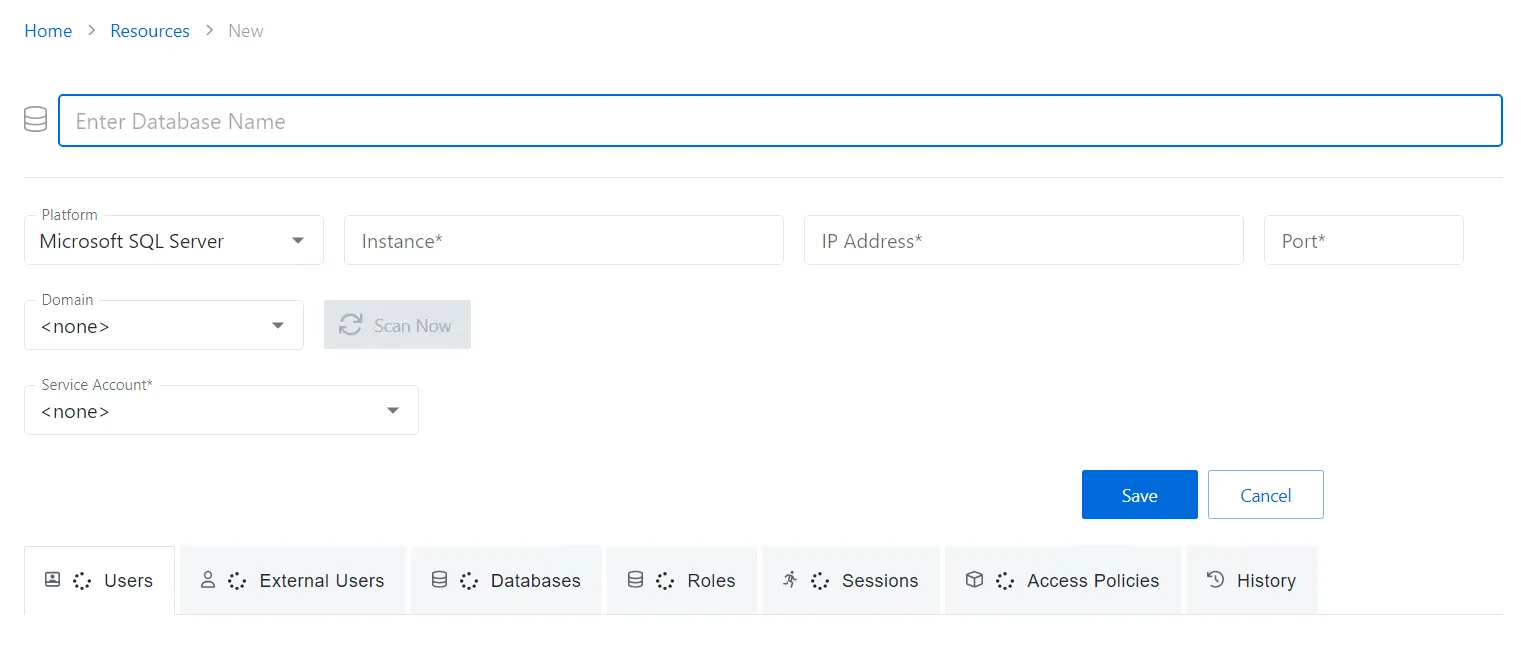
In the Enter Database Name box, enter a unique name to identify the database.
-
Select Microsoft SQL Server or Oracle from the Platform dropdown list.
-
Enter the instance name for the server.
-
Enter the IP address for the server.
-
Enter the port for the server. The default ports for each database platform are:
- Microsoft SQL: 1433
- Oracle: 1521
-
Enter the fully qualified domain name (FQDN) for the server.
noteThe domain is used as the default domain for database activities.
-
From the dropdown menu, select a previously added service account with credentials for the database.
- See the Service Accounts Page topic for additional information.
- Visit icon — Go to the Service Account page to view details of the selected service account.
- Add New Service Account icon — Open the Add New Service Account window. The fields are identical to those on the Service Accounts page.
-
Click Save to save the configuration options and enable the Scan Now button.
-
Click Scan Now to begin scanning the database.
The new database is now added. See the Database Details Page for additional details.