Add Resources Window for Protected Policy
The Add Resources window provides a list of resources that have been onboarded. Resources are onboarded in the Resources Page.
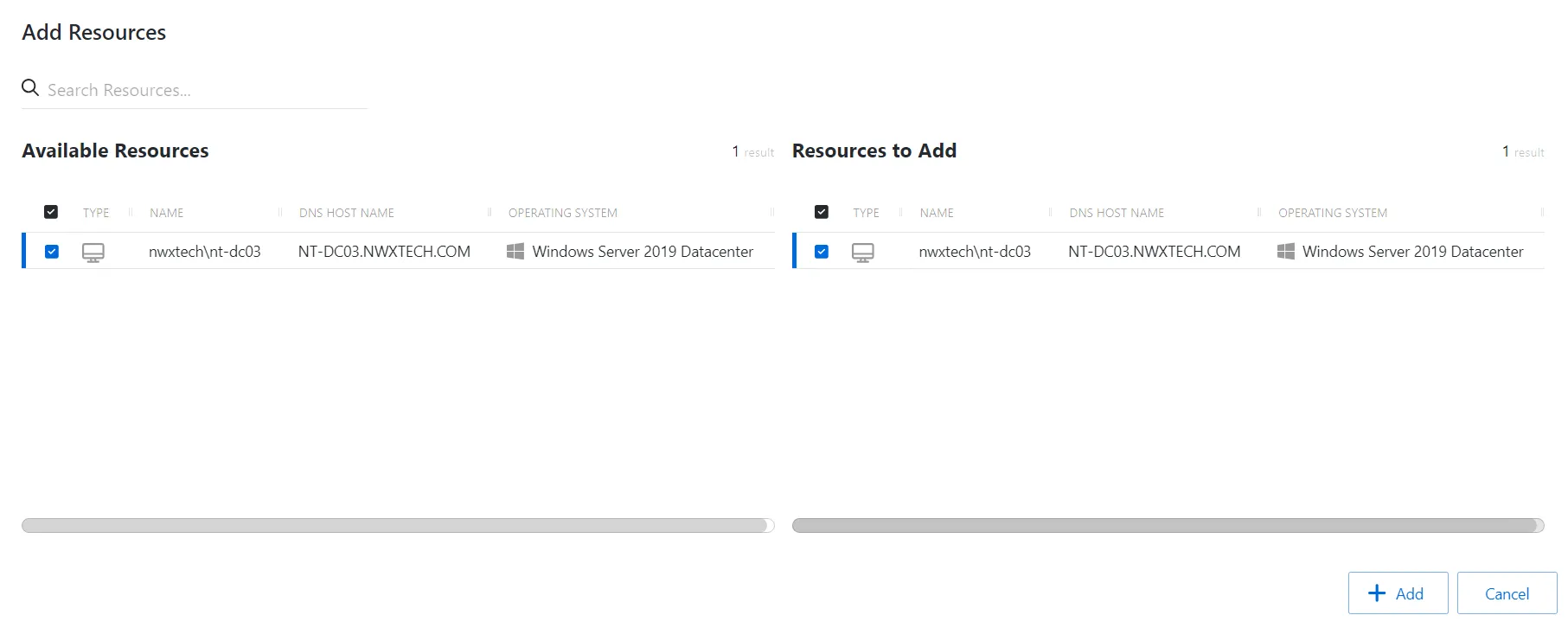
The window has the following features:
- Search — Searches the table or list for matches to the search string. When matches are found, the table or list is filtered to the matching results.
- Available Resources — Shows all available resources
- Resources And Groups to Add — Shows selected resources
- Arrow icons — Use the arrows to move selection in and out of the Resources to Add section
- Add — Adds modifications and closes window
- Cancel — Discards modifications and closes the window
Both tables have the following columns:
- Checkbox — Check to select one or more items
- Type — Classification of the activity
- Name — Displays the name of the resource. Click the link to view additional details. See the Resources Page topic for additional information.
- DNS Host Name — Displays the DNS host name for a host resource or the FQDN for a domain resource
- Operating System — Displays the operating system of the resource
Add resources
To add resources to the selected protection policy.
-
Navigate to the Policy > Protection Policies page.
-
In the Protection Policy list, select the name of the protection policy and select the Resources tab.
-
Click Add to open the Add Resources window.
The Add Resources window has the following features:
- Search — Searches the Name and Operating System columns to match the search string. When matches are found, both tables are filtered to the matching results.
- Available Resources — Shows all resources that are added to the console
- Resources to Add — Shows the resources to be added to the protection policy
- You can sort the following columns in ascending or descending order
- Type — The type of the resource
- Name — The name of the resource
- DNS Host Name — The DNS host name for a host, or FQDN for a domain
- Operating System — Operating System of resource
-
To add a resource to the protection policy, click a row in the Available Resources table to move it to the Resources to Add table.
-
(Optional) Click a row in the Resources to Add table to move it back to the Available Resources table.
-
Click Add to add the resources to the protection policy.
The new resources are added to the protection policy and are shown on the Resources Tab for Protection Policies.