Allowed Members Tab for Protection Policies
The Allowed Members tab shows the configuration options for managing the groups governed by the selected protection policy. The next scheduled sync removes any discovered group members that aren't in the list from the local group on the resource.
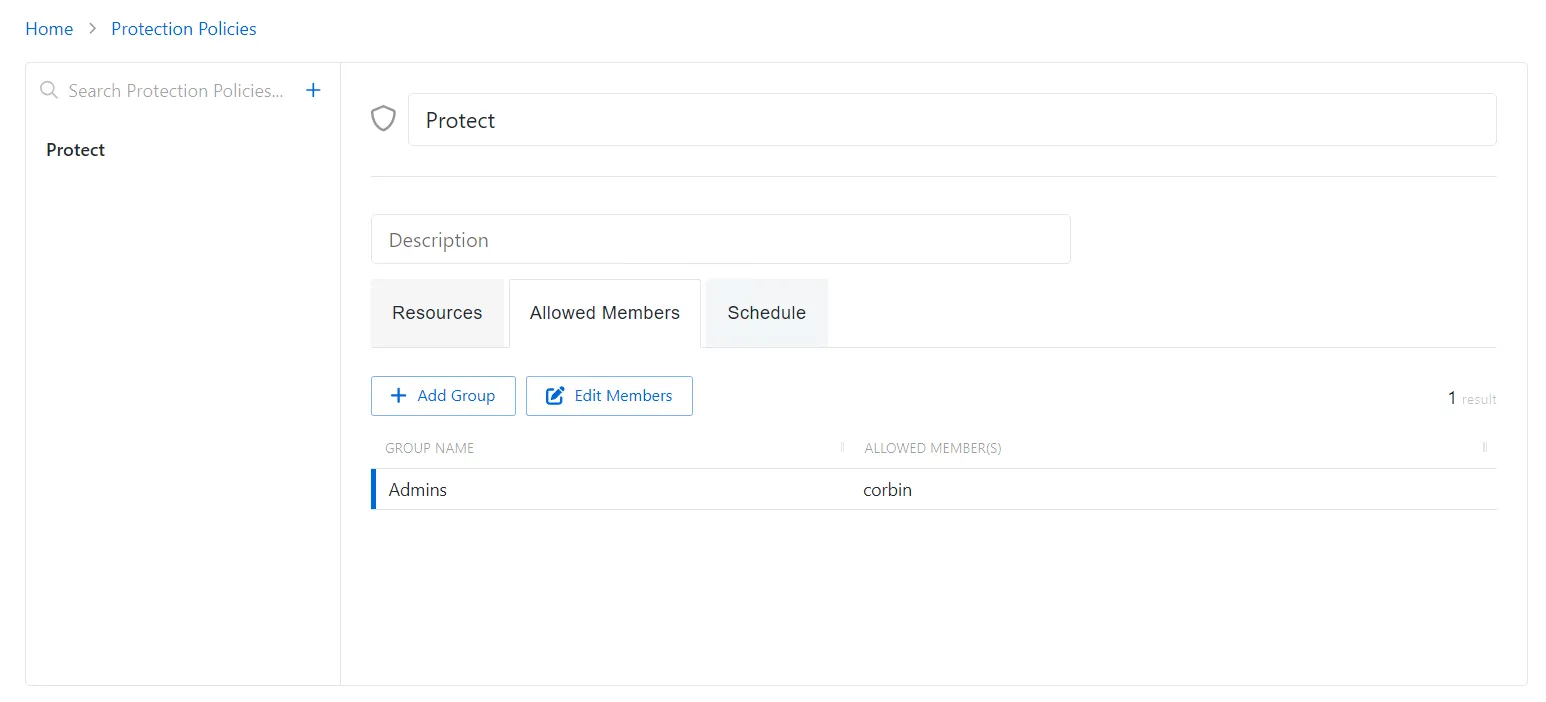
The Allowed Members tab has the following features:
- Add Group — Opens the Add Protected Group and Member window. See the Add Groups to a Protection Policy topic for additional information.
- Edit Members — Opens the Edit Protected Group Members window to edit the selected group within the protection policy. See the Edit Protected Group Members topic for additional information.
The table has the following columns:
- Group Name — Displays the name of the group
- Allowed members — Authorized account that will not be removed from the local group when the protection policy runs. If a domain isn't specified in the name, the account is assumed to be local to the resource.
Add groups to a protection policy
To add local groups to the selected protection policy.
-
Navigate to the Policy > Protection Policies page.
-
In the Protection Policy list, select the name of the protection policy and select the Allowed Members tab.
-
Click Add Group to open the Add Protected Group and Member window.

-
Enter the following information:
-
Group Name — Displays the name of the group.
noteYou can't use Privilege Secure to create a group. The group must already exist on the resource.
-
Group Member — The name of the group member
-
-
Click Save to add the group to the protection policy.
The new group appears on the Allowed Members Tab for Protection Policies. When Privilege Secure scans the resource, it removes any group members not permitted by the protection policy from the local group on the resource.
Edit protected group members
To edit the members of a local groups within the selected protection policy.
-
Navigate to the Policy > Protection Policies page.
-
In the Protection Policy list, select the name of the protection policy and select the Allowed Members tab.
-
Click Edit Members to open the Edit Protected Group Members window.

-
Click the Trashcan icon next to a member to remove them from a Protected Group. A confirmation window appears.
-
(Optional) Enter a Group Member in the provided field.
-
Click Add.
Members of the Protected Group have been edited for this protection policy.