Protection Policies Page
The Protection Policies page is accessible from the Navigation pane under Policy. It shows the configured protection policies, which monitor local groups on a resource for changes. Only users or groups added to the protection policy are permitted. When the resource is scanned, any local group members that aren't listed on the Allowed Members Tab for Protection Policies are removed from the resource.
You can also add the action Invoke Protection Policy to the Post Session group of an activity. This action runs all protection policies that apply to the target resource when the session completes, instead of waiting for the scheduled sync. See the Activities Page topic for additional information.
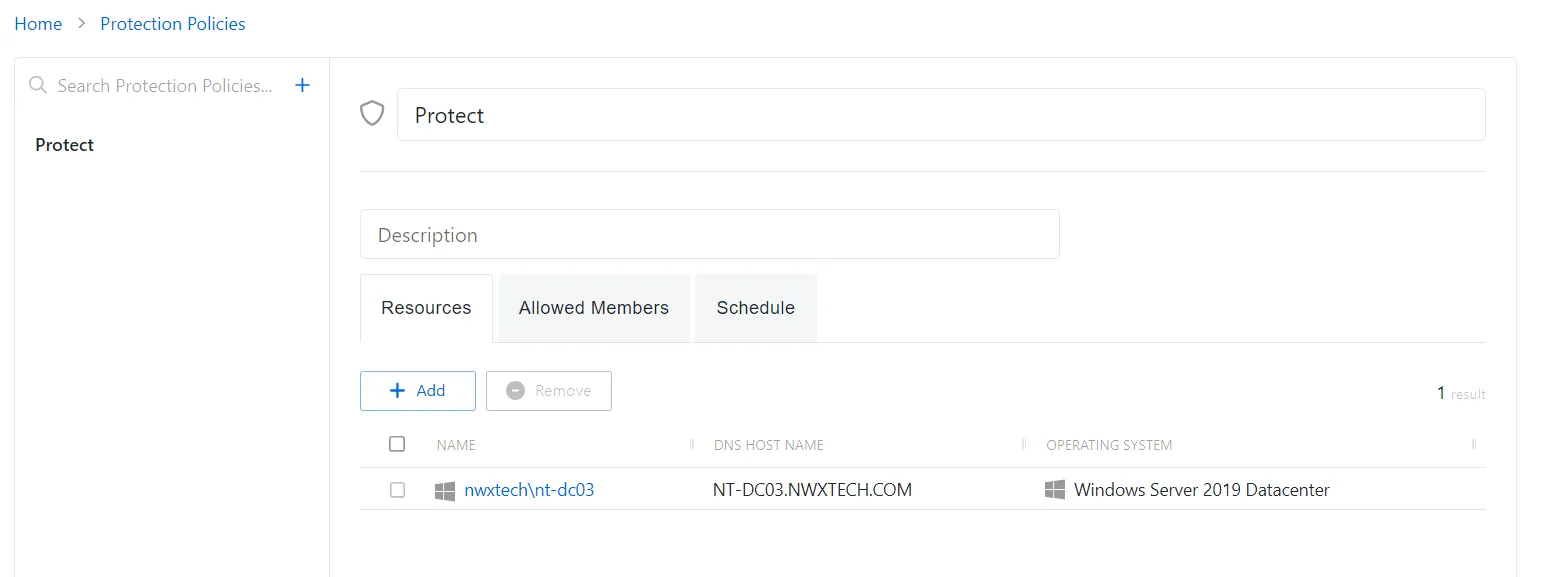
The pane on the left side of the page displays a list of the configured protection policies. This pane has the following features:
- Search — Searches the table or list for matches to the search string. When matches are found, the table or list is filtered to the matching results.
- Blue + button — Create a new protection policy. See the Add Protection Policy topic for additional information.
- Copy icon — Create a new protection policy based on the current selection. The icon appears when you hover over the policy.
- Trashcan icon — Deletes the protection policy. The icon appears when you hover over the policy. A confirmation window displays.
The selected protection policy details display at the top of the main pane:
- Name — Displays the name of the policy
- Description — Description of the policy
If you modify any of these settings, Save, and Cancel buttons appear. Click Save to commit the modifications. Click Cancel to discard the modifications.
The tabs at the bottom of the main pane are for associating Resource, Members, and Schedule to the protection policy. See the following topics for additional information: