Add Password Complexity Policy
To add a password policy to the console.
-
Navigate to the Policy > Platforms > Password Complexity page.
-
In the Password Policy list, click the Plus icon.
-
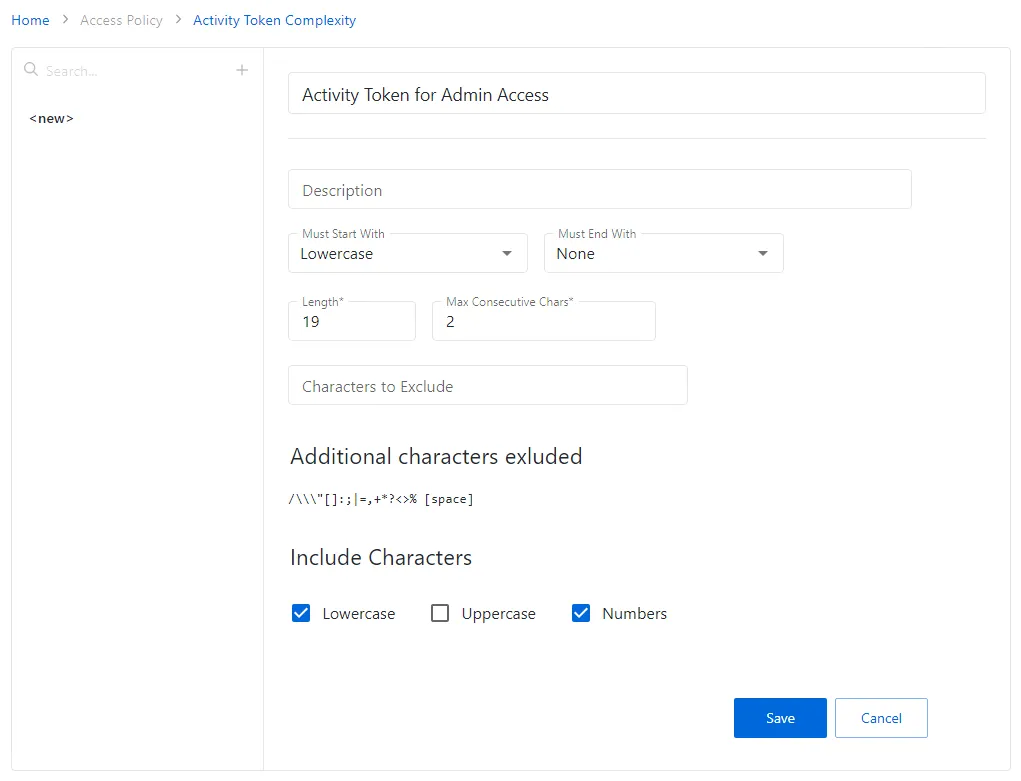
Complete the following fields:
- Name — The name of the password complexity policy
- Description — Description of the policy
- Must start with — Enter the symbol type from which the password must start with (uppercase, symbol, etc.)
- Must end with — Enter the symbol type from which the password must end with (uppercase, symbol, etc.)
- Length — Provide the password you want length
- Max consecutive chars — Select maximum number of consecutive characters
- Characters to exclude — select characters to exclude from the password body
- Include characters — select characters type to be excluded from the password body. Possible values
are:
- Lowercase — Includes lower case letters
- Uppercase — Includes upper case letters
- Symbols — Includes the following characters: !#$%&*@\
- Spaces — Includes spaces
- Numbers — Includes numbers
-
Click Save to create the new password policy.
The new password policy is added to the Password Policy list.