Add Credential Policy Override
To add Credential Policy Override to the Privilege Secure Console.
-
Navigate to the Policy > Credentials > Credential Policy Overrides page.
-
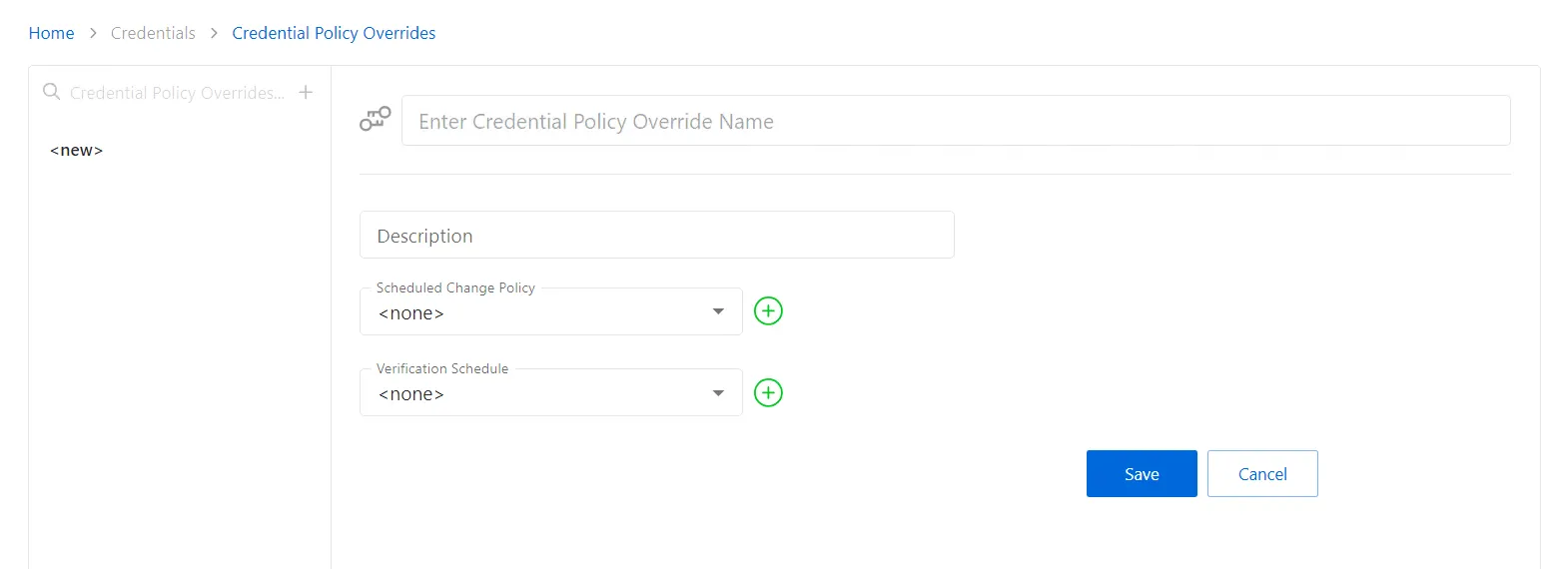
In the Credential Policy Overrides list, click the Plus icon.
-
Enter or select the following information:
- Name — Displays the name of the credential
- Description — Description of the policy
- Scheduled Change Policy — Select a previously added schedule policy from the dropdown list. How often the credentials for a managed account are changed (credential rotation). See the Credentials Dashboard and Schedule Policies Page topic for additional information.
- Verification Schedule — How often to verify the credentials for managed accounts on the resources defined by the selected platform. See the Credentials Dashboard topic for additional information on managed accounts.
-
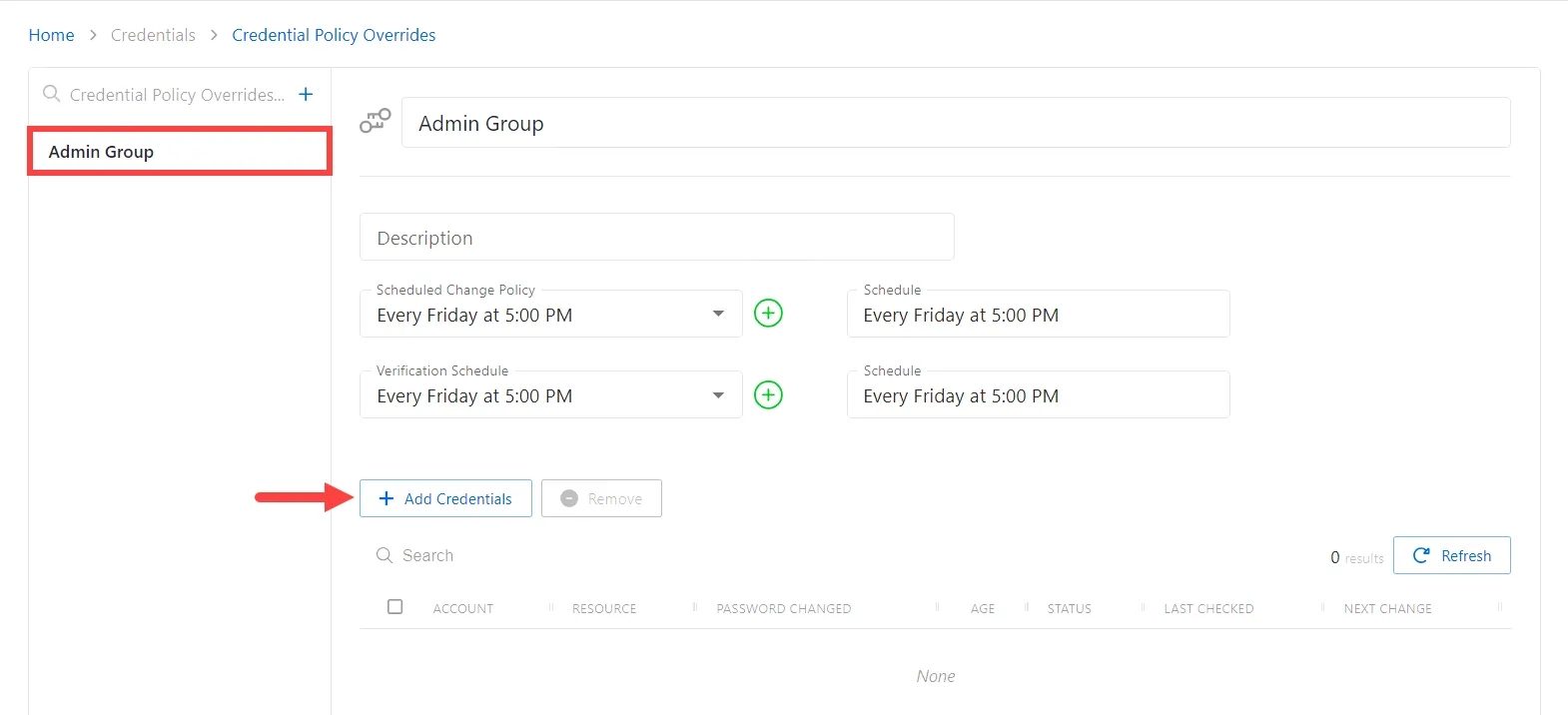
Click Save to create the new credential policy override.
-
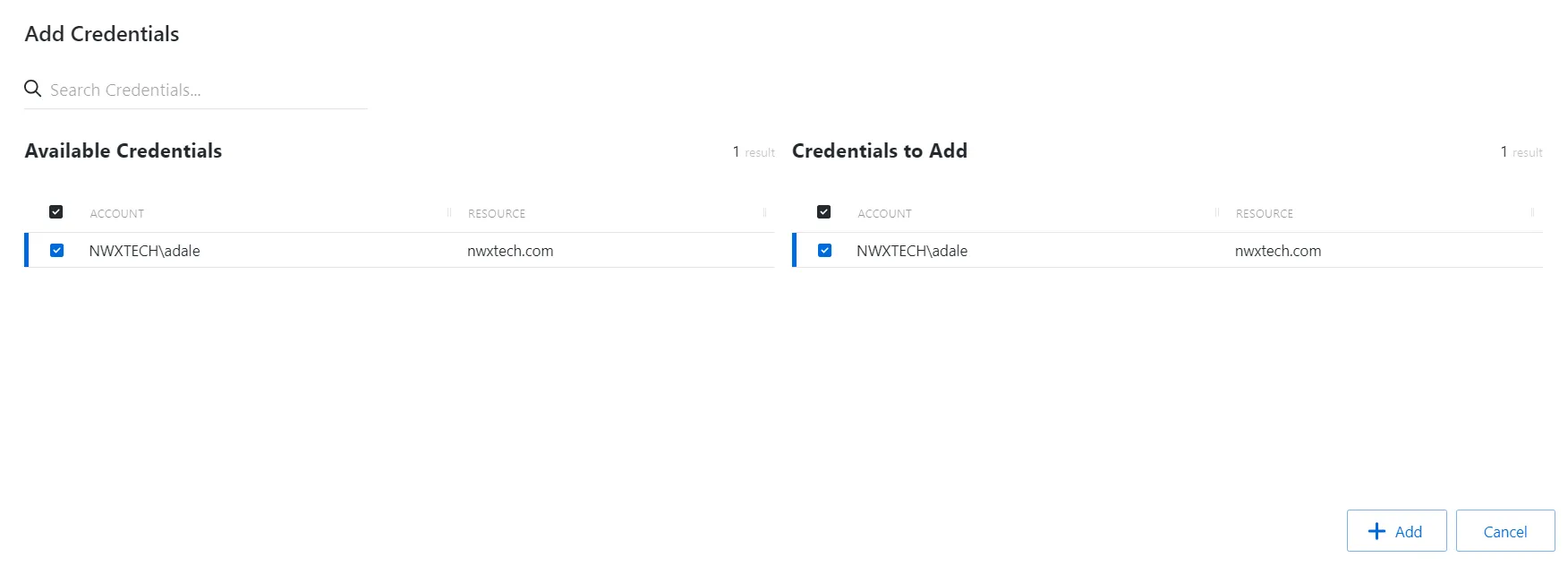
With the new Credential Policy Override selected, click the Add Credentials button to open the Add Credentials window. See the Add Credentials to a Policy Override topic for additional information.
-
Select the checkbox for the credential and click Add to save the credential to the Credential Policy Override.
noteTo add an account in the Add Credentials window, you must manage a credential with a method of Automatic. You can add only one account to a Credential Policy Override at a time. See the Manage Internal Service Accounts topic for additional information.
The account is added to the console and is shown in the Credential Policy Overrides list.