Add Action Window
The Add Action window varies slightly based on the Action Type selected and the associated session part. Follow the instructions to add actions to the activity.
-
Navigate to the Activities page.
-
In the Activities list, select the name of an activity.
-
In the Actions section, for each of the following, click the Add icon.
- Pre-Session (Grant) — List of actions that will run before the session begins. These actions may be paired with a corresponding Post-Session action.
- Session (Connect) — List of actions that will run during the session
- Post-Session (Remove) — List of actions that will run after the session completes.
These actions may be paired with a corresponding Pre-Session action.
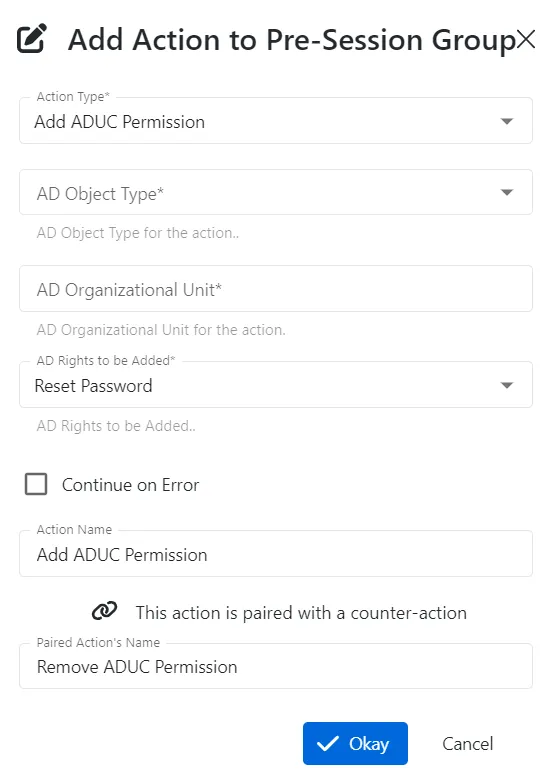
-
Complete the following fields:
- Action Type — Icon indicates the type of object.
- AD Object Type — Select which type of object, a User or Computer, to manage in the Organizational Unit.
- AD Organizational Unit for the Action — Enter a pre-existing Organizational Unit the login account have delegated permissions for.
- AD Rights to be Added — Select which right to delegate to the login account for managing the previously specified Organizational Unit.
- Continue on Error — If an error occurs, continue to the next step rather than halting the action.
- Action Name — (Optional) Edit the name of the action.
- Paired Action's Name — (Optional) Edit the name of the paired action
See the Action Types section for detailed descriptions of the fields.
noteThe fields will change depending on the selected Action Type.
-
Click Okay to create the new action.
-
Continue to create as many actions for each stage of the session (Grant, Connect, Remove) as required.
noteIt isn't possible to change the Action Type after the action is created. Delete the existing action and then create a new action to get a new Action Type.
-
If desired, you can automatically run any Protection Policies associated with the resource when the session completes. Add the Invoke Protection Policies action to the Post-Session group. See the Protection Policies Page topic for additional information.
noteIt isn't necessary to select a protection policy. All protection policies that apply to the session host are executed.
The new actions are added to the activity.