Add Activity
To add activities to the console.
-
Navigate to the Activities page.
-
In the Activities list, click the Add Activity icon.
-
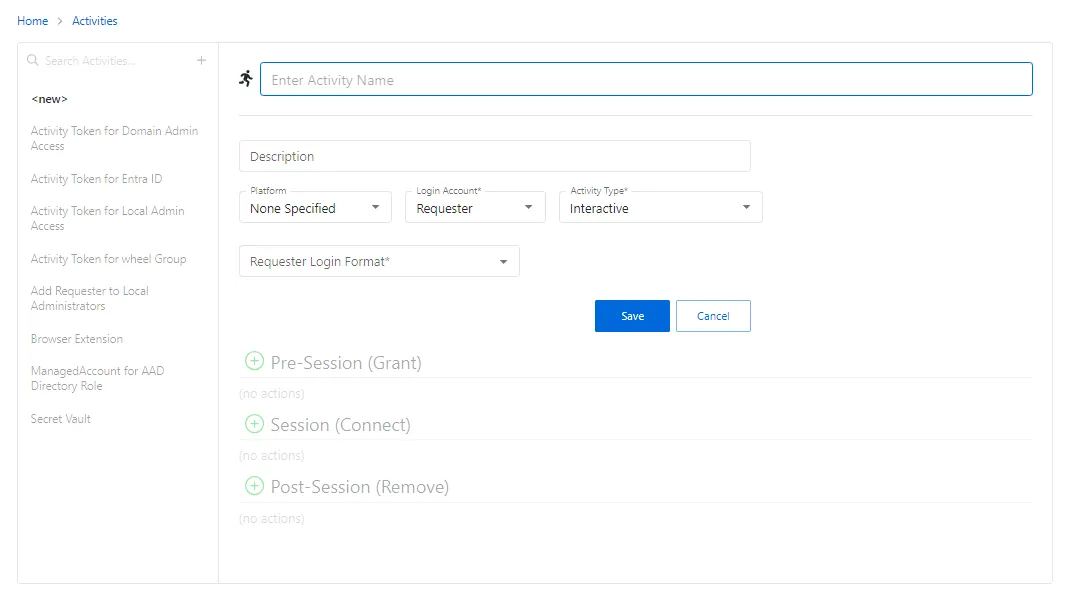
Enter the information for the activity you want. The configuration options will vary depending on each selection.
The pane on the left side of the page displays a list of the configured activities. This pane has the following features:
- Search — Searches the table or list for matches to the search string. When matches are found, the table or list is filtered to the matching results.
- Green + — Add an activity to the list.
- Copy icon — Clones the activity and adds a new entry to the Activities list. Icon appears when activity is hovered over.
- Trashcan icon — Deletes the activity. Icon appears when activity is hovered over. A confirmation window displays.
-
Enter the configuration information on the right side of the page. Configuration options include:
- Name — Displays the name of the activity.
- Description — Description of the policy.
- Platform — Displays the type of platform, which defines the resource.
- Login Account — Displays the account used to log onto the resource.
- Activity Type — Controls the type of actions for the activity.
- Requester Login Format — Indicates the format that prefill the Username field for logging into the resource. It must exactly match the username defined on the resource.
- Application to Launch — Indicates the application launched on the RDS server that the user is connected to by Privilege Secure
- Logon URL — Displays the primary logon page
-
Click Save to create the new activity.
-
With the new activity selected, configure the following settings. See the Add Action Window topic for additional information:
- Pre-Session (Grant) — List of actions that will run before the session begins. These actions may be paired with a corresponding Post-Session action.
- Session (Connect) — List of actions that will run during the session
- Post-Session (Remove) — List of actions that will run after the session completes. These actions may be paired with a corresponding Pre-Session action.
The new activity is added to the console and is shown in the Activities list.