Credential Based Access Policies
This article is how to provide access to credentials of files in a vault.
To add a vault, see Adding a vault. Then to add credentials or files to the vault, see Vault Details
Users tab for credential based access policies
The Users tab shows the users and groups associated with the selected access policy.
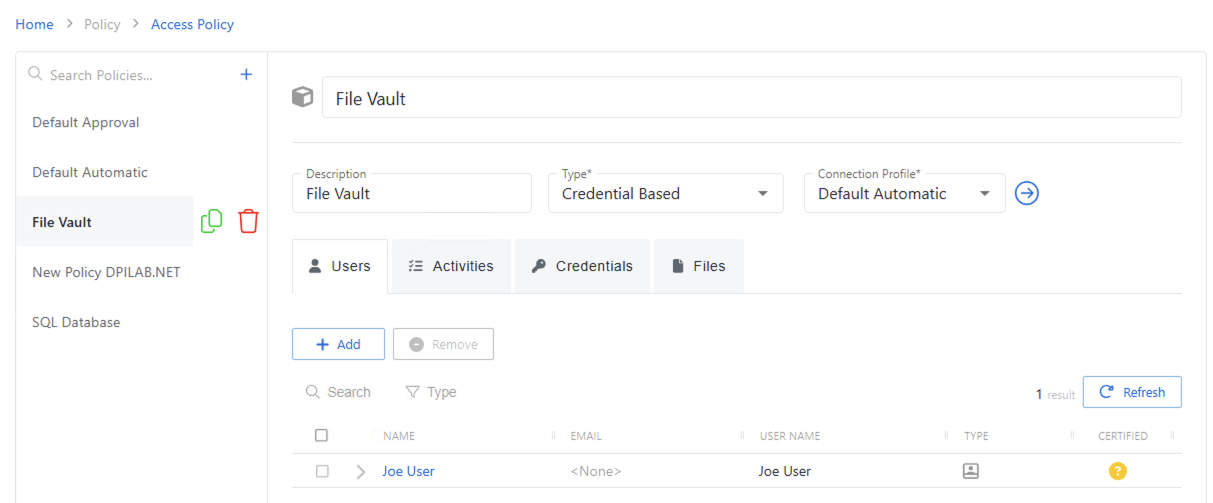
The Users tab has the following features:
- Add — Opens the Add Users and Groups window. See the Add Users & Groups Window topic for additional information.
- Remove — Removes the selected item from being associated with the policy
- Search — Searches the table or list for matches to the search string. When matches are found, the table or list is filtered to the matching results.
- Type — Provides options to filter results based on a chosen criterion:
- All — Displays all individual and group types
- User — Displays user types
- Group — Displays group types
- Application — Displays application types
- Collection — Displays collection types
- Local User — Displays local user types
- Refresh — Reload the information displayed
The table has the following columns:
- Checkbox — Check to select one or more items
- Expand — Click the expand icon to show additional information about the activities and resources authorized for the selected user or group
- Name — Displays the name of the account. Click the link to view additional details. See the User, Group, & Application Details Page topic for additional information.
- Email — Displays the associated email address, if available
- User Name — Displays the sAMAccountName for the account
- Type — Icon indicates the type of object
- Certified — Indicates the access entitlement for the user or group. See the
Access Certification Page topic for
additional information.
- Approved — Access entitlements have been approved
- Denied — Access entitlements have been revoked
- Incomplete — No access entitlement review has been completed
The table columns can be resized and sorted in ascending or descending order.
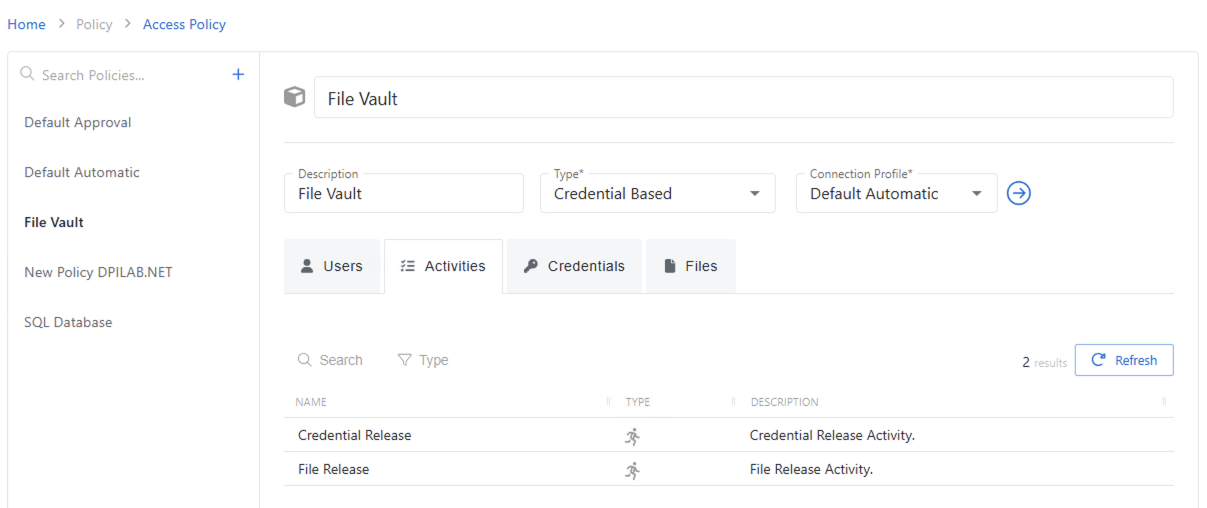
Activities tab for credential based access policies
The Activities tab for credential-based Access Policies isn't editable. It only shows that the users can get access to credentials and/or files that are listed in the respective tabs.
Credentials tab for credential based access policies
The Credentials tab shows credentials associated with the selected Credential Based access policy.
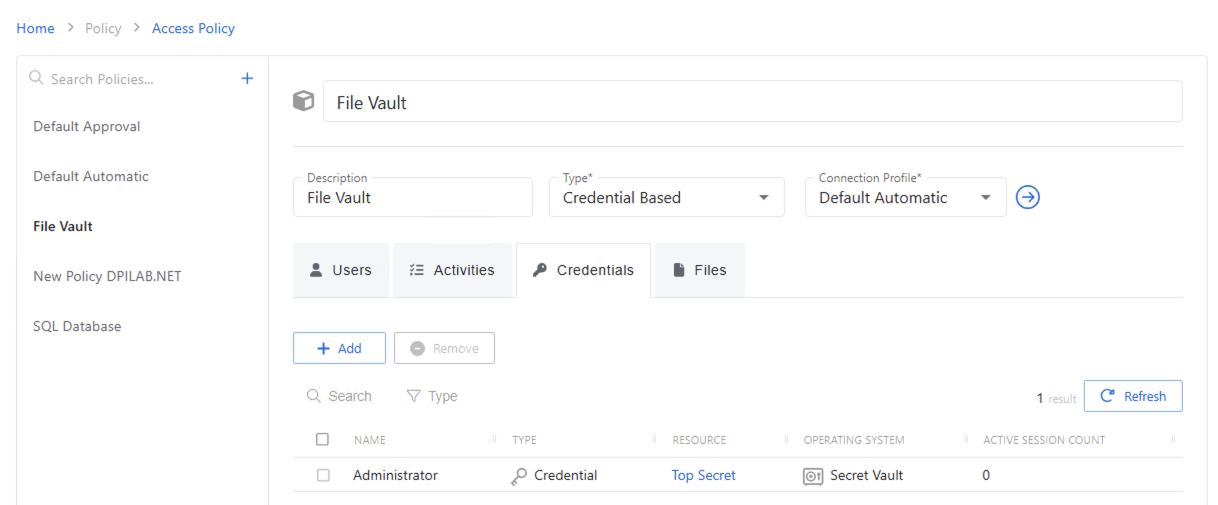
The Credentials table has the following features:
- Add — Opens the Add Credentials window.
- Remove — Removes the selected item from being associated with the policy
- Search — Searches the table or list for matches to the search string. When matches are found, the table or list is filtered to the matching results.
- Type — Provides options to filter results based on a chosen criterion:
- All — Displays all credentials for users and groups
- Credential — Displays user credentials
- Credential Group — Displays group credentials
- Refresh — Reload the information displayed
The table has the following columns:
- Checkbox — Check to select one or more items
- Name — Name of the account or credential group
- Type — Icon indicates the type of object
- Resource — Name of the resource that the account is on
- Operating System — Displays the operating system of the resource
- Active Session Count — Displays the number of active sessions on the resource
The table columns can be resized and sorted in ascending or descending order.
Files tab for credential based access policies
The Files tab shows files associated with the selected Credential Based access policy.
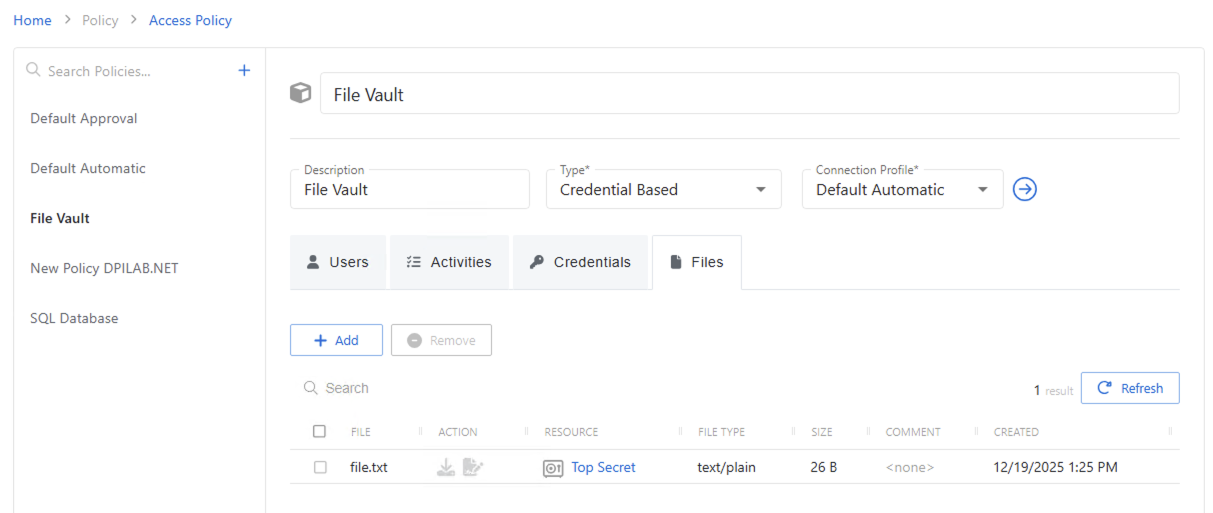
The Files table has the following features:
- Add — Opens the Add Credentials window.
- Remove — Removes the selected item from being associated with the policy
- Search — Searches the table or list for matches to the search string. When matches are found, the table or list is filtered to the matching results.
- Refresh — Reload the information displayed
The table has the following columns:
- Checkbox — Check to select one or more items
- Name — Name of the account or credential group
- Action — Download the file or its checksum
- Resource — Name of the vault that the file is in
- File type — text, docx, pdf, etc
- Size — How large the file is
- Comments — Place where notes or metadata can be added. This is done when the file is added or edited
- Created — date the file entered the vault.