Add Connection Profile
To add a connection profile to the console. See the Connection Profiles Page topic for detailed descriptions of the fields.
-
Navigate to the Policy > Access Policies > Connection Profiles page.
-
In the Connection Profiles list, click the Plus icon.
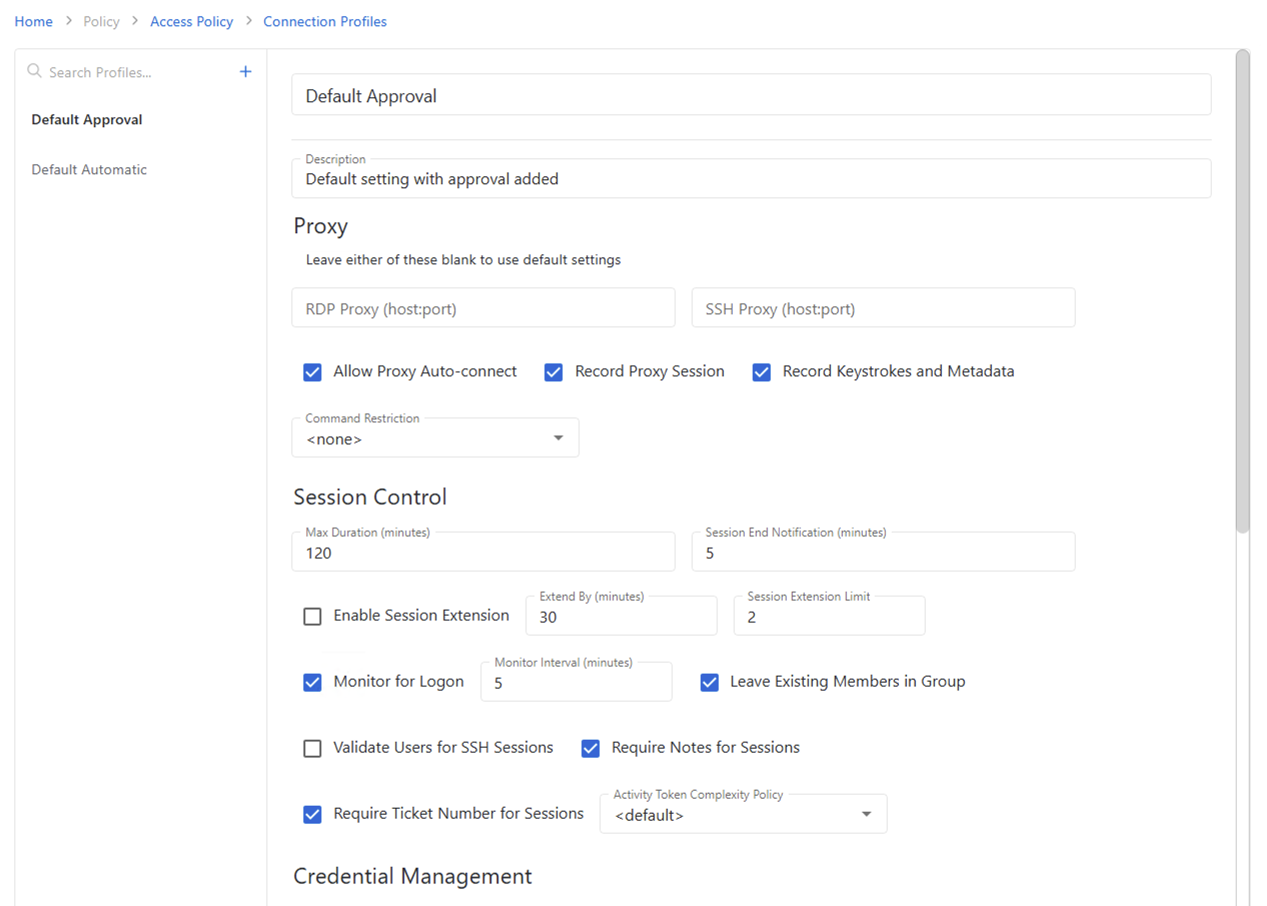
-
Enter the information you want to configure a new connection profile.
-
Name — Provide a unique name for the connection profile
-
Description — Provide an optional description to indicate the purpose of connection profile
-
Configure the Proxy settings, which control what proxy server start the session. When customizing to use a specific proxy RDP (port
4489) and SSH (port4422) proxy server, you can list only one server.noteTo use more than one proxy server, use a load balancer in front of the servers.
-
Session Control — Configure the Session Control settings to set up session duration and user login parameters for a connection profile.
noteOn this step, you must also select a default Activity Token Complexity policy for the connection profile
-
Credential Management — Configure the Credential Management settings, which control parameters for the password used for this connection profile
-
Website Settings — Configure the Website settings which control cleaning of the website data and allow recording the computer audio, if needed
-
Custom Fields — Configure the Custom Fields settings to create additional data entries for the connection profile
-
Approval Workflow — Configure the Approval Workflow settings
-
-
Click Save to create the new connection profile.
-
The new connection profile is created. To add an Approval Workflow, see the Add Approval Workflow topic for additional information.
The Connection Profiles list shows the new connection profile.