Activity Token Complexity Page
The Activity Token Complexity Policy page is accessible from the Navigation pane under Policy > Access Policy > Activity Token Complexity. It shows the configuration options for managing the complexity of activity tokens for connection profiles.
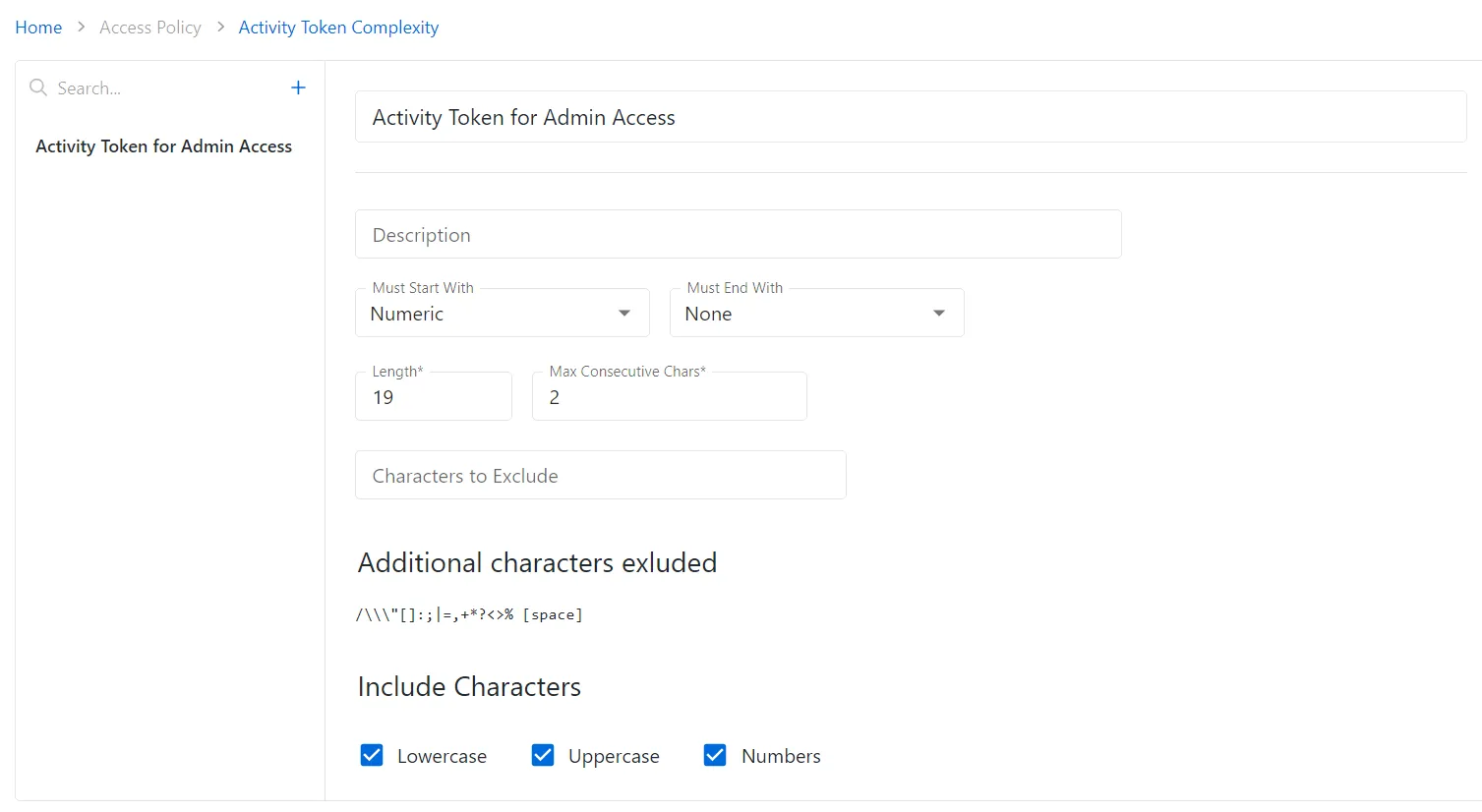
The pane on the left side of the page displays a list of the configured activity token complexity policies. This pane has the following features:
- Search — Searches the table or list for matches to the search string. When it finds matches, it filters the table or list to the matching results.
- Green + button — Create a new activity token complexity policy. See the Add Activity Token Complexity Policy topic for additional information.
- Trashcan icon — Deletes the activity token complexity policy. The icon appears when you hover over the policy. A confirmation window displays.
The selected activity token complexity policy details display in the main pane:
- Name — Name of the activity token complexity policy
- Description — Description of the policy
- Must Start With / Must End With — Lists cases the activity token complexity policy will enforce.
This list contains the following options:
- None
- Lowercase
- Uppercase
- Numeric
- Length — The maximum number of characters the activity token complexity policy will enforce
- Max Consecutive Chars — The maximum number of consecutively occurring characters that the activity token complexity policy allow
- Characters to Exclude — Custom characters the activity token complexity policy will exclude. The policy excludes characters entered in this field in addition to the characters listed beneath the Additional characters excluded section.
- Additional characters excluded — Default characters the activity token complexity policy will exclude
- Included Characters — Check boxes containing additional inclusive parameters for the activity
token complexity policy:
- Lowercase — At least one lowercase character in the password
- Uppercase — At least one uppercase character in the password
- Numbers — At least one number in the password
If you modify any of these settings, Save, and Cancel buttons display. Click Save to commit the modifications. Click Cancel to discard the modifications.