Access Policy Page
The Access Policies page is accessible from the Navigation pane under Policy > Access Policy. It shows the configured access policies, which control which users can complete which activities on which resources.
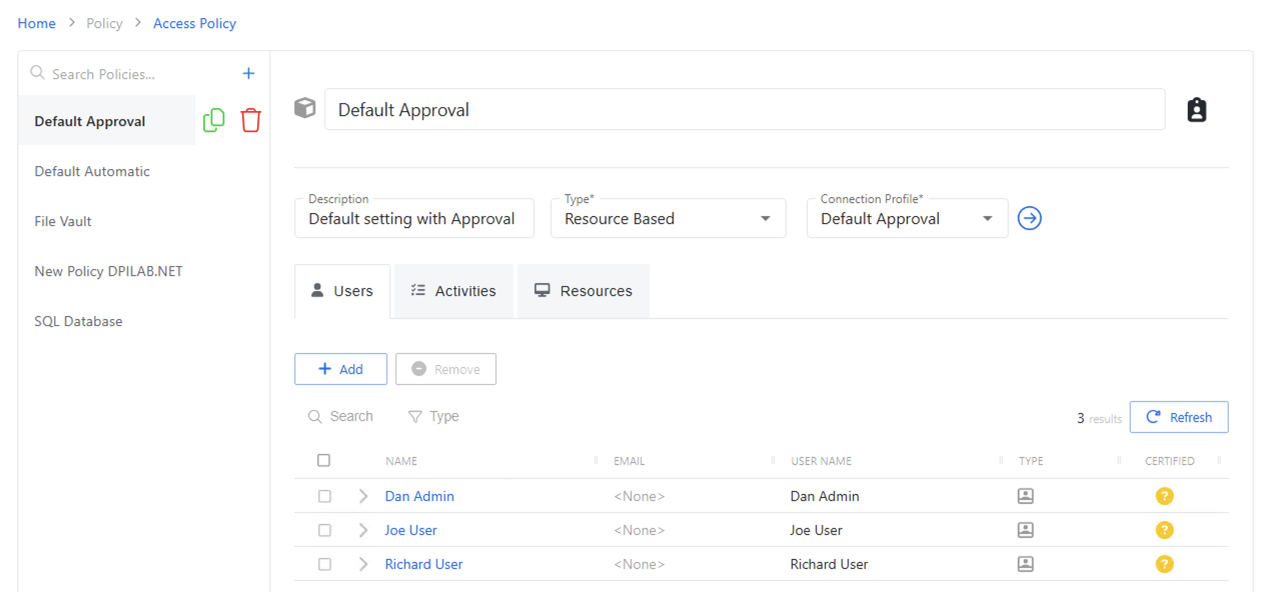
The pane on the left side of the page displays a list of the configured access policies. This pane has the following features:
- Search — Searches the table or list for matches to the search string. When it finds matches, it filters the table or list to the matching results.
- Blue + button — Create a new access policy. See the Add Access Policy topic for additional information.
- Trashcan icon — Deletes the access policy. The icon appears when you hover over the policy. A confirmation window displays.
The selected access policy details display at the top of the main pane:
- Name — Displays the name of the policy
- Description — Description of the policy
- Type — Icon indicates the type of object: Resource Based or Credential Based
- Connection Profile — Displays the name of the connection profile associated to the access policy. The green arrow opens the Connection Profiles Page to add or edit connection profiles.
- User icon — Shows extra group of users who can manage this access policy. The icon appears only if a custom role is assigned to a policy. See the Custom Access Role Details Page for additional information.
If you modify any of these settings, Save, and Cancel buttons display. Click Save to commit the modifications. Click Cancel to discard the modifications.
The tabs at the bottom of the main pane are for associating Users, Activities, Resources, and Credentials to the access policy. The content within the tabs change based on the type of policy. See the following topics for additional information:
- Resource Based Policy:
- Users Tab for Resource Based Access Policies
- Activities Tab for Resource Based Access Policies
- Resources Tab for Resource Based Access Policies
- Credential Based Policy: Credential Based Access Policies