Scheduled Dashboard
The Scheduled sessions dashboard shows all scheduled sessions.
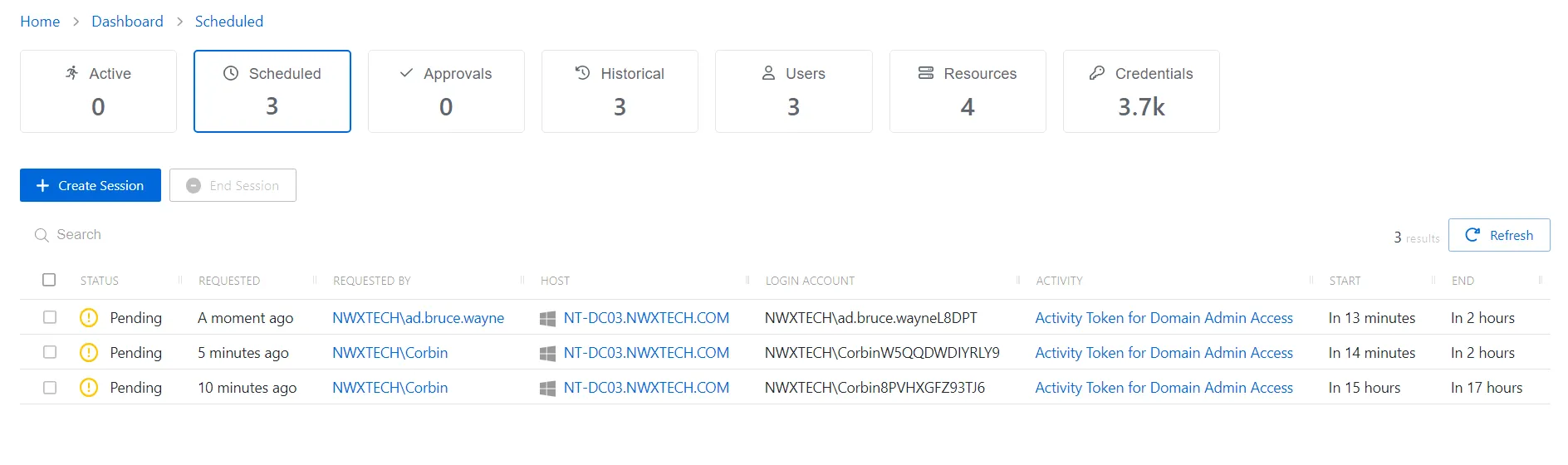
The Scheduled Sessions table has the following features:
- Search — Searches the table or list for matches to the search string. When it finds matches, the search filters the table or list to the matching results.
- Create Session — Open the Activity Request window. See the Create Activity Session topic for additional information.
- End Session — Cancel the selected sessions
- Refresh — Reload the information displayed
The table has the following columns:
- Checkbox — Check to select one or more items
- Status — Shows status information for the session:
- Provisioning — Pre-Session stage of the Activity is processing and assigning permissions to the login account
- Pending — Session scheduled start time is still in the future, session is waiting to start
- Waiting for Approval — The session requires approval to begin. See the Approvals Dashboard topic for additional information.
- Available — The activity session is ready. Click the icon to begin the session, or log in through a client. See the Start Activity Session topic for additional information.
- Failed — Pre-Session stage of the Activity has encountered an error
- Logged In — User is successfully logged in to the Resource either directly or via the Proxy. Privilege Secure detects direct log-in by polling the Resource at regular intervals, so the status may not update immediately.
- Canceling — The session expired, or the user or a Privilege Secure administrator canceled it manually.
- Locked — A Privilege Secure administrator has locked the session. See the Lock Session topic for additional information.
- Requested — Date and time of when the session was created
- Requested By — User who requested the session
- Host — Resource that the user runs the activity on
- Login Account — Displays the account used to log onto the resource
- Activity — Displays the name of the activity. Click the link to view additional details. See the Activities Page topic for additional information.
- Start — Indicates when the activity starts. This refers to when the activity’s actions are executed and not when the user logs on to the resource.
- End — Indicates when the session is scheduled to end the activity, which is determined by the start time plus the maximum session duration set by the access policy Connection Profile
You can resize the table columns and sort them in ascending or descending order.