Session Logs Window
The Session Logs window displays the log details for the selected session. Select a session from the Active dashboard and click the View Logs button to open the Session Logs window.
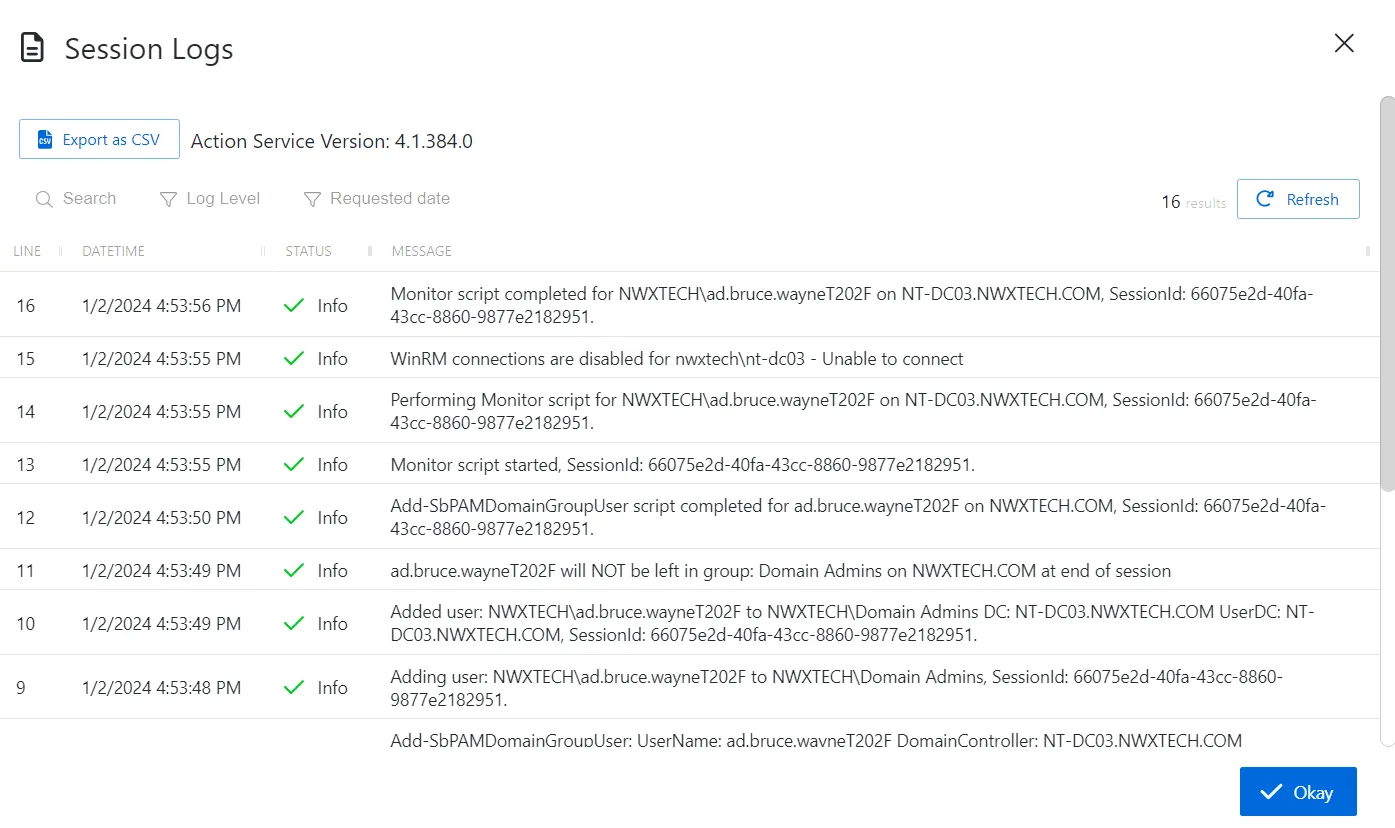
The window has the following features:
- Search — Searches the table or list for matches to the search string. When it finds matches, the search filters the table or list to the matching results.
- Filter — Provides options to filter results based on a chosen criterion:
- Log Level — Filter by the message Status level: Debug, Info, Warn, or Error
- Requested date — Filter by session start and/or end dates
- Export as CSV — Generates a CSV file of the table and automatically downloads it to your browser's default download folder. The file name indicates what table was exported.
- Action Service Version — Indicates the version of the Privilege Secure action service that ran the activity
- Refresh — Reload the information displayed
- Okay — Click to close the window. You can also close it with the X in the upper-right corner.
The table has the following columns:
- Line — Indicates the order of the messages within the log
- DateTime — Date timestamp for when the message was recorded
- Status — Provides two details:
- Icon — Indicates whether the action associated with the message was successful
- Log Level — Indicates message log level: Debug, Info, Warn, or Error
- Message — Displays the logged details of the message
You can resize the table columns and sort them in ascending or descending order.