Credentials Dashboard
The Credentials dashboard shows all accounts discovered within your environment. It focuses on managing service account password rotation. A managed account is any host local account, domain account, or Privilege Secure application local account whose credentials the application manages. This includes managed user accounts created by activity sessions. The Credentials dashboard displays the same information as the Credentials Page.
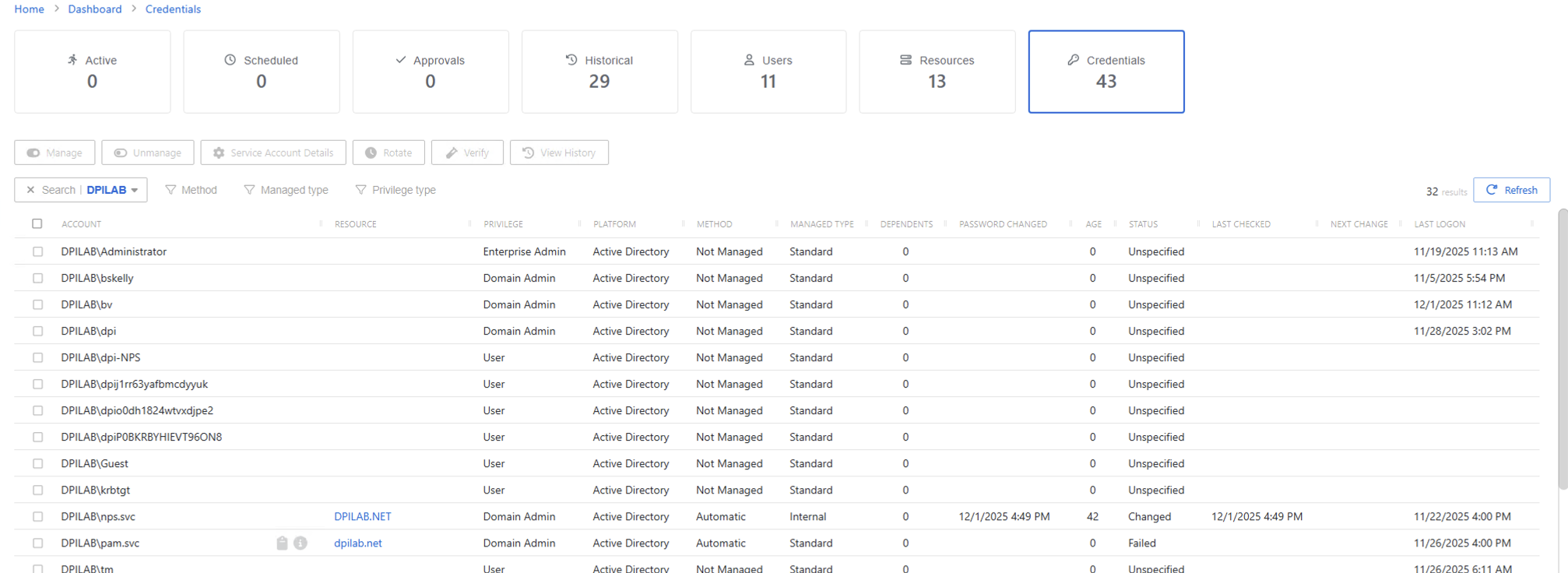
The dashboard has the following features:
- Search — Searches the table or list for matches to the search string. When it finds matches, the search filters the table or list to the matching results. You can search for a specific host or account.
- Filter — Provides options to filter results based on a chosen criterion:
- Method — Filter by whether the application manages the account: All, Managed, and Unmanaged. Managed accounts include both Automatic managed and Manual managed.
- Managed Type — Filter by account type: All, Internal, Standard, and Service. An Internal account is a Privilege Secure application local account.
- Privilege Type — Filter by type of privilege the account has: Not Set, Administrator, Power User, Guest, User, Sudoer, Linux User, Cisco Privilege 0, Cisco Privilege 1, and Cisco Privilege 15
- Manage — Set Privilege Secure to manage the selected account. This button is only available when the account Managed Type is Standard or Internal. For an Internal account, a pop up window displays. See the Manage Internal Service Accounts section for additional information.
- Unmanage — Stop Privilege Secure from managing the account
- Service Account Details — Opens the Account Dependencies window. This button is only available when the Managed Type is Service. See the Account Dependencies Window topic for additional information.
- Rotate — Initiate credential rotation now. This button is only available when the Method is Automatic managed. See the Scheduled Tasks Page topic for additional information.
- Verify — Checks that the credentials for the selected account match the credentials set by Privilege Secure
- View History — Opens the Password History window to display the password history for the account. See the Password History Window topic for additional information.
- Refresh — Reload the information displayed
The table has the following columns:
-
Checkbox — Check to select one or more items
-
Account — Name of the account. The following icons may also appear in this column:
- Set Password icon — Opens the Set Password for Credential window to set a new password for the selected account. See the Manage Internal Service Accounts topic.
- Clipboard icon — Copies the password for the selected account
- Information icon — Opens the View Password window to view the password and copy it to the clipboard. The window stays open for 20 seconds. See the View Password Window topic for additional information.
-
Resource — Name of the resource that the account is on. Click the link to view additional details.
-
Privilege — Level of privilege the account has on the resource
-
Platform — Displays the type of platform, which defines the resource
-
Method — Indicates how the account is managed:
- Automatic — Privilege Secure manages credential rotation according to the change policy for that platform type. See the Platforms Page topic for additional information.
- Manual — You must initiate credential rotation manually with the Rotate Service Account button, or manually update the credential on both the resource and in Privilege Secure. See the Service Accounts Page section for information on updating credentials for Internal service accounts.
- Not Managed — Not managed by Privilege Secure and no credentials have ever been stored
noteSee the Rotation Methods topic for additional information.
-
Managed Type — Type of managed account:
- Standard — Local or domain user account, including managed users created by activity sessions
- Internal — Internal service account used by Privilege Secure with no dependencies. See the Service Accounts Page topic for additional information.
- Service — Local or domain service account with one or more dependencies. Includes Internal service accounts with one or more dependencies.
-
Dependents — Number of scheduled tasks or Windows services using this account
-
Password Changed — Date timestamp for the last time the password was rotated
-
Age — Number of days since the last credential rotation or from when the password was first created
-
Status — Indicates if Privilege Secure has verified the account credentials. See the Platforms Page topic for additional information on configuring a verification schedule.
- Unspecified — Verification check has not run
- Verified — Confirmed the credentials match the value stored in Privilege Secure
- Mismatch — Credentials don't match the value stored in Privilege Secure. This status only appears when the Reset on Mismatch option isn't enabled.
- Changed — Privilege Secure updated the credentials to match the value stored in Privilege Secure. This status only appears when the Reset on Mismatch option is enabled.
- Failed — Attempt to update the credentials to match the value stored in Privilege Secure was unsuccessful. This status only appears when the Reset on Mismatch option is enabled.
-
Last Checked — Date timestamp of the last verification check
-
Next Change — Date timestamp for the next credential password rotation
-
Last Logon — Date timestamp for the last time the account authenticated
You can resize the table columns and sort them in ascending or descending order.