Start Activity Session
On the Active Sessions dashboard, when the status shows Available, the activity session is ready. To begin the activity session, click the Connection icon in the Status column for the applicable session to connect to the resource automatically.
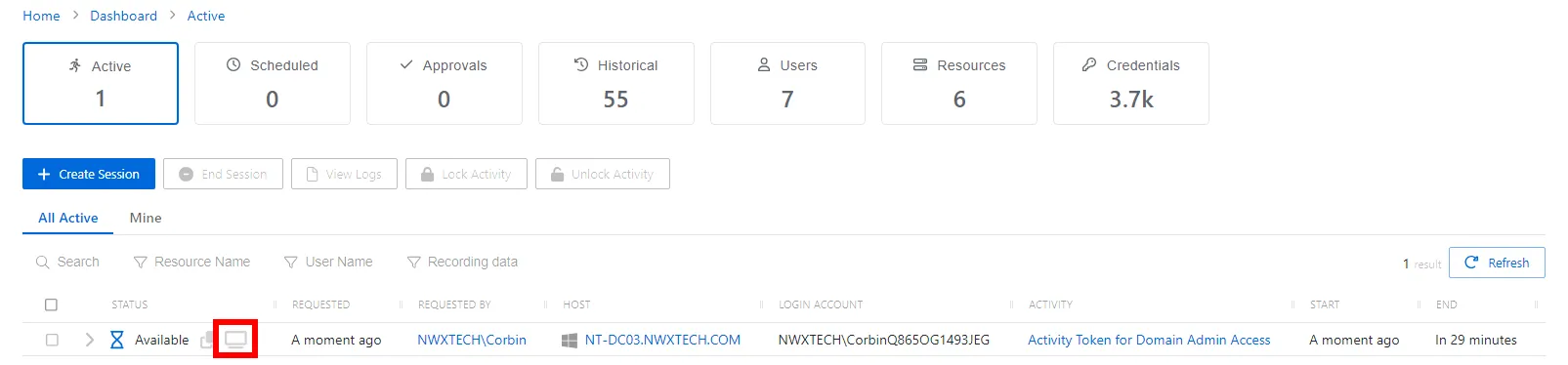
Also note the icons to view and copy the password for the session as plain text, if the option is enabled in the access policy Connection Profiles.
- Copy to Clipboard icon — Click to copy the password for the session as plain text. For resource–based activities for end users, this is only available if enabled in the activity's Access Policy. Users can always view the password for credential–based activities.
- View Password icon — Click to view the password for the session as plain text. For resource–based activities for end users, this is only available if enabled in the activity's Access Policy. The users can always view the password for credential–based activities. To view a password, select the Eye icon. Users have 20 seconds to view the password or copy it.
- Connection icon — Click the icon to begin the activity session.
Alternatively, configure any RDP / SSH Manager for remote login, including:
- PuTTY
- MobaXterm
- MS Remote Desktop Connection Manager
- MS Terminal Services Client (Remote Desktop)
Session extension
Each session remains active for a pre-configured amount of time based on the Connection Profile that the Access Policy uses. You can configure session extension options in the connection profile to let the user extend a session in increments.
If Session Extension is enabled, the session extension option appears for users when the remaining time is 5 minutes or less.
For NPS users with the Administrator role, session extension is always enabled.

For RDP, a pop-up message displays in the session window.

For SSH the user can extend by typing Ctrl+X when prompted.
SSH for legacy Cisco device
If the Cisco device is running with insecure ciphers when the user attempts to connect to an SSH session, the following error message displays:
ssh: handshake failed: ssh: no common algorithm for key exchange; client offered:
[curve25519-sha256@libssh.org ecdh-sha2-nistp256 ecdh-sha2-nistp384 ecdh-sha2-nistp521
diffie-hellman-group14-sha1], server offered: [diffie-hellman-group1-sha1]
Ideally, upgrade the Cisco device to support secure ciphers. If this isn't possible, add ciphers to machines with older (insecure) ciphers that you need to manage with SSH. You can “opt-in” by configuring the cipher suites used by the Proxy Service.
See the Proxy Service Install topic for additional information.
DirectConnect inline password prompt
RDP DirectConnect prompts users for a password, so you don't need to modify group/local policy to force RDP password prompts.

If the user enters a password outside the RDP session, DirectConnect uses it automatically and the inline password prompt doesn't display, unless there is an authentication error.