Lock Session
You can lock out the user if you observe suspicious or unauthorized activity, either from the Active Dashboard, or the Live Session Viewer Window.
To lock a session.
-
Navigate to either the Active dashboard or the Live Session Viewer.
- From the Active Dashboard, select the session and click Lock Activity.
OR
- From the Live Session Viewer, click the lock icon.
-
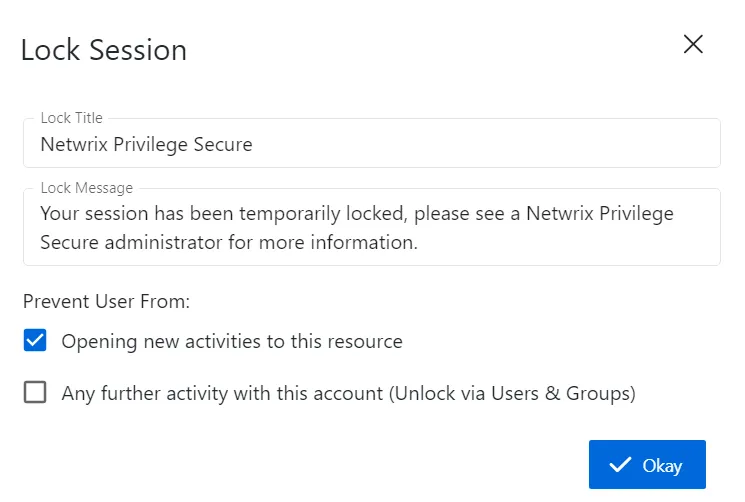
In the Lock Session window, enter the following information:
- Lock Title — The title of the message displayed to the session user
- Lock Message — The message displayed to the session user
- Prevent User From:
- Opening New Activities on this Resource — Prevent user from opening new activity to this resource while locked.
- Any Further Activity on this Resource — Lock all sessions and prevent the user from any further activity while locked. The Users & Groups Details page for the user indicate that the account is locked.
-
Click Okay to confirm.
Privilege Secure locks the session and displays the Lock Session message to the session user within their RDP or SSH clients. To unlock an active session, either:
- From the Active Dashboard, select the session and click Unlock Activity.
OR
- From the Live Session Viewer, click the Unlock icon.
To unlock an account, see the User, Group, & Application Details Page topic for additional information.