Active Dashboard
The Active sessions dashboard shows all active sessions. Create an Activity Session to grant temporary privileges and gain access to the resources defined by a previously created Access Policy. See the Access Policy Page topic for additional information.
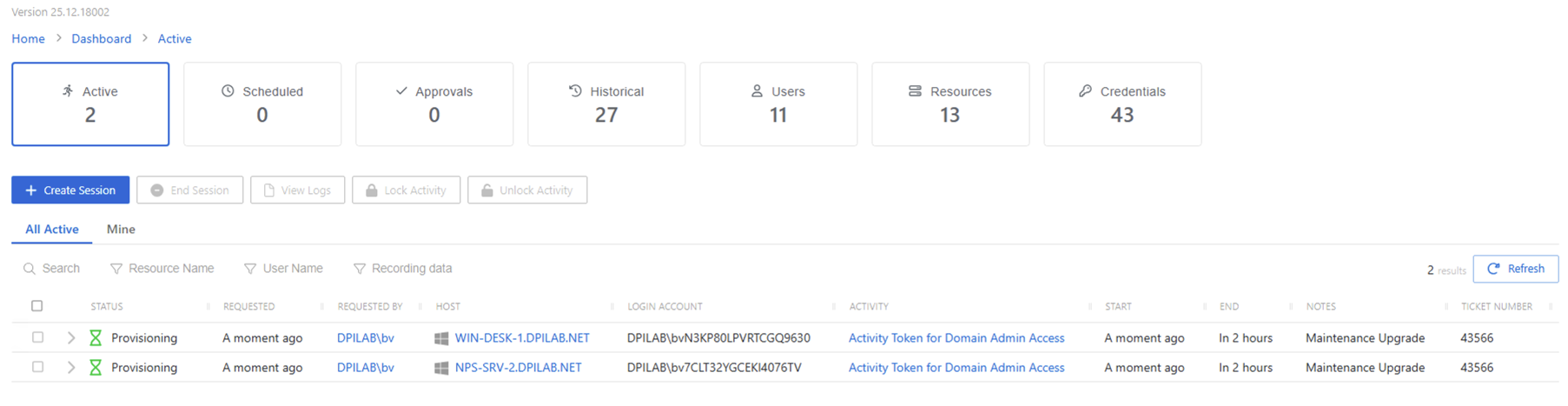
The dashboard has the following features:
- Search — Searches the table or list for matches to the search string. When matches are found, the table or list is filtered to the matching results.
- Filter — Provides options to filter results based on a chosen criterion:
- All Active tab — Shows all sessions for all users
- Mine tab — Shows sessions for the logged in user
- Recording data — Filter by keystroke data and, when enabled, RDP Windows event activity. See the Install Remote Desktop Monitor Service on Target RDP Hosts topic for additional information.
- Create Session — Open the Activity Request window. See the Create Activity Session topic for additional information.
- End Session — Cancel the selected sessions
- View Logs — Opens the Session Logs window to view the action log for the selected session. See the Session Logs Window topic for additional information.
- Lock Activity — Opens the Lock Session window to prevent the user from interacting with the host but keeps the session active. See the Lock Session topic for additional information.
- Unlock Activity — Unlocks a session to allow the user to interact with the host
- Refresh — Reload the information displayed
The table has the following columns:
- Checkbox — Check to select one or more items
- Expand icon — Click the expand icon to show additional information for the session:
- The live session viewer allows an admin to watch a remote session that is in progress for another user. See the Live Session Viewer Window topic for additional information.
- If the user has logged into the remote session more than once, multiple session recordings displays. If a recording of the session is available, the replay viewer allows an admin to watch a replay of the remote session. See the Replay Viewer Window topic for additional information.
- Status — Shows status information for the session:
- Provisioning — Pre-Session stage of the Activity is processing and assigning permissions to the login account
- Waiting for Approval — The session requires approval to begin. See the Approvals Dashboard topic for additional information.
- Available — The activity session is ready. Click the icon to begin the session, or log in through a client. See the Start Activity Session topic for additional information.
- Failed — Pre-Session stage of the Activity has encountered an error
- Logged In — User is successfully logged in to the Resource either directly or via the Proxy. Direct log-in is detected by polling the Resource at regular intervals and may not update immediately.
- Canceling — The session expired, or the user or a Privilege Secure administrator canceled it manually.
- Locked — The session has been locked by a Privilege Secure administrator. See the Lock Session topic for additional information.
- Requested — Date and time of when the session was created
- Requested By — User who requested the session. Click the link to view additional details. See the User, Group, & Application Details Page topic for additional information.
- Host — Resource that the user runs the activity on. Click the link to view additional details. The details vary based on the type of resource. See the following topics for additional information:
- Login Account — Displays the account used to log onto the resource
- Activity — Displays the name of the activity. Click the link to view additional details. See the Activities Page topic for additional information.
- Start — Indicates when the activity started. This refers to when the activity’s actions were executed and not when the user was logged on to the resource.
- End — Indicates when the session is scheduled to end the activity, which is determined by the start time plus the maximum session duration set by the access policy Connection Profile
- Notes — Any notes added by the session requestor
- Ticket Number — Ticket number added by the session requestor