Global Settings Page
The Global Settings page is accessible from the Navigation pane under Configuration > System Settings. It shows all global RDP session settings.
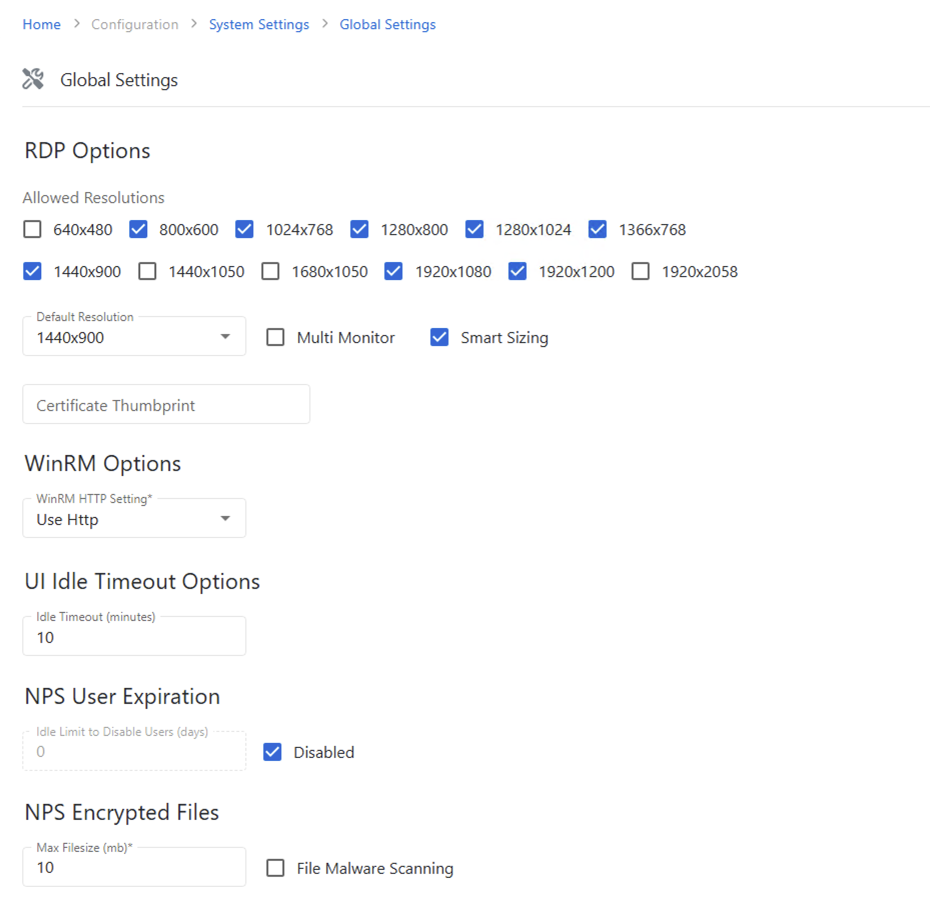
The right of the page shows details of the RDP file settings and has the following features:
- Edit — Click any field to edit the selected settings
- Name — Name of the selected settings
- Allowed Resolutions — Check the boxes to enable those resolutions for the RDP session
- Default Resolution — The resolution the RDP session will use when first connected
- Certificate Thumbprint — The hexadecimal certificate (or thumbprint) value. See the Sign RDP Files to Prevent Publisher Warning topic for additional information.
- WinRM HTTP Setting — This setting governs the HTTP encryption settings that WinRM
connections use. The following options are available:
- Use HTTP
- Use HTTPS if available
- Use HTTPS only
- UI Idle Timeout Options — Users with the Administrator role can configure the idle timeout for the Privilege Secure Console. The default idle timeout is 10 minutes.
- NPS User Expiration — Users who have not logged in to NPS for a configurable number of days are automatically disabled. Disabled users don't consume a license credit. Admins and Application users are exempt from this policy. The idle timeout can be set to a specific number of days or turned off entirely. This setting is disabled by default.
- NPS Encrypted Files — Set a maximum file size (MB). 10 MB is the default. There is also an option to scan the file for malware which is enabled by default.
- Save button (only visible when editing) — Saves changes
- Cancel button (only visible when editing) — Discards changes