Bring Your Own Vault (BYOV) Connector Configuration
This topic walks through the steps necessary to configure Netwrix Privilege Secure as a BYOV Integration Connector that lets you perform activities as a specific user account. This can be done with accounts managed by Privilege Secure, or with accounts stored in a Secret Vault within Privilege Secure.
Use this workflow to bypass the default "Enable Account" and "Disable Account" pre-session and post-session actions. In the case of a Secret Vault credential, Privilege Secure doesn't enable or disable the account when an activity uses an unmanaged account. The connector's checkout and checkin script blocks supply the credential instead.
Set up an integration connector
Begin by setting up an Integration Connector for using Netwrix Privilege Secure as a BYOV Connector. Ensure that the account you want to use for your activity is managed by Privilege Secure or is contained within a Secret Vault resource in Privilege Secure.
For managed accounts, ensure that the account has been rotated at least once since being managed. Otherwise, there will be no vaulted password in the Netwrix Privilege Secure database.
Configure the activity connector
To configure an Activity Connector.
-
In the Netwrix Privilege Secure console, navigate to the Configuration menu, and the Integration Connectors submenu.
-
Click the Plus to add a new Activity Connector.
-
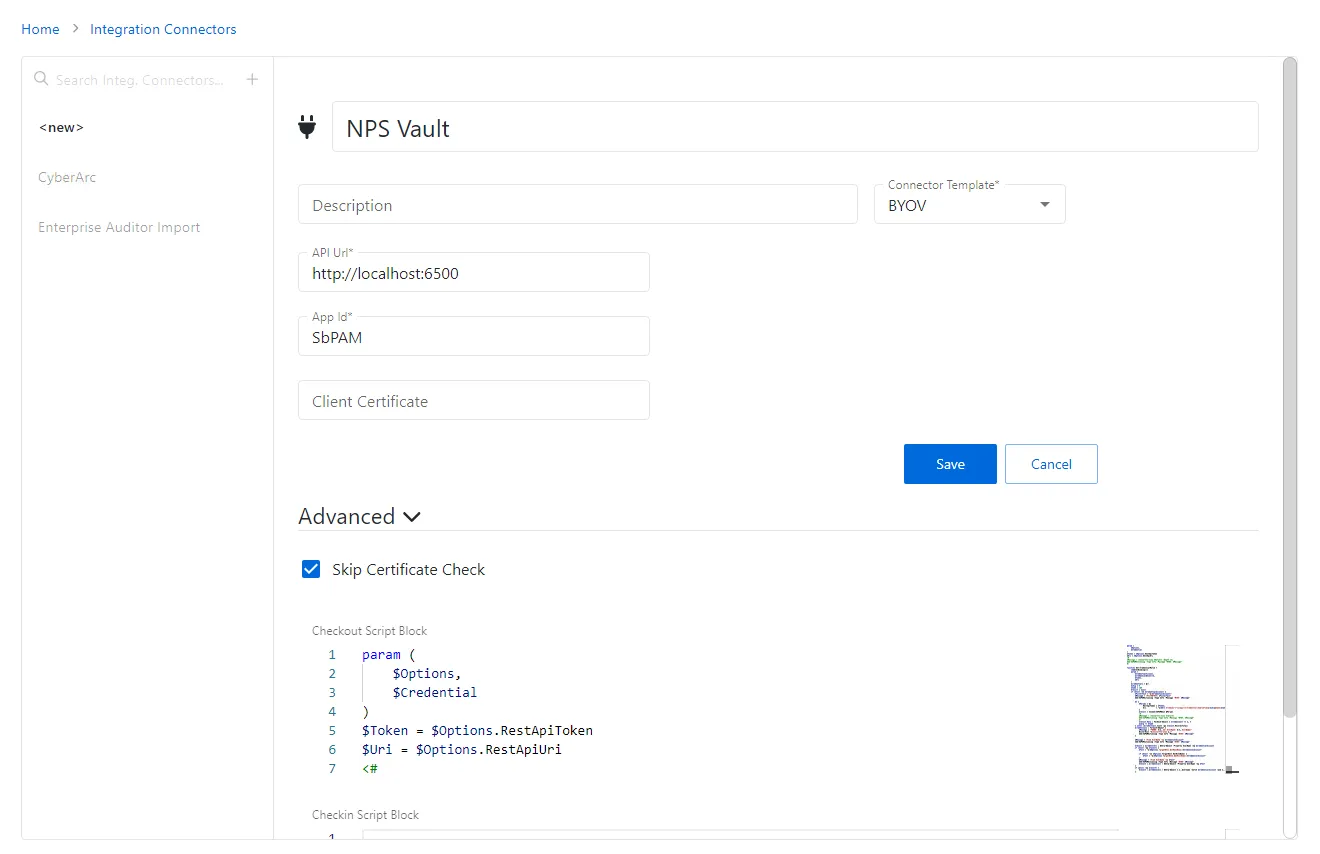
Configure the following activity connector fields:
- Connector Name — Enter a name to uniquely identify the connector
- Connector Description (Optional) — Enter a brief description to identify the service account
- Connector Template — A selection of templates for connector configurations. Select BYOV from the dropdown list.
- API Url — The base URL for the API being used for the vault integration. Ex:
http://localhost:6500. - App ID — The application ID for the vault. Enter SbPAM.
- Client Certificate — The base 64 string from the certificate file being used to authenticate to the vault. Leave blank.
- Advanced — Use this section to override the default behavior of the connector by providing a custom PowerShell script. Click the Advanced section to edit the Checkout Script Block and the Checkin Script Block or Skip the Certificate Check.
- Skip Certificate Check — Select the checkbox
-
Copy and paste the following script into the "Checkout Script Block" field. (The "Checkin Script Block" field may be left blank.)
Checkout Script Block
param ($Options,$Credential)$Token = $Options.RestApiToken$Uri = $Options.RestApiUri<#$Message = (ConvertTo-Json $Options -Depth 12)Add-SbPAMActionLog -Type Info -Message "BYOV: $Message"#>function Get-CredentialMatch {[CmdletBinding()]param ($CredentialAccount,$CredentialResource,$Token,$Uri)$credentials = @()$skip = 0$take = 100$result = $nullif ($null -ne $CredentialAccount) {$FilterText = "$($CredentialAccount)"$Message = "FILTERTEXT: $FilterText"Add-SbPAMActionLog -Type Info -Message "BYOV: $Message"do {$Params = @{RestApiToken = $Token;Uri = "$($Uri.TrimEnd("/"))/api/v1/Credential/Search?skip=$skip&take=$take&filterText=$FilterText&credentialType=1";}$result = Invoke-SbPAMRest @Params<#$Message = (ConvertTo-Json $result)Add-SbPAMActionLog -Type Info -Message "BYOV: $Message"#>$result.Data | ForEach-Object { $credentials += $_ }$skip += $take} until ($credentials.Count -ge $result.RecordsTotal)$credentials | Foreach-Object {$Message = "FOUND: $($_.Id) UserName: $($_.UserName)"Write-Host "$(ConvertTo-Json $_)"Add-SbPAMActionLog -Type Info -Message "BYOV: $Message"}$Message = "Find UserName -eq $CredentialAccount"Add-SbPAMActionLog -Type Info -Message "BYOV: $Message"$result = $credentials | Where-Object -Property UserName -eq $CredentialAccountif ($null -eq $result) {$Test = "$($Options.TargetHost.DnsHostName)\$CredentialAccount"if ($null -ne $Options.TargetHost.NetBiosName) {$Test = "$($Options.TargetHost.NetBiosName)\$CredentialAccount"}$Message = "Find UserName -eq $Test"Add-SbPAMActionLog -Type Info -Message "BYOV: $Message"$result = $credentials | Where-Object -Property UserName -eq $Test}if ($null -eq $result) {$result = $credentials | Where-Object { $_.Username -match $CredentialAccount -and $_.Domain -eq $CredentialResource }}}return $result}### If this is an activity then use the LoginAccountName$TargetAccount = $Options.ActivitySession.LoginAccountName$CredentialAccount = $null$CredentialResource = $nullif ($null -ne $Options.ActivitySession) {$CredentialAccount = $Options.ActivitySession.LoginAccountName}$Message = "CredentialAccount: $CredentialAccount"Add-SbPAMActionLog -Type Info -Message "BYOV: $Message"### This is a service account, so the info should be in the Credentialif ($null -eq $CredentialAccount) {$CredentialAccount = $Credential.Username}$Message = "CredentialAccount: $CredentialAccount"Add-SbPAMActionLog -Type Info -Message "BYOV: $Message"$result = Get-CredentialMatch -CredentialAccount $CredentialAccount -Token $Token -Uri $Uriif ($null -eq $result) {if ($CredentialAccount -match ".*@.*") {$Parts = $CredentialAccount.Split("@")$CredentialAccount = $Parts[0]$CredentialResource = $Parts[1]}$result = Get-CredentialMatch -CredentialAccount $CredentialAccount -CredentialResource $CredentialResource -Token $Token -Uri $Uri}if ($null -ne $result) {$Params = @{RestApiToken = $Token;Uri = "$($Uri.TrimEnd("/"))/api/v1/Credential/$($result[0].CredentialId)?showPassword=true";}$result = Invoke-SbPAMRest @Params# To support domain users in secret vaultsif ($result.Username -match ".*\.*") {$Parts = $result.Username.split("\")$Credential.Username = $Parts[1]$Credential.Domain = $Parts[0]$Credential.Password = $result.Password}$Credential.Username = $result.Username$Credential.Domain = $result.Domain$Credential.Password = $result.Passwordreturn $Credential}else {$Message = "Unable to find credential for $CredentialAccount $CredentialResource"Add-SbPAMActionLog -Type Error -Message "BYOV: $Message"} -
Click Save to create the BYOV connector.
See the Bring Your Own Vault (BYOV) Integration topic for additional information on configuring a BYOV connector.
Create a user
After the integration connector is configured, create a manually-managed user.
To create a manually-managed user.
-
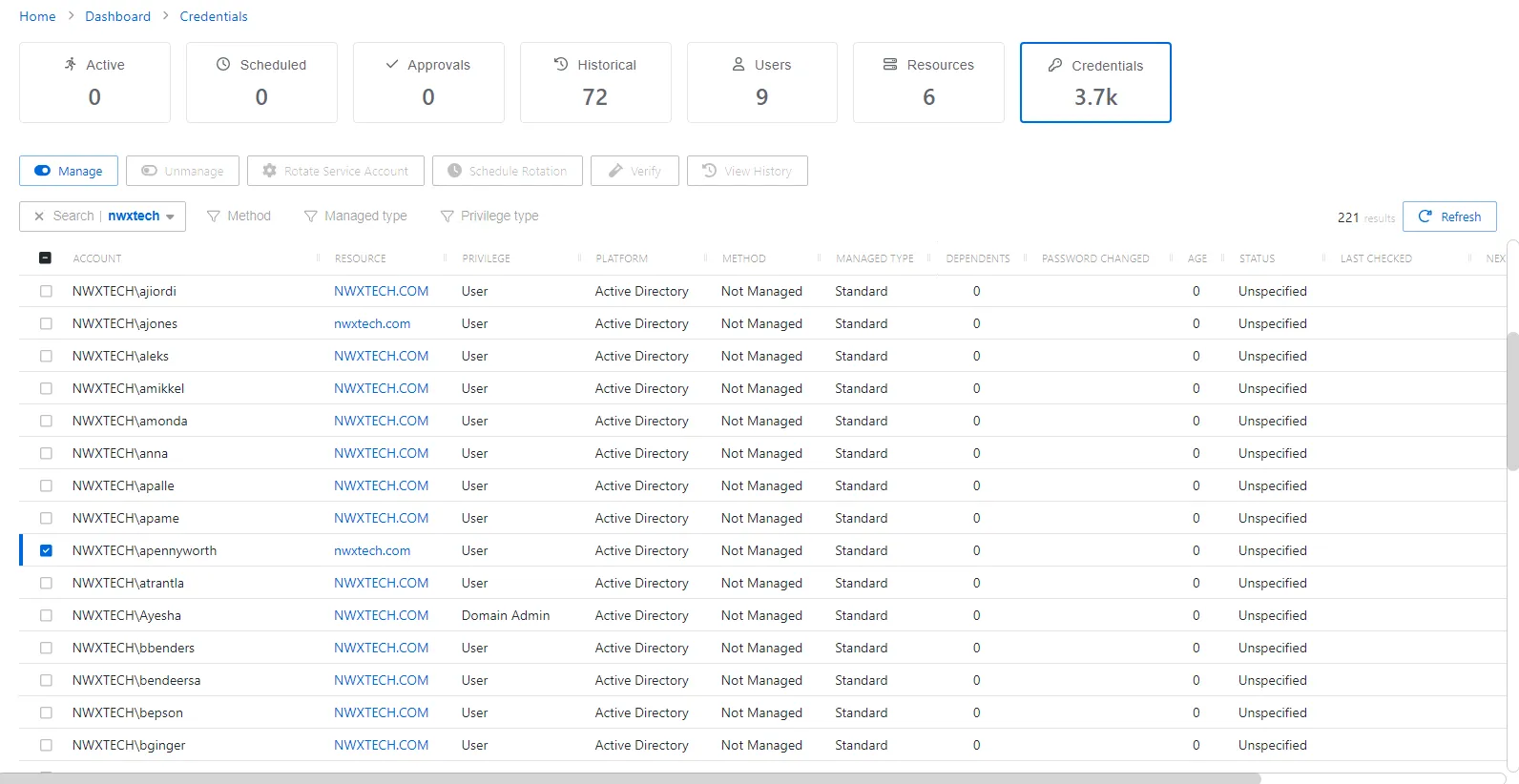
Navigate to Dashboard > Credentials tab.
-
Search or scroll to find the user you want to manage. After identified, check the box next to the account name.

-
Click the Manage button that becomes available above the list, and select Manual.
noteEnsure the user isn't already managed or added into Privilege Secure.
See the Credentials Dashboard topic for additional information on creating a managed account.
Set the account password
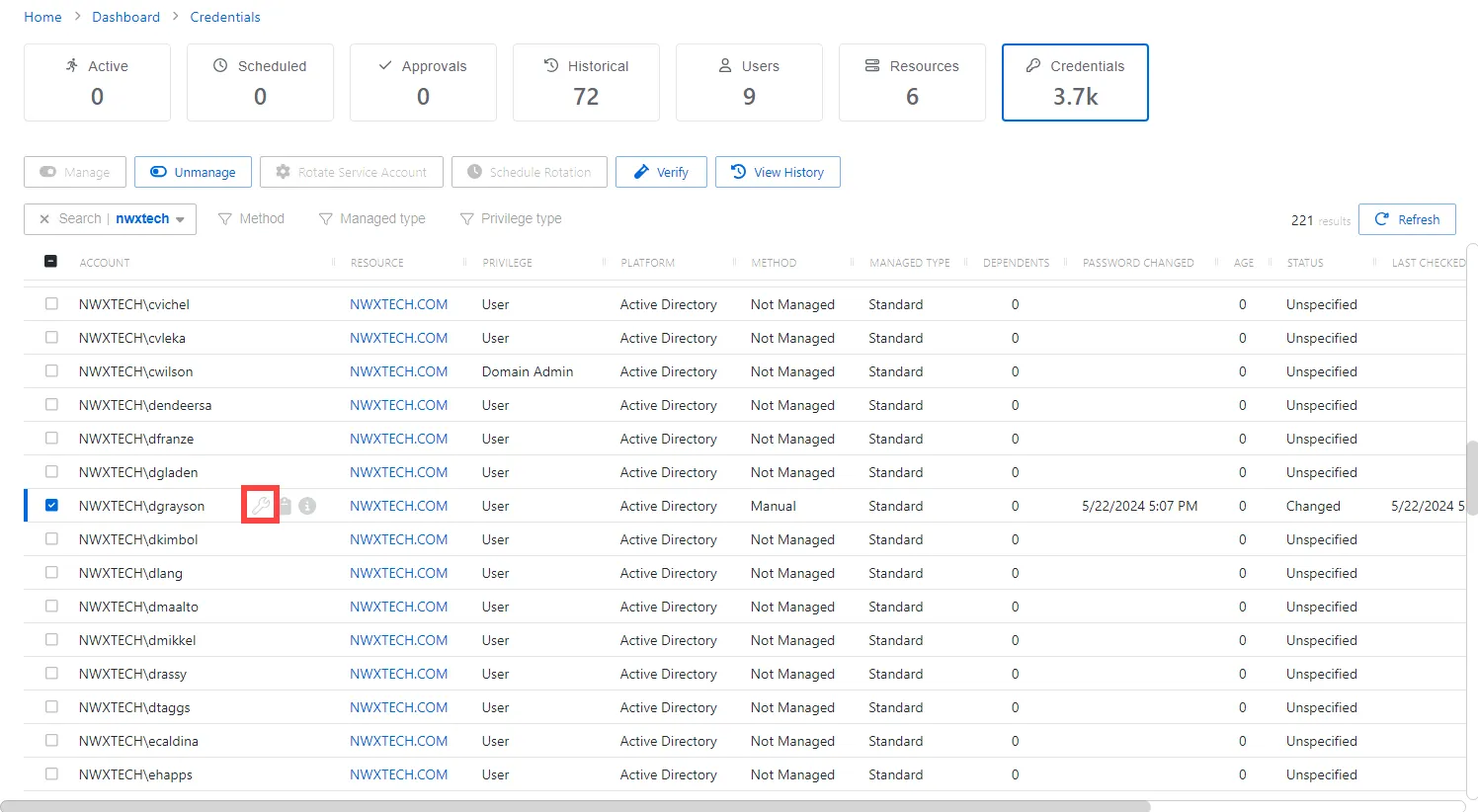
After you manually manage the account, you must set the password for the account. The following icons should be visible: Wrench (Set Password), Clipboard (Copy Password to Clipboard), and Information (View Password).
To set an account password.
-
Navigate to Dashboard > Credentials tab and locate the manually managed account.
-
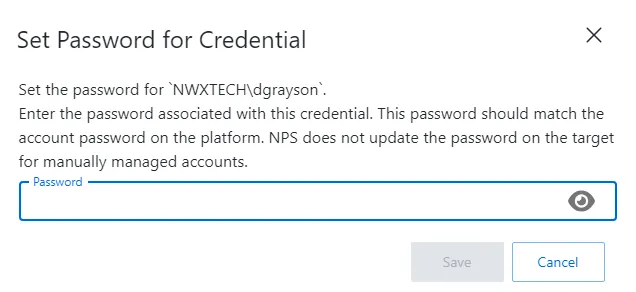
Click the Wrench icon to set the password.
-
Enter a password to match the AD password, then click Save.
noteFor versions before Privilege Secure 4.1, a support ticket will be needed as the Set Password feature isn't available.
See the Manage Internal Service Accounts topic for additional information on manually managing an account.
Create an activity
After the password has been set for the account, create an activity for the BYOV connector.
To create an activity.
-
Navigate to Policy tab > Activities.
-
Click the blue plus icon and create a new Activity using the BYOV Connector.
-
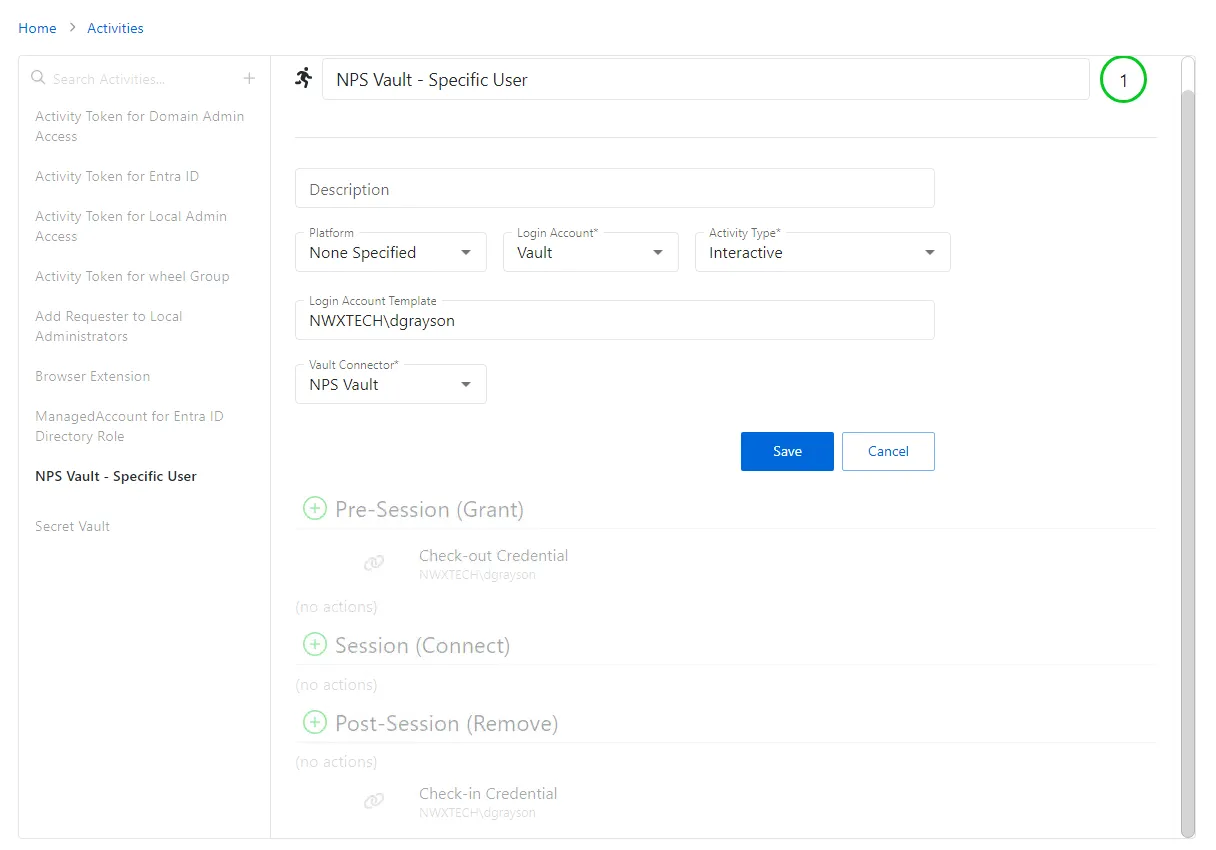
Configure the activity with the following values:
- Name — Displays the name of the activity
- Description — Description of the policy
- Platform — Displays the type of platform, which defines the resource
- Login Account — Displays the account used to log onto the resource. Select Vault from the drop down menu.
- Activity Type — Controls the type of actions for the activity. Select Interactive from the dropdown menu.
- Vault Connector — Displays a list of previously configured vault connectors. Select the vault connector created in the previous steps.
noteYou may use accounts stored in a Vault and added as a resource after the integration is created. Also, you may apply domain or other local accounts managed by Netwrix Privilege Secure, but the password must be rotated once before use with an activity.
-
Click Save to create the Activity.
noteEnsure the Login Account Template uses the format
DOMAIN\samAccountName(e.g.,NWXTECH\dgrayson).
See the Add Activity topic for additional information on creating an Activity.
Configure a new policy
Once an Activity has been created, configure a new Policy.
To create a Policy.
-
Navigate to the Policy tab > Access Policy.
-
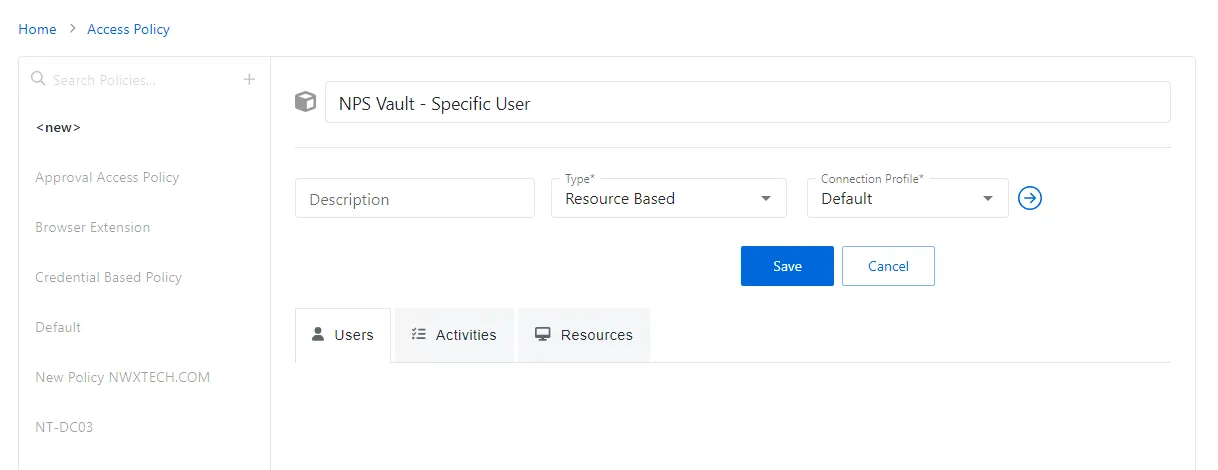
Click the Plus icon and create a new Policy. See the Add Access Policy topic for additional information.
- Set the Type as Resource Based and select a Connection Profile, with Default being sufficient for most setups.
-
Click Save to create the Access Policy.
-
After the Access Policy is created, add the following:
- Users to the Policy. See the Users Tab for Resource Based Access Policies topic for additional information.
- Activity created for the BYOV Connector. See the Activities Tab for Resource Based Access Policies topic for additional information.
- Associated resources intended for this Activity. See the Resources Tab for Resource Based Access Policies topic for additional information.
See the Add Access Policy topic for additional information on creating an Access Policy.
After completing these steps, you can use the specified manually-managed user on the resources outlined in the policy. This setup is ideal for scenarios where a single account is used across multiple resources but must be managed through Privilege Secure for enhanced security and management.
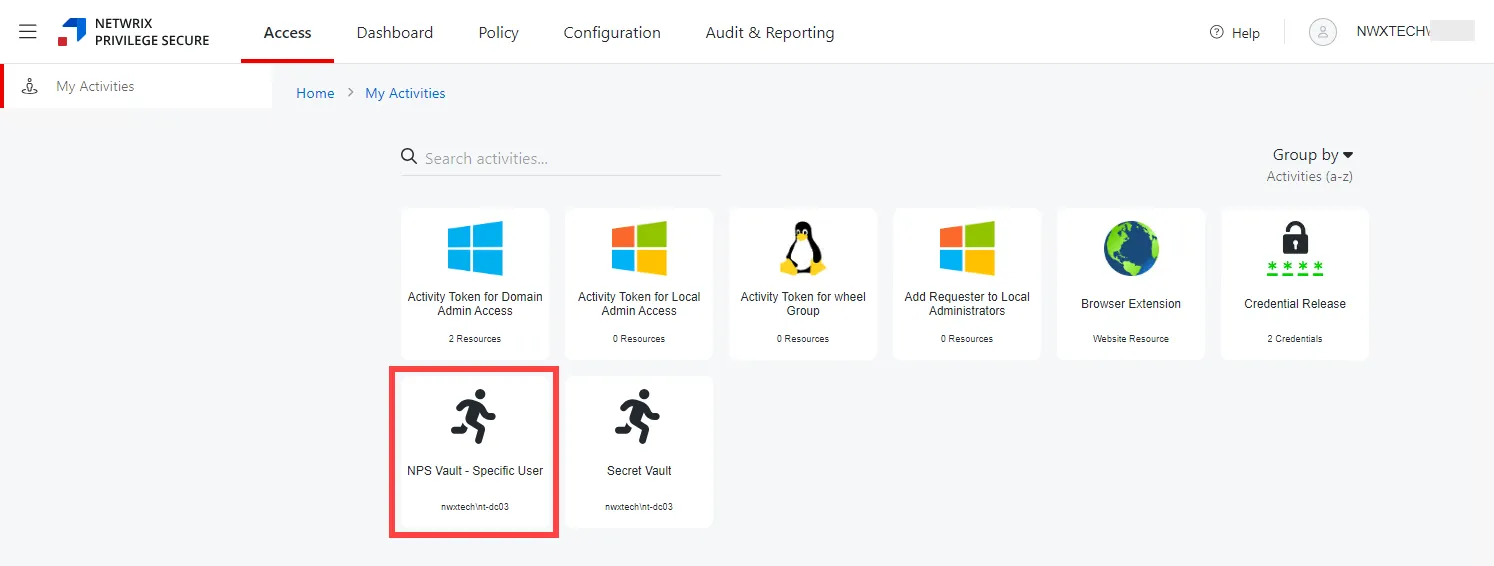
Verify configurations and permissions when integrating with systems like AD and using specific user accounts for critical operations.