Reporting
View and configure reports on the Reporting page. The page includes predefined reports, as well as platform-based reports based on the same data sources as the predefined reports. You can also generate custom reports based on the predefined reports. You can download any report as a PDF or CSV file or subscribe to it via email.
Reports tree
The reports on the Reporting page are organized into folders in a tree menu. Add a report to the Favorites folder or remove it from the Favorites folder by clicking the star icon next to the report name. Each report has a Filters tab (which allows the report to be run, downloaded, or configured) and a Subscriptions tab (which allows the Privilege Secure user to Subscribe to the report via email).
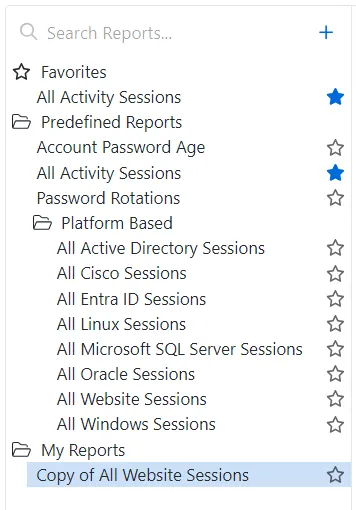
The Search Reports box searches all report names, both predefined and custom, for the specified report name, and then filters the report tree to the matching reports.
Report folders
The Reports tree contains the following folders.
Favorites folder
This folder in the report tree contains reports that you marked with a star. Clicking the star on a favorite report removes it from the Favorites folder.
Predefined reports
This folder contains predefined reports covering common reporting use cases. Included are:
- Account Password Age
- All Activity Sessions
- Password Rotations
Predefined platform-based reports
This folder contains predefined reports that are filtered to specific platforms. Included are:
- All Active Directory Sessions
- All Entra ID Sessions
- All Cisco Sessions
- All Linux Sessions
- All Microsoft SQL Server Sessions
- All Oracle Sessions
- All Website Sessions
- All Windows Sessions
My Reports
This folder contains all reports created using the “+” icon next to the Search Reports field or created by modifying and saving an existing predefined or platform based report.
Add a new report
Click the + icon next to the Search Reports field to open a new custom report. Enter a name for the new report in the Enter Report Name box.
Filters tab
The Filters tab provides customization options for the new report.
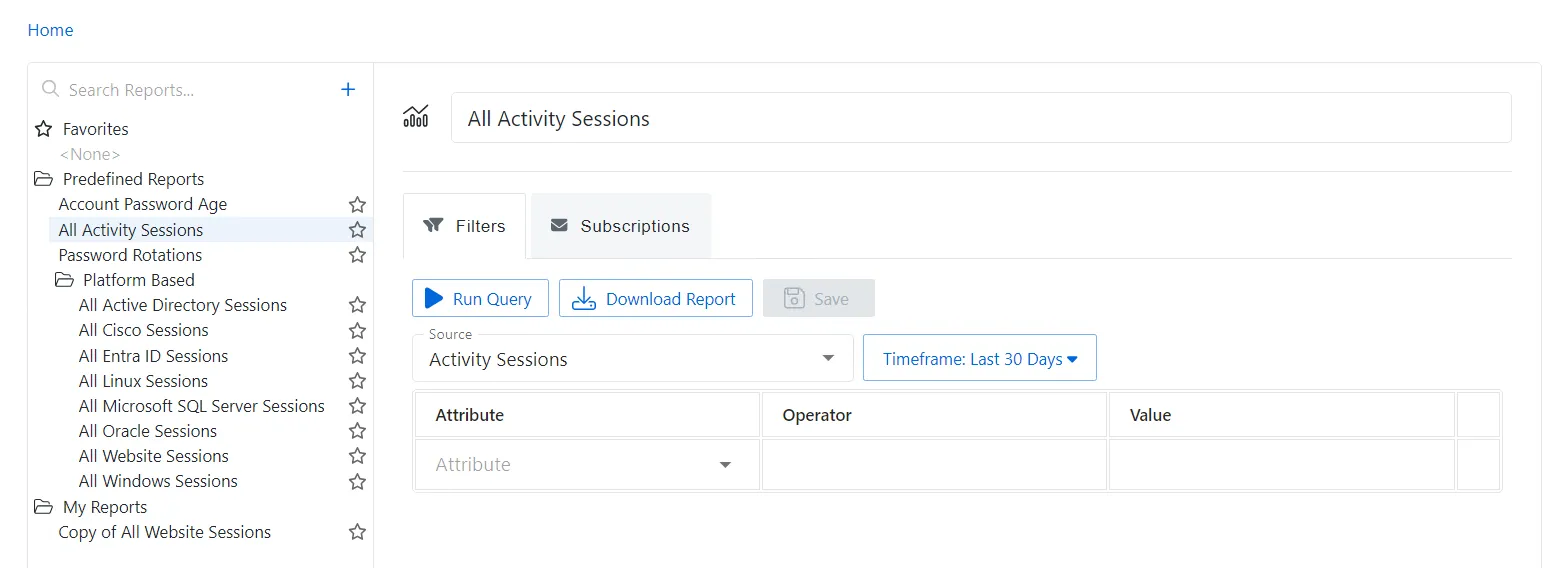
The Filters tab has the following configuration options:
- Save — Saves the report and add it to the My Reports folder in the report tree
- Cancel — Cancels the creation of the report and clears all edits you made to the new report
- Source dropdown List — Contains data sources that allow the report to look at different data sets related to Privilege Secure administration. See the Data Sources topic for additional information.
- Timeframe dropdown List — Contains several predefined timeframes, ranging from “Last Hour” to “Last 30 Days”. Additionally, “Custom” can be selected, which makes visible a “Start date” date picker and an “End date” date picker.
- Attribute dropdown List — Contains attributes from the given Source that can be paired with an operator and a value
- Operator — Contains operators that lets you filter an attribute
- Value — This field allows manual entry of a value against which the operator is applied. The field also offers a dropdown menu which is populated with values from the backend database.
Data sources
The Source dropdown list contains the following data sources for reports.
Activity sessions
This data source contains activity session information, and allows the report to be filtered on the following attributes for a given activity session:
- Domain
- Platform
- Activity
- Target User
- Target Host
- User
Resource sync
This data source contains resource sync information, and allows the report to be filtered on the following attributes for a given synced resource:
- Version
- Name
- IP Address
- Operating System
Password rotation
This data source contains password rotation information, and allows the report to be filtered on the following attributes for a given password rotation event:
- Target Rotation
- Results
- Change Reason
- User
Password age
This data source contains password age information, and allows the report to be filtered on the following attributes for a given user account:
- Account Name
- Computer
- Password Age
- Name
- Privilege
The Subscriptions tab isn't enabled until you save the report. See the Subscriptions Tab topic for additional information.
Customize an existing report
Any predefined report, platform-based report, or custom report under My Reports functions identically.
Filters tab
Customize the configuration you want settings in the Filters tab.
The Filters tab has the following configuration options:
- Run Query — Runs the query for the given report, and returns any data matching the configured query
- Download Report — Generates and downloads the report, either as PDF or as CSV. The file name of the downloaded report indicates the name of the report and the time of download. For example, "All Linux Sessions-24-05-07-164307".
- Save — Saves any modifications to the report. If this is a predefined or platform based report, it saves as a new report under My Reports
- Delete (available for custom reports only) — Deletes the custom report
- Source dropdown List — Contains data sources that allow the report to look at different data sets related to Privilege Secure administration. See the Data Sources topic for additional information.
- Timeframe dropdown List — Contains several predefined timeframes, ranging from “Last Hour” to “Last 30 Days”. Additionally, “Custom” can be selected, which makes visible a “Start date” date picker and an “End date” date picker.
- Attribute dropdown List — Contains attributes from the given Source that can be paired with an operator and a value.
- Operator — Contains operators that lets you filter an attribute.
- Value — Allows manual entry of a value against which the operator is applied. The field also offers a dropdown menu which is populated with values from the backend database.
Subscriptions tab
The Subscriptions tab allows the Privilege Secure user to Subscribe to the report via email.
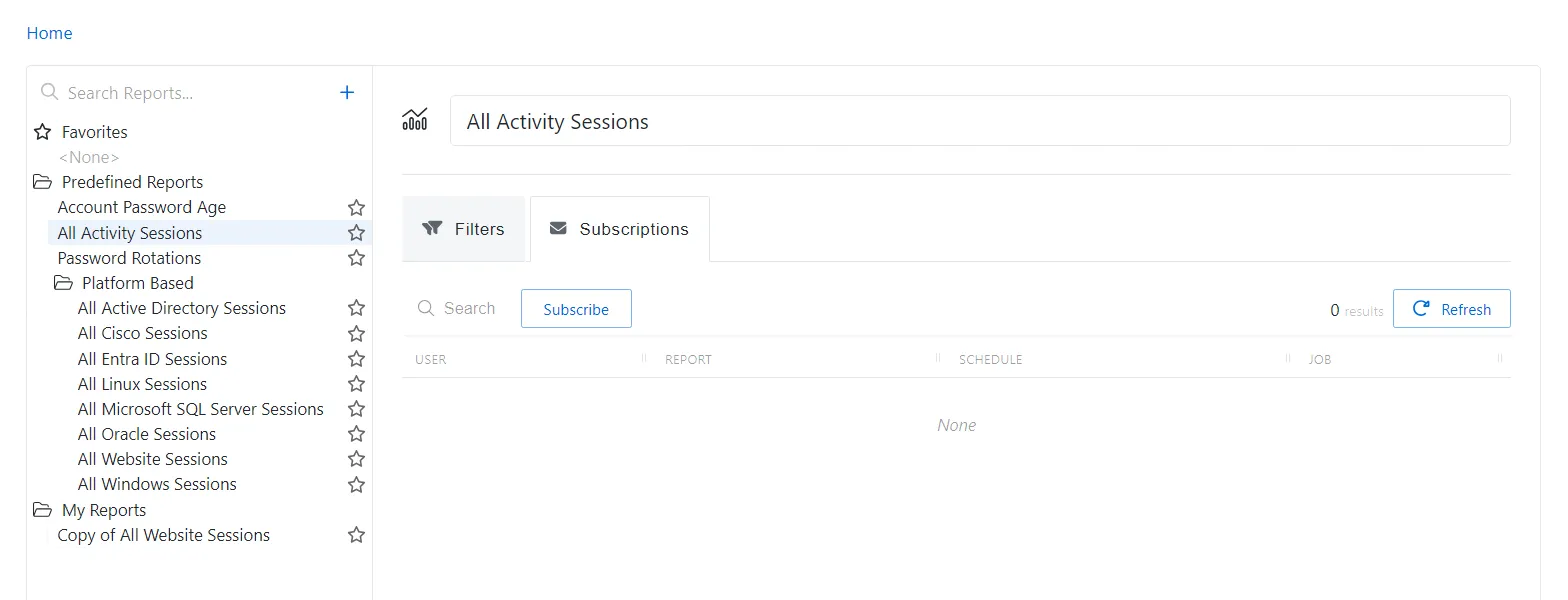
The report is emailed to the Email value for the user, which is populated based on Active Directory attributes and can be confirmed for a given user by checking the Users and Groups page. If a Subscription needs a new custom schedule, create one under the Policy > Platforms > Schedule Policies menu. All Schedule Policies shows up in the list when you Subscribe to a report. See the Schedule Policies Page topic for additional information.
The Subscriptions tab has the following configuration options:
- Search — Allows the subscriptions for this report to be searched based on the username of the subscribed Privilege Secure user
- Subscribe/Unsubscribe button — Subscribe or unsubscribe the logged in user to the report according to a specified schedule from the dropdown menu
- CSV checkbox — If checked, Privilege Secure emails a CSV of the report to the subscribed user
- PDF checkbox — If checked, Privilege Secure emails a PDF of the report to the subscribed user
- Subscriptions table — Shows the subscribed users for the report, and their subscription schedule