Users Tab for Access Certification
The Users tab shows the users and groups in the selected access certification task for which the reviewer must certify access entitlement.
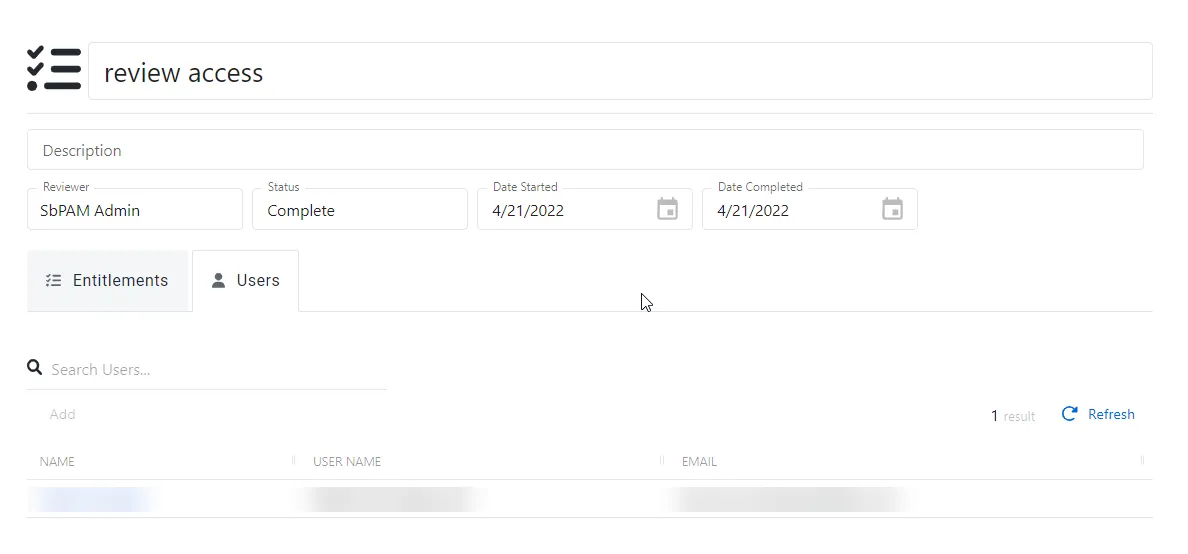
The Users table has the following features:
- Search — Searches the table or list for matches to the search string. When it finds matches, it filters the table or list to the matching results.
- You can resize column headers and sort them in ascending or descending order:
- Name — Click to open the Users and Groups Details page. See the User, Group, & Application Details Page topic for additional information.
- User Name — Displays the name of the account
- Email — Displays the associated email address, if available
- Type — User or Group
- Add button (Only visible when adding a new task) — Opens the Add Users and Groups window. See the Add Users to Review topic for additional information.
Add users to review
To add users and groups to the access certification task.
You can't add or remove users after you add them.
-
Navigate to the Audit and Reporting > Access Certification page.
-
In the Access Certification Task list, select the name of the task and select the Users tab
-
Click Add to open the Add Users and Groups window.
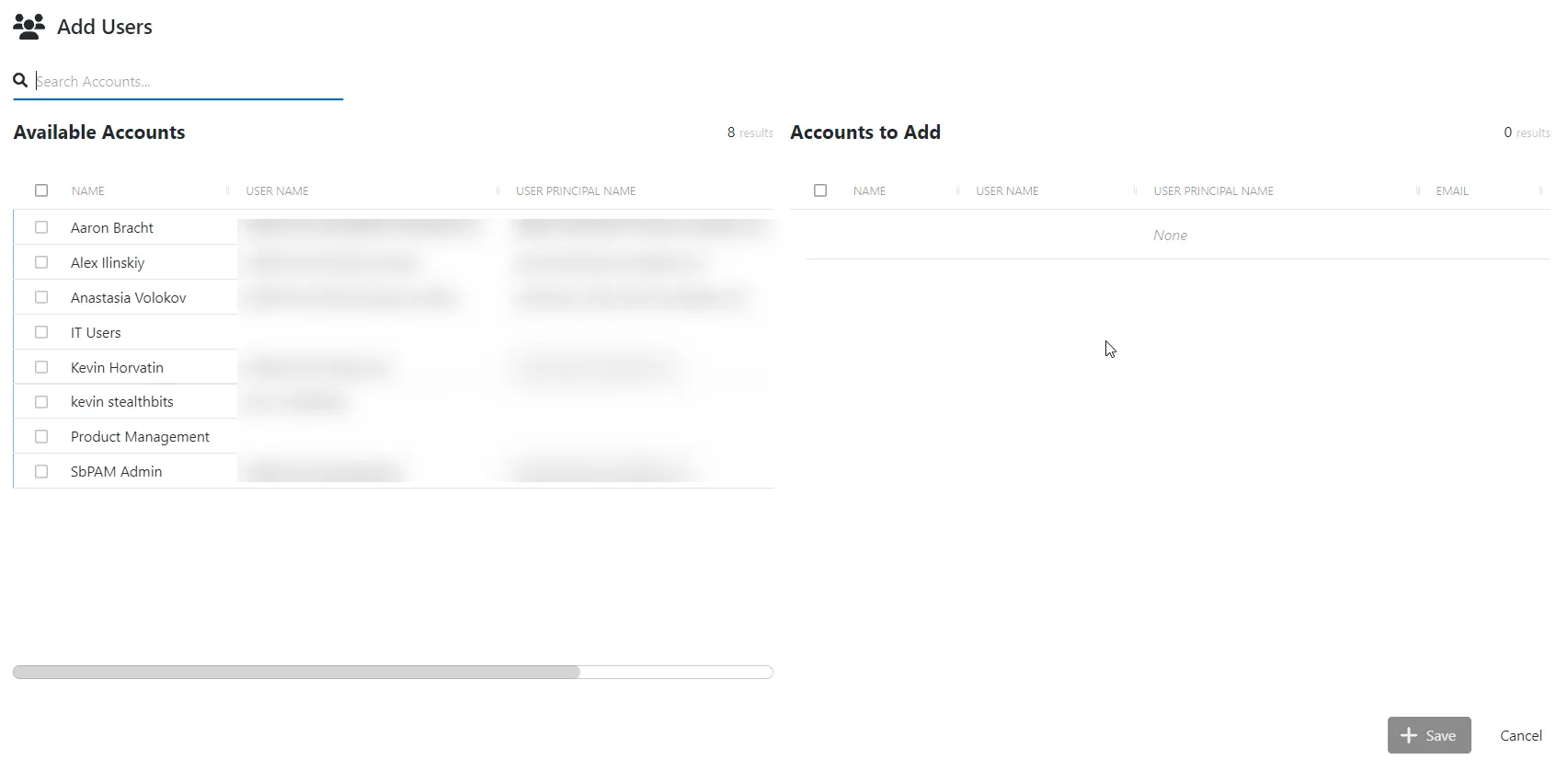
The Add Users and Groups window has the following features:
- Filter by users or groups
- Search — Searches the table or list for matches to the search string. When it finds matches, it filters the table or list to the matching results.
- Available Users/Groups — Shows all users and groups added to the console
- Users & Groups to Add — Shows the users to add to the access certification task
- You can sort column headers in ascending or descending order:
- Name — Displays the name of the account
- User Name — SAM Account Name for the user or group
- User Principal Name — User Principal Name (UPN) of the user or group
- Email — Displays the associated email address, if available
-
Filter by Users or Groups, or use the Search feature.
-
To add a user or group to the access certification task, click a row in the Available Users/Groups table. The row moves immediately to the Users & Groups to Add table.
-
(Optional) Click a row in the Users & Groups to Add table to move it back to the Available Users/Groups table.
warningYou can't add or remove users after you add them to the access certification task.
-
Click Add to add the users and groups to the access certification task.
The new users and groups appear in the certification task and on the Users Tab for Access Certification.
Only the assigned reviewer can interact with the entitlements after you create the access certification task.
The reviewer can now log in to see the access certification tasks assigned to them and begin the review process. See the Entitlements Tab for Access Certification topic for additional information.