When using a remote SQL Server, GPCR Snapshot fails with error "System.InvalidOperationException" and "MSDTC has been disabled" in Debug log
When using a remote SQL as the database for Netwrix PolicyPak Group Policy Compliance Reporter, the snapshot operation may fail with the following error.
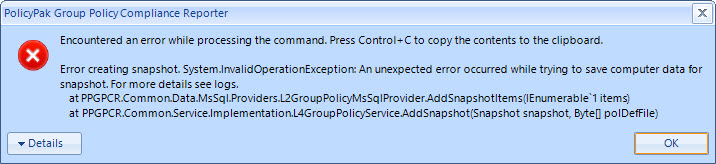
The Server Log will contain the following error as well:
System.Transactions.TransactionManagerCommunicationException: Network access for Distributed
Transaction Manager (MSDTC) has been disabled. Please enable DTC for network access in the security
configuration for MSDTC using the Component Services Administrative
tool. ---> System.Runtime.InteropServices.COMException: The transaction manager has disabled its
support for remote/network transactions. (Exception from HRESULT: 0x8004D024)
To enable diagnostic logging, follow the directions in the article How do I turn on enhanced logging for PolicyPak Group Policy Compliance Reporter if asked to do so?
The resulting GPCR Server log can be found in:
C:\ProgramData\PolicyPak\PolicyPak Group Policy Compliance Reporter Server\Diagnostics
Resolution
To resolve the error and allow snapshots to complete successfully, you must enable Network DTC Access and ensure the firewall allows the traffic through.
Enable DTC
The following is run on both the PolicyPak GPCR Client computer (Where the Admin Console is installed) and the remote SQL Server
Step 1 – Open Component Services
-
Open the "run" box (Win-R), type
"dcomcnfg"and click OK
Step 2 – Expand Console Root -> Component Services -> Computers -> My Computer -> Distributed Transaction Coordinator, Right-Click on Local DTC and click Properties
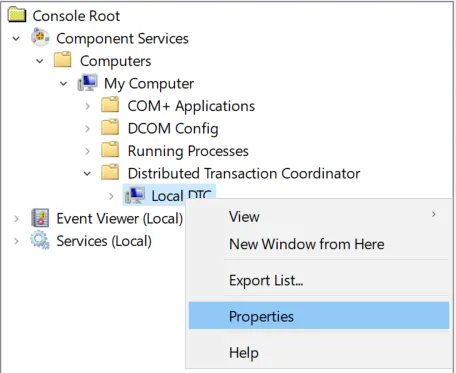
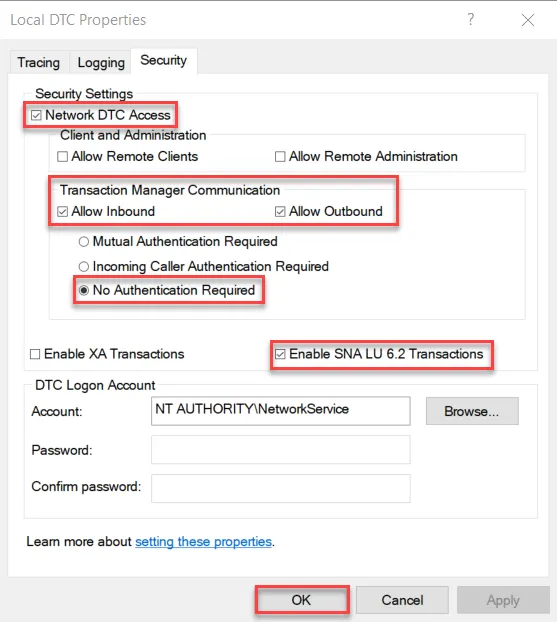
Step 3 – On the Security tab -> Security Settings and Configure as follows:
-
Check "Network DTC Access"
-
Check "Allow Inbound" and "Allow Outbound"
-
Select "No Authentication Required"
-
Check "Enable SNA LU 6.2 Transactions"
-
Click OK
Step 4 – The MSDTC service will need to be restarted for the changes to take affect – Click YES to restart now or NO to restart manually later.
Enable Firewall Rules
Enable DTC through the firewall on both PolicyPak GPCR Server and the remote SQL Server
Step 1 – Open the Windows Defender Firewall
Step 2 – Click on "Allow an app or feature through Windows Defender Firewall"

Step 3 – Find "Distributed Transaction Coordinator", check and check the appropriate Network profile (e.g. Domain).

Step 4 – Click OK to save and close