Working with Groups
The Computer Groups tab works much like Microsoft's Group Policy Management Console (GPMC). PolicyPak Cloud has similar concepts to Group Policy and the GPMC. Almost all principles in the GPMC transfer here. The following table describes the subtle differences between Group Policy and PolicyPak Cloud.
| Group Policy | PolicyPak Cloud |
|---|---|
| GPOs can contain Microsoft or PolicyPak data. | XML data files (policies) contain Microsoft or PolicyPak data created from real GPOs. You can also use in-cloud editors to create XML data files (policies) or import a GPO backup file and create XML data files. |
| Uses concept of organizational units (OUs) | Uses concept of groups |
| OUs can contain users or computers | Groups can only contain computers |
| Computers can only be in one OU | Computers may reside in multiple groups |
| GPOs are linked to OUs | XML policies are linked to groups |
| OUs can be nested | Groups can be nested |
| Multiple GPOs can be linked and ordered within an OU | Multiple XML policies can be linked and ordered within a group |
| OUs can block inheritance, thus preventing parental GPOs from applying | Sub-groups can block inheritance, thus preventing parental XML policies from applying |
| GPOs can be enforced, thus ensuring they are always embraced | XML policies can be enforced, thus ensuring they are always embraced |
| GPOs linked to the domain are usually embraced by everyone | XML policies linked to the "All" group are always embraced by all computers and by everyone |
| GPMC has group policy modeling to predict which GPOs will apply | PolicyPak Cloud has a policy forecast/modeling report that can predict which XML policies will apply to a computer |
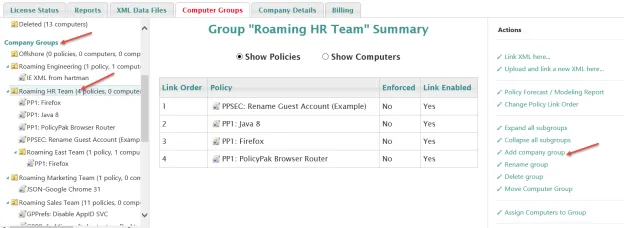
Company groups are groups you define for your needs. You can click Add company group in the action pane at any time. You can add company groups by clicking the Company Groups node, or by clicking any existing company group and making a sub-group. The following image shows several example company groups and sub-company groups.
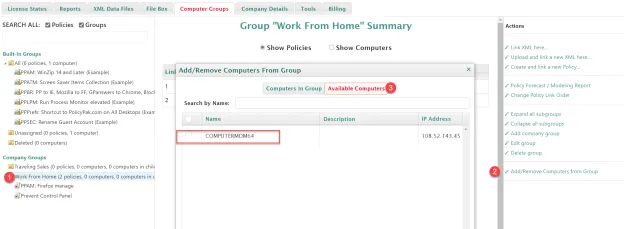
Unlike Microsoft Group Policy, PolicyPak Cloud lets a computer be a member of multiple groups. Click the company group, then select Add/Remove Computers from Group and click Add. Then you can select either Computers in Group (meaning the computers already within this group) or Available Computers (meaning computers not yet in this group). You can select or un-select computers as needed.
You can also perform other context-sensitive actions after you click a company group.
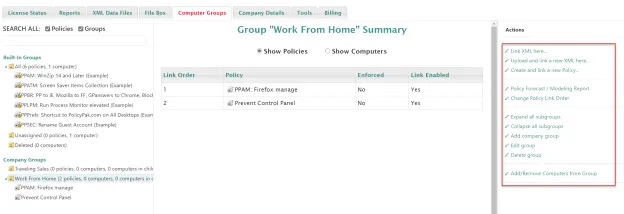
The following list describes the context-sensitive actions:
- Link XML here... lets you select an XML file you uploaded previously and link it to the selected group.
- Upload and link a new XML here... lets you upload and link an XML data file in one step, instead of uploading it from the XML Data Files tab.
- Create and link a new policy... lets you use in-cloud editors to create a new XML policy and link it to the selected group.
- Download All Policies linked to group (.zip) and Download All Policies linked to group (.msi ) download all the group-affiliated policies simultaneously in the selected format.
- Set group computers certificates expiration sets the number of days until the certificates of computers in this group expire. PolicyPak Cloud reissues the certificates automatically after the next successful sync if you set expiration to occur in 30 days or earlier.
- Revoke(void) all group computers certificates for the policy-covered computers to stop syncing immediately.
- Policy Forecast / Modeling Report determines which policies to expect on an endpoint (see the "Policy Forecast/Modeling Report" section).
- Change Policy Link Order lets you reshuffle the order in which PolicyPak Cloud prioritizes policies for enforcement (see the "Policy Link Order" section).
- Expand all subgroups and Collapse all subgroups apply to the highlighted groups.
- Add company group to a selected parent group.
- Edit group to move a group, all computers, and all linked policies to another location (or parent group). You can move a group to any other company group, or out of all other company groups (thus making it a top-level node). You can also specify the client-side extension (CSE) version, the PolicyPak Cloud client version for this group, and the refresh interval for the computers (see the "Company Groups" section).
- Delete group while leaving the associated computers in the other groups they belong to. If a computer is no longer a member of any other group, PolicyPak Cloud automatically places it in the built-in group named "Unassigned".
- Add/Remove Computers from Group changes computer affiliation into company groups. Computers may be in multiple company groups at the same time.
- Bulk add/move computers to group and Bulk remove computers from group change computer affiliation into company groups by means of a CSV file.
Built-In Groups
Use built-in groups to perform actions on computers that meet certain criteria.
| Built-In Group Name | Ability to Link with XML Data Files | Notes |
|---|---|---|
| All | Yes | All computers are members of the All group. Use the All group when you want to guarantee that every computer joining PolicyPak Cloud embraces specific XML data files. PolicyPak Cloud always enforces XML policies linked to the All group. |
| Unassigned | Yes | Computers appear here only when they aren't assigned to a company group. |
| Deleted | No | Deleted computers appear in this group. You can un-delete them, which moves them to Unassigned. You can also permanently delete computers from the Deleted group. When you do, PolicyPak Cloud reclaims a license. |
The following image shows XML data files linked to the All group.
PolicyPak Cloud always enforces policies linked to the All group.

Company Groups
Video: For an overview of this section, watch PolicyPak Cloud Groups CSE and Cloud Client Small-Scale Testing and Updates.
Netwrix updates the PolicyPak CSE and the PolicyPak Cloud client periodically for bug fixes and for new features. For instance, every new component requires a new CSE, because an old CSE won't have the code to perform the work of the new CSE. This means that while PolicyPak Cloud may get new in-cloud editors or accept policies for new components as XML data files, your endpoints won't know what to do with these directives until you update their CSE. Moreover, a bug fix, an enhancement to PolicyPak Cloud licensing, or a special PolicyPak Cloud feature reaches your endpoints only through an update to the latest PolicyPak Cloud client.
Endpoints only use the PolicyPak Cloud client or CSE that they started with, or that you tell them to upgrade to. As such, you need to keep your computers up to date so they can get the latest policies and directives. However, mass updating 100% of your endpoints at the same time is ill-advised for the same reasons you wouldn't want to roll out new system-level software to 100% of your machines at once. As such, review Microsoft's recommendation for a ring model for rollouts. Netwrix documents this in detail: https://www.policypak.com/resources/pp-blog/using-rings-to-test-and-update-the-policypak-client-side-extension-and-how-to-stay-supported/.
In PolicyPak Cloud, groups already exist as a concept, so you can use a PolicyPak Cloud group like a ring. To do this, choose a group and manually specify to use a particular version of the CSE on that group. You can also specify to use a particular version of the CSE everywhere (using the special All group).
Considering this, Netwrix recommends the following:
- Set up a group of 2–5% of your computers. When Netwrix releases a new CSE, opt in and use this group to start testing and verify success. If there's a problem, you can raise it to the PolicyPak support team, which will work with you.
- If testing succeeds, you can roll out the latest CSE to more PolicyPak Cloud groups. Select the CSE within the group. Your target rollout for the new CSE should be around 30–50% of your Windows 10 machines. At this point if there's a problem, you can raise it to the PolicyPak support team, which will work with you.
- Then, after you've rolled out to 50% of your machines, you should be confident enough to roll it out to all machines.
- At this point, pick the remaining PolicyPak Cloud groups and select the latest CSE to opt-in more groups.
- Alternatively, use the special All group to finish by mass upgrading the remaining PCs all at once (only do this after you've done some testing).
The following example creates a sub-group of the Work From Home group called Friendly Testers, then configures it to use the latest CSE and the latest PolicyPak Cloud client version. You can also change how often these computers check in for new policies.

Now the sub-group appears. The computers in Friendly Testers would now get the latest CSE and PolicyPak Cloud client version.
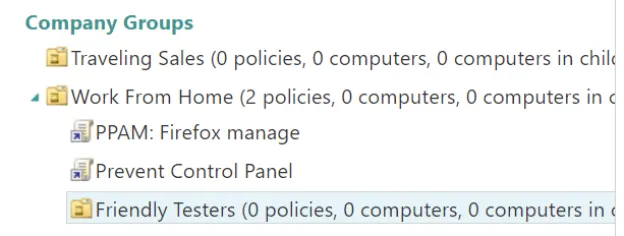
After you confirm that everything works as expected, you can apply this to more groups. When you are satisfied with the results, you can use the All group to force the latest version everywhere. When you do this, no groups can deliver a CSE or PolicyPak Cloud client version that is lower than the version you set in the All group.

Policy Forecast/Modeling Report
After you've linked multiple policy XML files to various groups, you might want to know what you can expect on an endpoint. Policies are cumulative in the following manner:
- PolicyPak Cloud always applies policies from the built-in All group, and you can't avoid them.
- PolicyPak Cloud applies policies from all nested company groups from lowest to highest policy link order.
- PolicyPak Cloud applies policies from the group where the computer ultimately resides from lowest to highest.
Use the Policy Forecast/Modeling Report to determine which policies to expect on the endpoint.
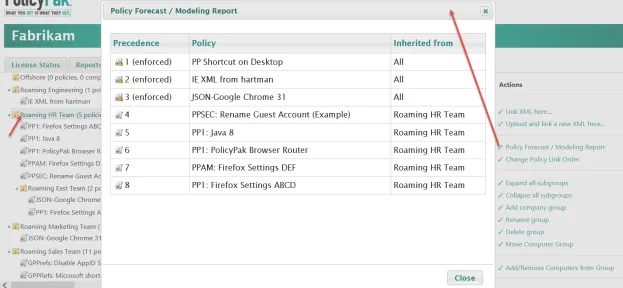
The following image shows eight applied policies. Three come from the built-in All group, which you can't avoid, and the group itself provides the rest directly. If you click a sub-group that has its own policies and then look at the Policy Forecast/Modeling Report, you see its policies also appear in the report.
The report shows precedence order, meaning the lowest number will win in a conflict.
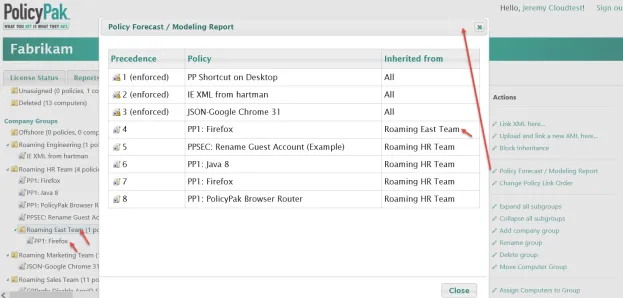
A warning about the Policy Forecast/Modeling Report: if a computer is in two or more groups, the report won't show the expected result. It can only model one group at a time and can't account for a computer being in multiple groups at the same time.
Policy Link Order
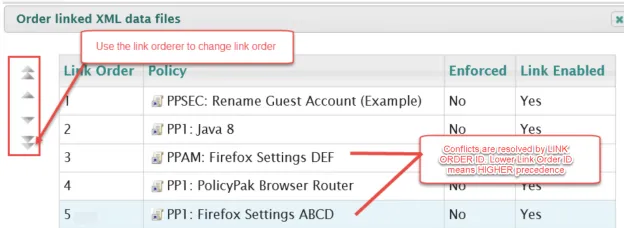
PolicyPak Cloud displays policy XML files linked at any level in two ways. The left pane lists them alphabetically. The middle pane lists them by link order.
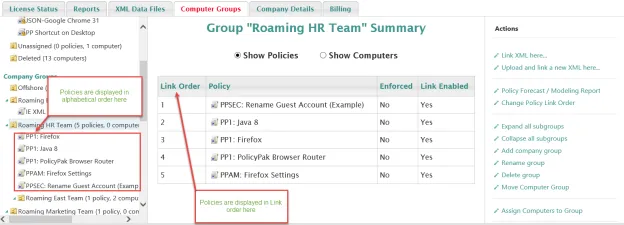
Link order is a way to order and prioritize policies. The lowest link order number gets the highest overall precedence. In this way, within a particular level, if you had conflicts you needed to resolve, you could click the items and the order as needed.
In most cases, you won't need to do this, but you might if you have multiple policies with conflicting settings. In other words, all policies are additive, unless there's a conflict. When policies conflict, the highest-priority policy wins — the one with the lowest link order number in the display list.
To see this, first select a group, then select Change Policy Link Order in the action pane to get the Order linked XML data files window.
Block Inheritance and Enforcement
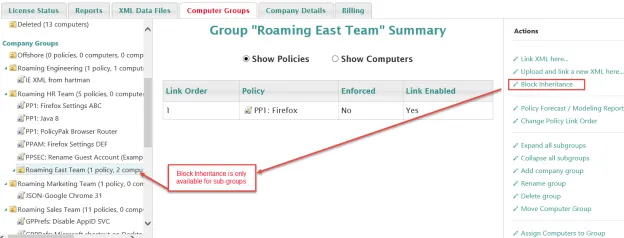
PolicyPak Cloud has the same block inheritance and enforcement concepts as Group Policy. Block inheritance stops upper-level policies from affecting machines in sub-groups. It is available only for sub-groups, not for top-level parent groups.
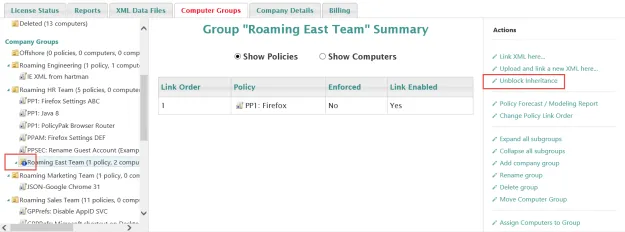
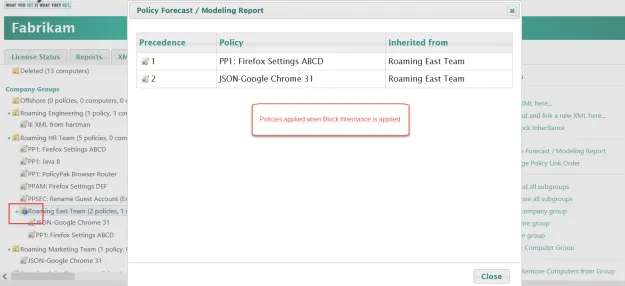
When you enable block inheritance on a child group, a blue exclamation mark signifies it is on. To remove it, select the group, then select Unblock Inheritance.
The net result of block inheritance is that XML policies from parent groups don't flow down. The following image shows the policies when there is no block inheritance.
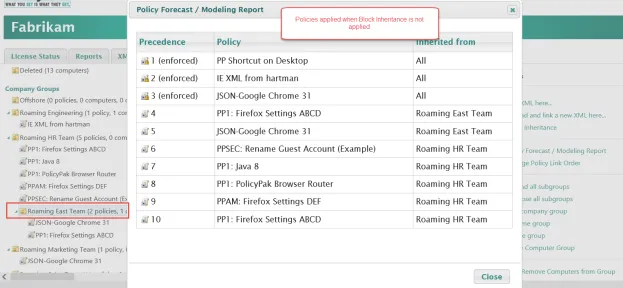
PolicyPak Cloud doesn't apply policies from parent groups when block inheritance is active.
When you select a policy, you can choose it for enforcement. Enforcement means the policy breaks through a block inheritance if that policy is higher in the hierarchy.
Search Box
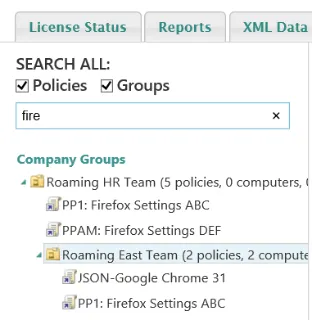
Use the search box to look for policies and groups that match a word. The following image shows a search for the word "fire" that finds policies and groups containing that word.