Creating and Using Executable Combo Rules
Previous examples covered Simple rules and introduced Combo Rules.
Simple rules often suffice. However, sometimes you need more tuning. In previous examples, PolicyPak Least Privilege Manager UI prompted you to create Combo rules, because it detected a non-Best Practice.
A Simple rule can be any one of these items:
- Path (name or location)
- Hash (fingerprint of the file)
- Signature (digital signature of the file)
- File info (file attributes)
This can be limiting if, for instance, you want to elevate an application by its name and ensure the file is digitally signed by a publisher. Combo rules exist for this reason.
However, you can begin correctly by making your own Combo rules.
See the More security with Combo Rules video for an overview of using PolicyPak Least Privilege Manager and Combo rules.
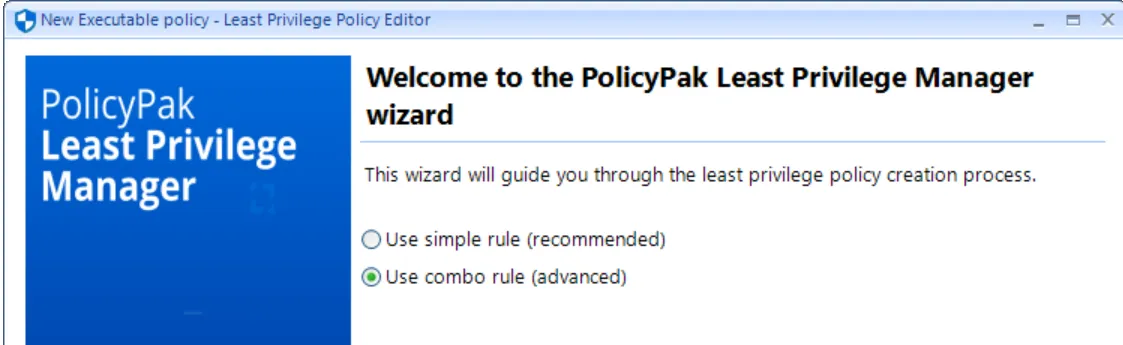
With Combo rules turned on, you can match more than one condition.
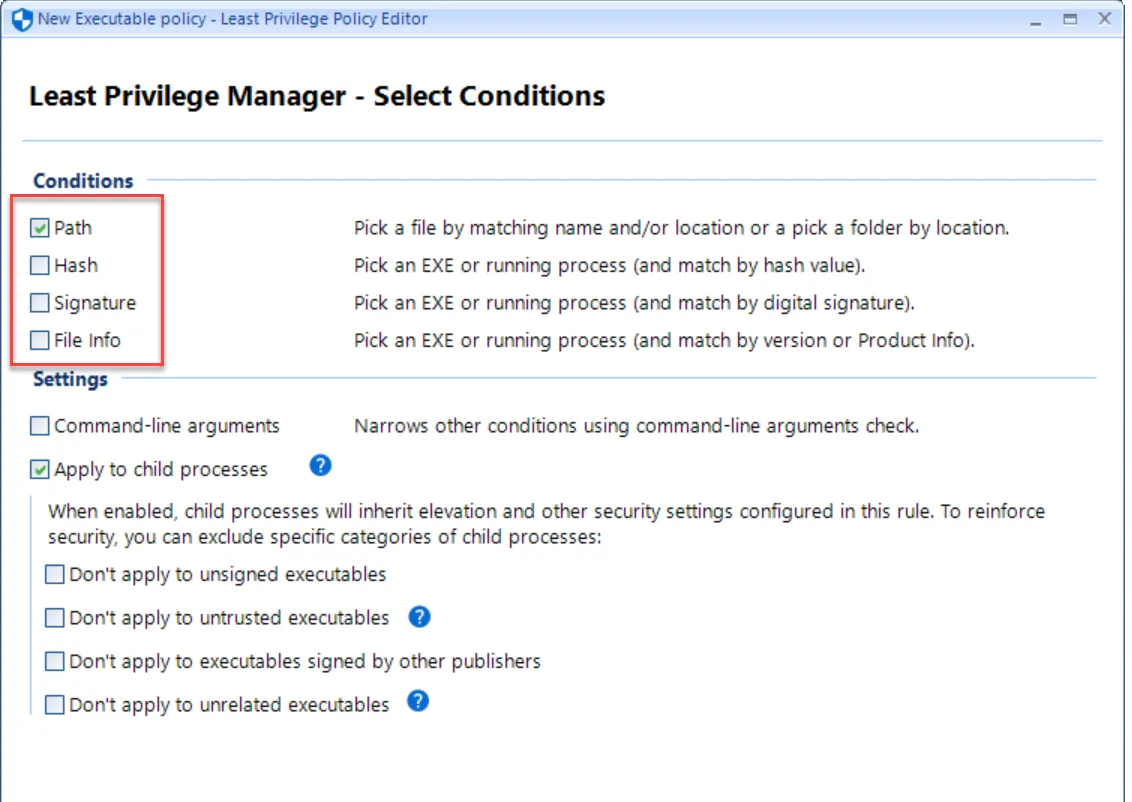
Combo rules are useful in a variety of situations. The most common situation occurs when you want to elevate an application to allow it to run or install. You can do this based on its digital signature and inner product info. You could use all four conditions if you want to make the tightest match possible.
To do this, create a Combo rule and select the two (or more) types of characteristics. Again, the most secure method is Signature and File Info.
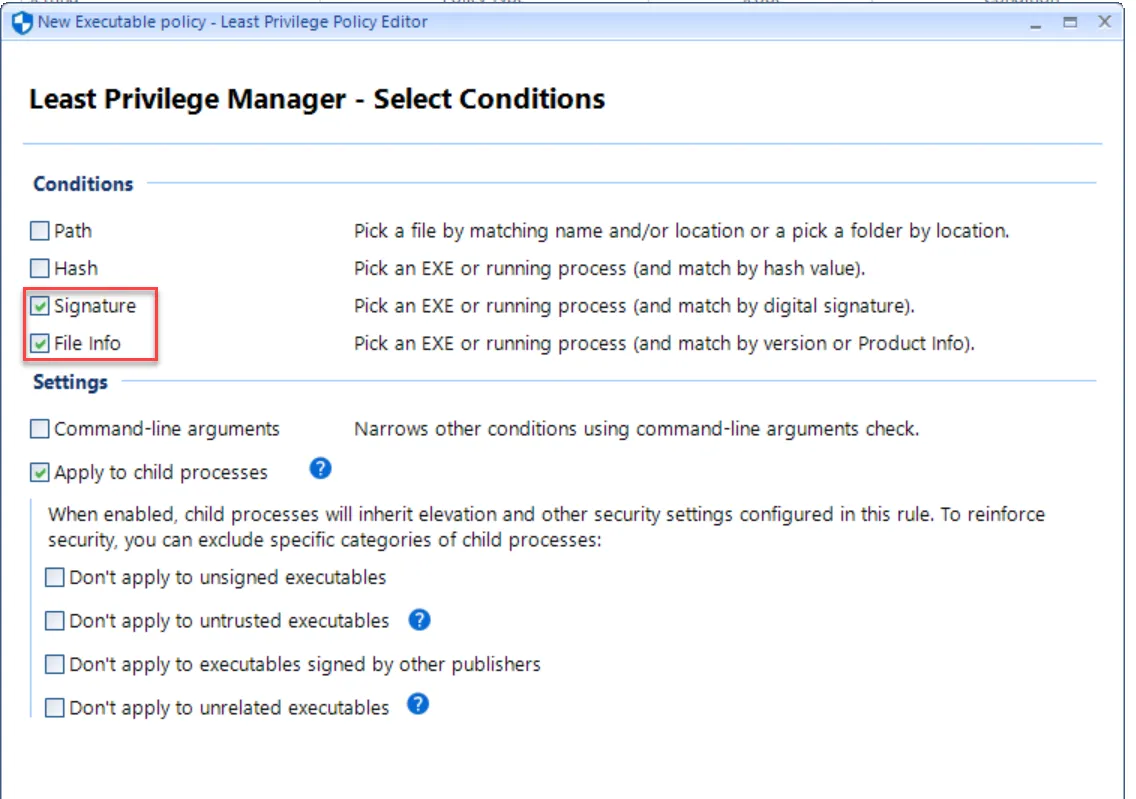
The Combo rule wizard is different from the Simple rule wizard. This combo rule requires two steps to complete. As you can see, a specific file as a reference file for Signature Condition.
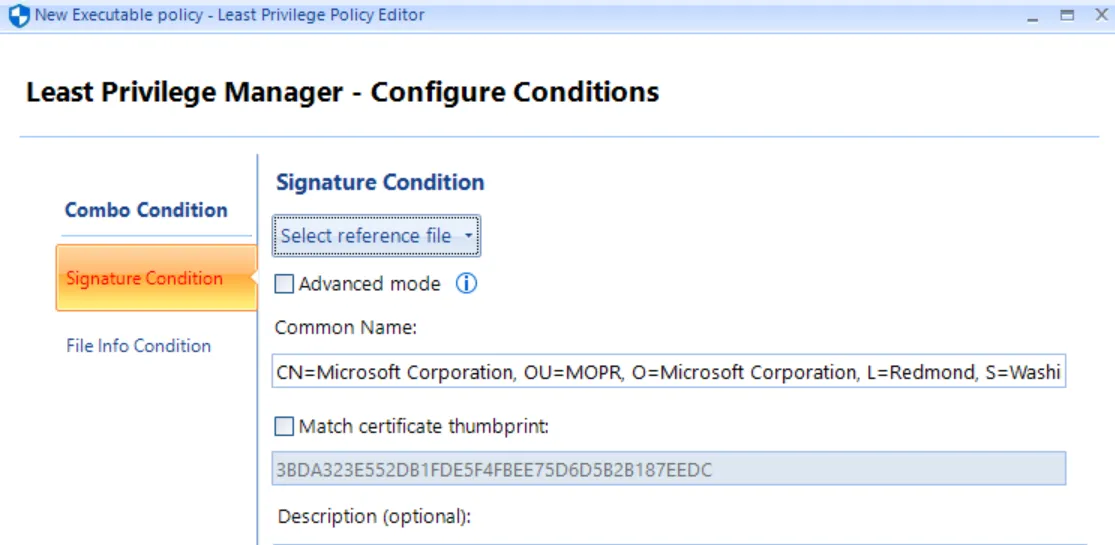
In the next step of the wizard for File Info, select the same file. You could also select a different file, but this isn’t normally done.
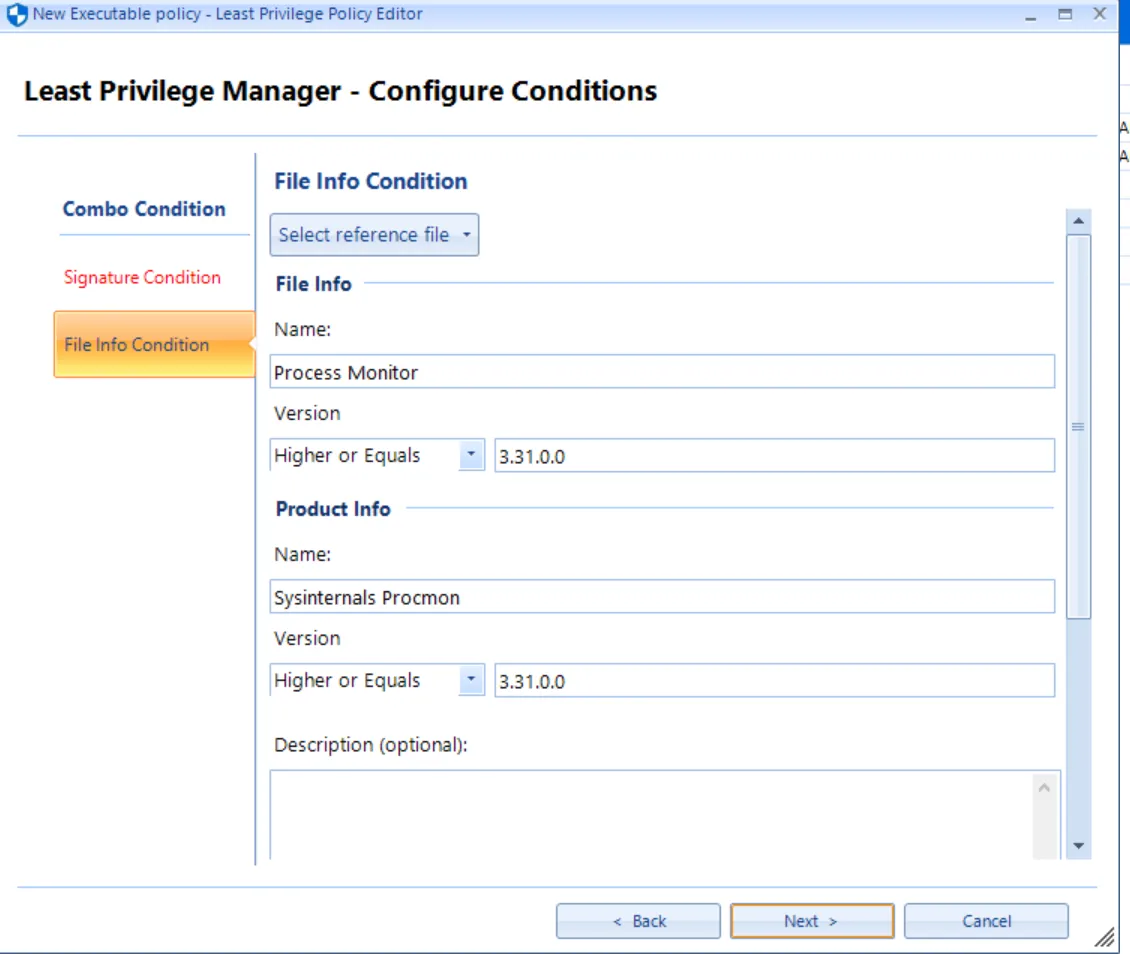
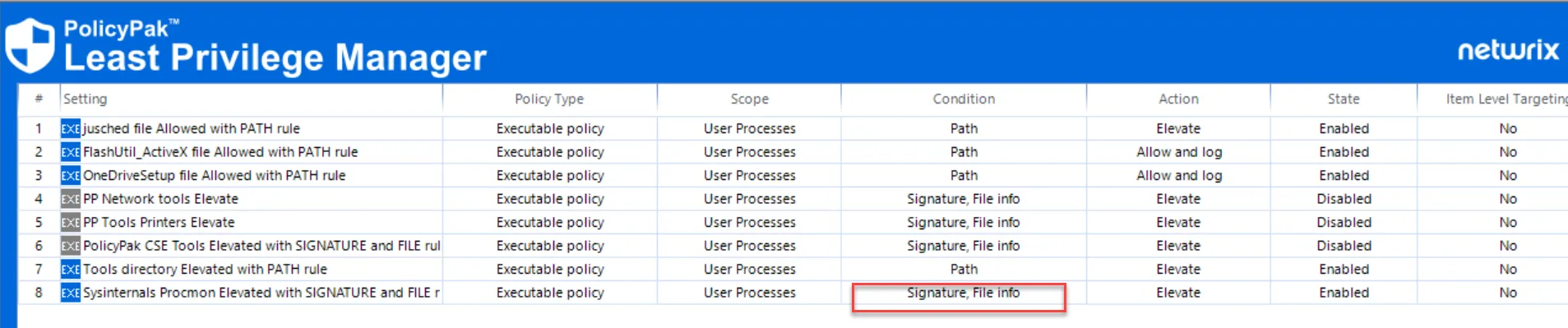
Then choose the same actions as before, such as Run with elevated privileges. When the wizard is complete, the MMC list will demonstrate the multiple conditions in the Condition column with Signature, File Info.