Creating and Using Command Line Rules
Sometimes an application only runs from the command line, or you want to run an application with specific command-line arguments. This can occur in day-to-day use or with items that must run from a logon script and perform the task with elevated rights.
See the Prevent Users Running some commands with command lines video for an overview of using PolicyPak Least Privilege Manager and command-line arguments.
For example, you can enable standard users to start and stop services with a command line, or to run the Performance Monitor’s Resource Monitor. Both run from the command line.
A Combo rule addresses this issue, by using Path and Command-line argument rules.
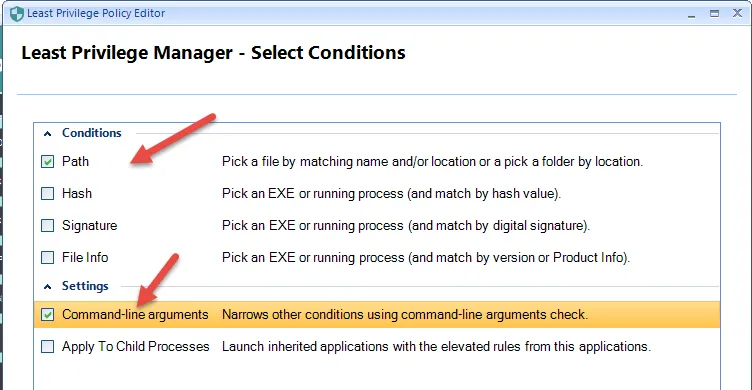
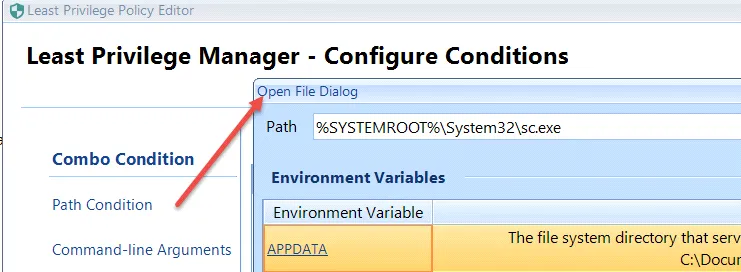
The first step is to specify the Path Condition, such as
%SYSTEMROOT%\System32\sc.exe.
For the command-line arguments in this example, specify stop wsearch, which stops the Windows Search Service.
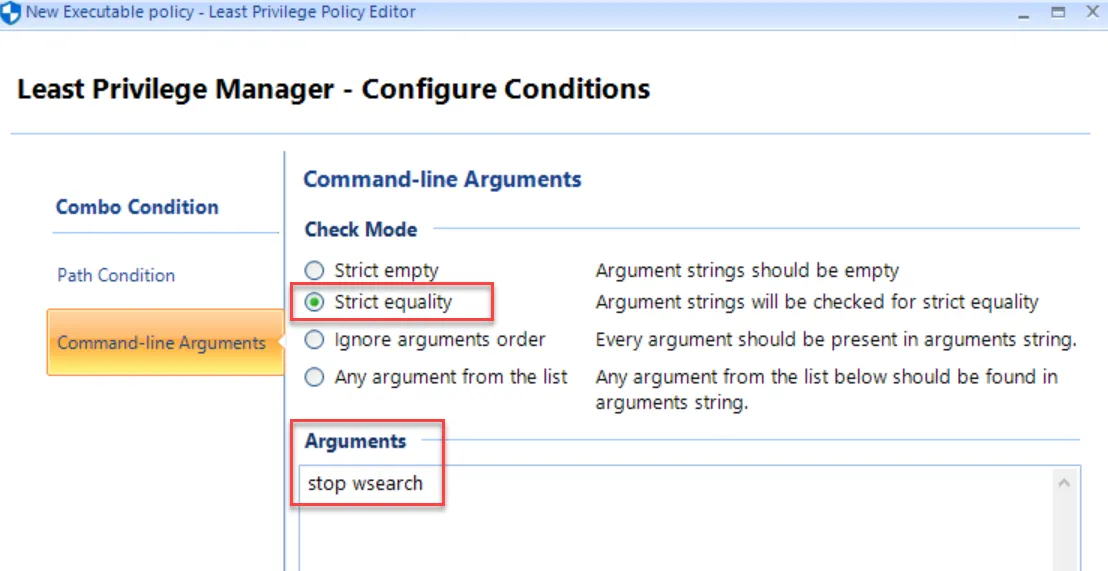
For Check Mode, there are four choices:
- Strict empty - Command must have no arguments.
- Strict equality - This means the Command and Rule will be elevated (or otherwise run) when the arguments are exactly as you specify in the same order, with no variance.
- Ignore arguments order - This means the Command and Rule will be elevated (or otherwise run) when all the arguments are in place, regardless of the order.
- Any argument from the list - This means that any argument in the Arguments box (separated by spaces) is allowed in the command.
Ignore arguments order and Any argument from the list only work when the command has slash-based switches. If the command line doesn’t have slashes, then use the Strict equality method.
On the next screen, for Action, select Run with elevated privileges.
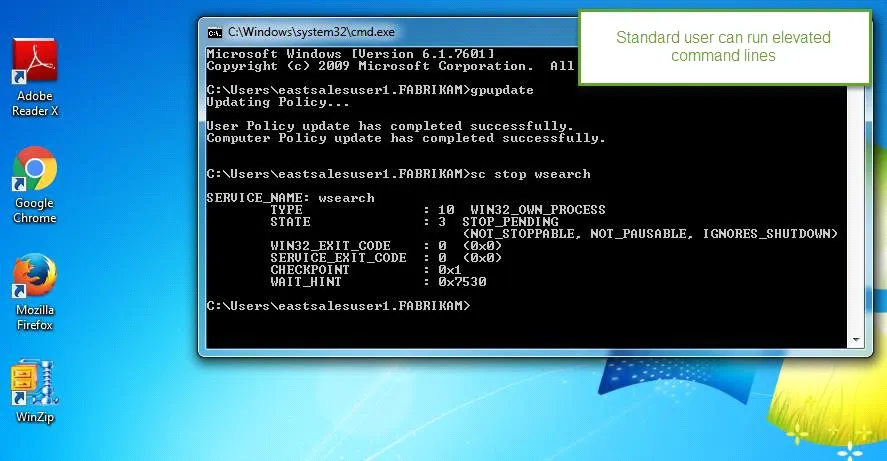
The net result is that standard users can now stop the wsearch service without needing
elevated rights.
For example, you can enable Standard Users to perform their own Registry merge. To do this, make a
Combo rule, which starts with the Path Condition running %SYSTEMROOT%\System32\reg.exe (not
shown).
For the Command-line Arguments, select Strict equality, and then specify the location of the .REG file, perhaps on a secure file server.
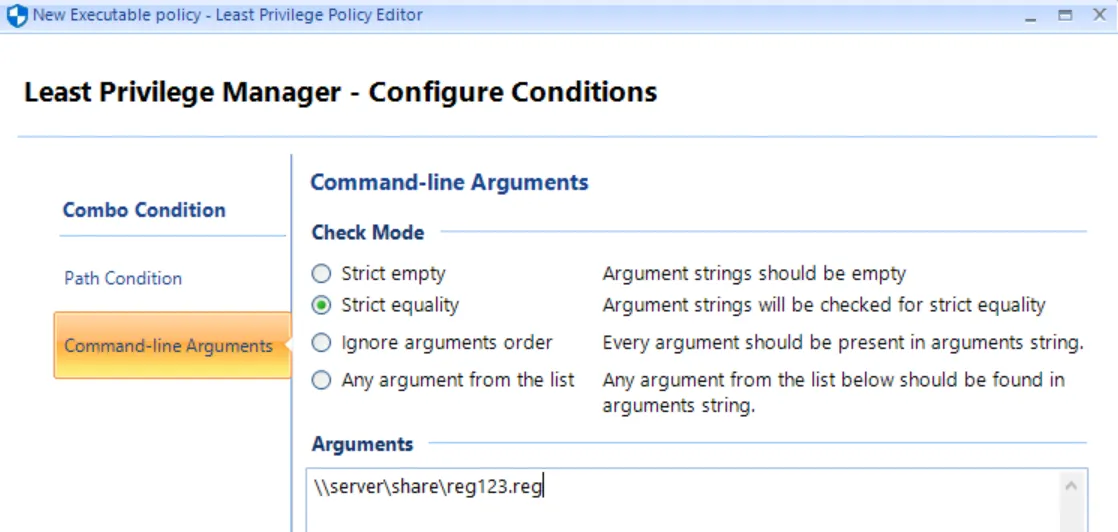
Since the admin specifies the arguments, a user can't add their own .REG files; they can only add those the admin specifies (e.g., on a server where they can only read and not modify it).